
Need a desk for today or another day? This article shows you how to book one by choosing the day and the floor, how to check in if the booking is for today, and where to find your booking on Home afterwards.
Book from the Home screen
The booking bar under the greeting has three boxes: When, For and Where. Leave For set to All, so you see every free desk and space.
-
Choose the day. Click When and pick a day. Click Today or Tomorrow for a shortcut, or choose any date in the calendar.
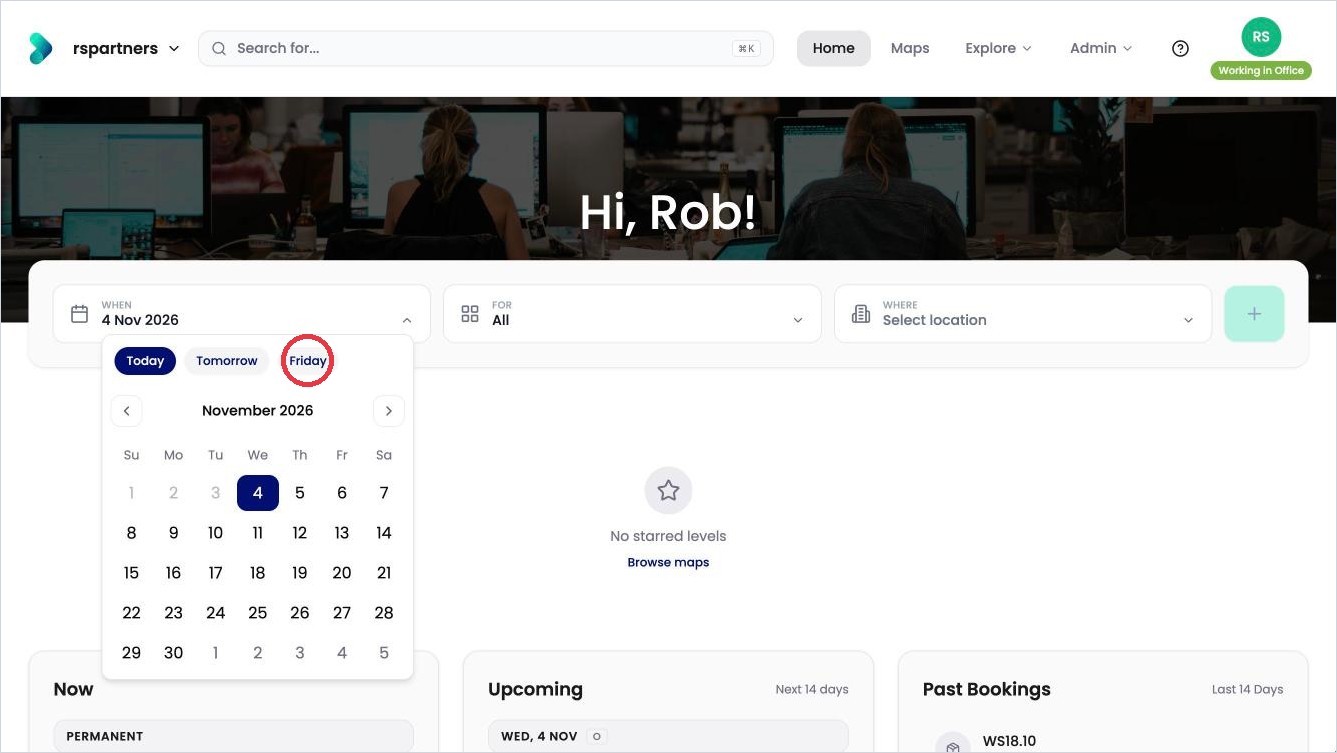
Click When and choose the day. -
Choose where. Click Where and choose a floor. Each floor shows how many are free on the day you chose. Your starred floors are under Starred.
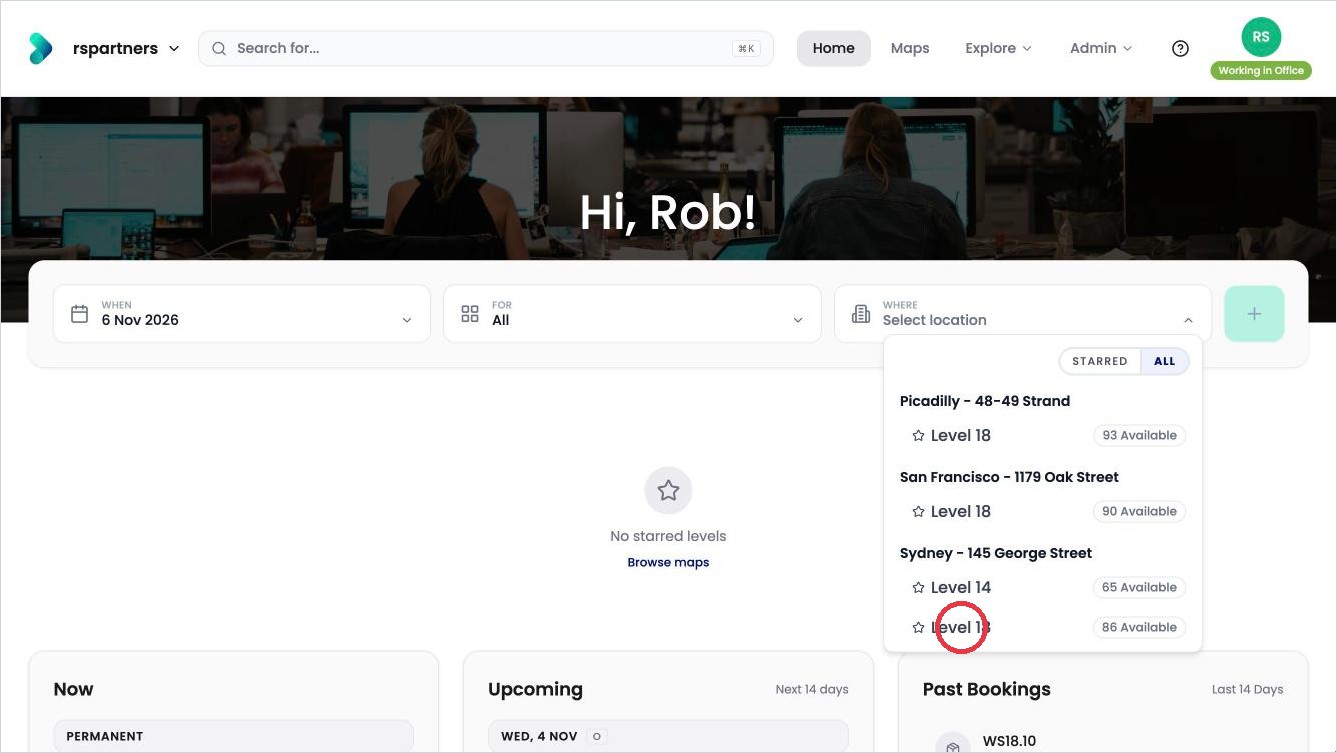
Click Where and choose a floor. The count shows how many are free. -
Click + to open the floor.
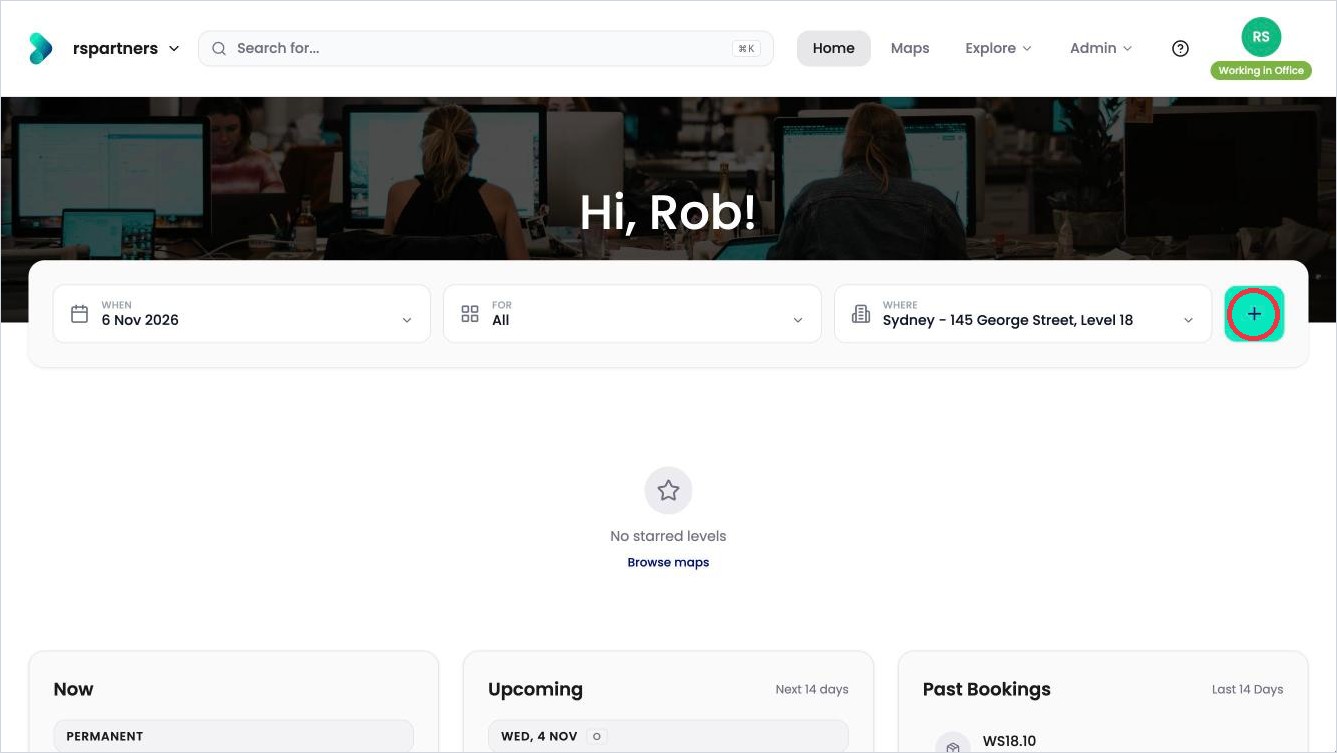
Click + to open the floor. -
Free desks have a green Select button. Click Select on the desk you want.
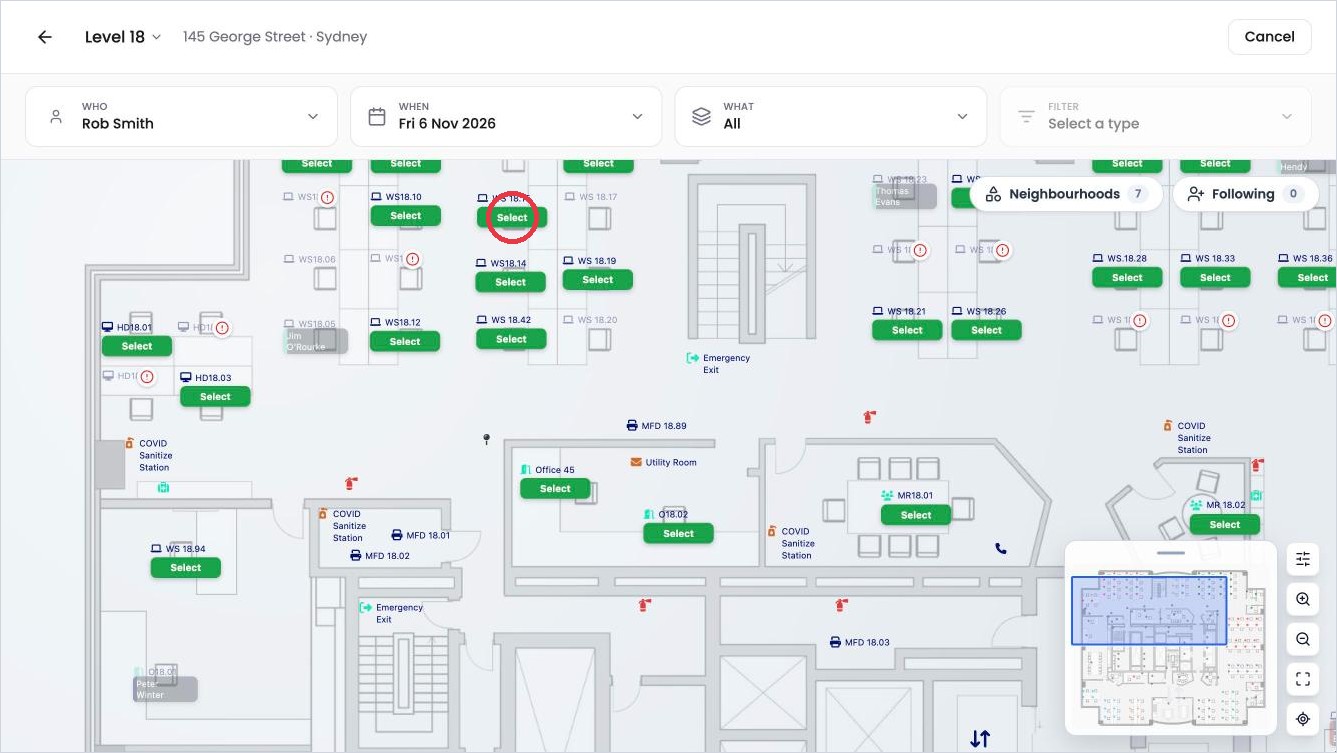
Click Select on a free desk. -
Check the details on the right, then click Confirm booking.
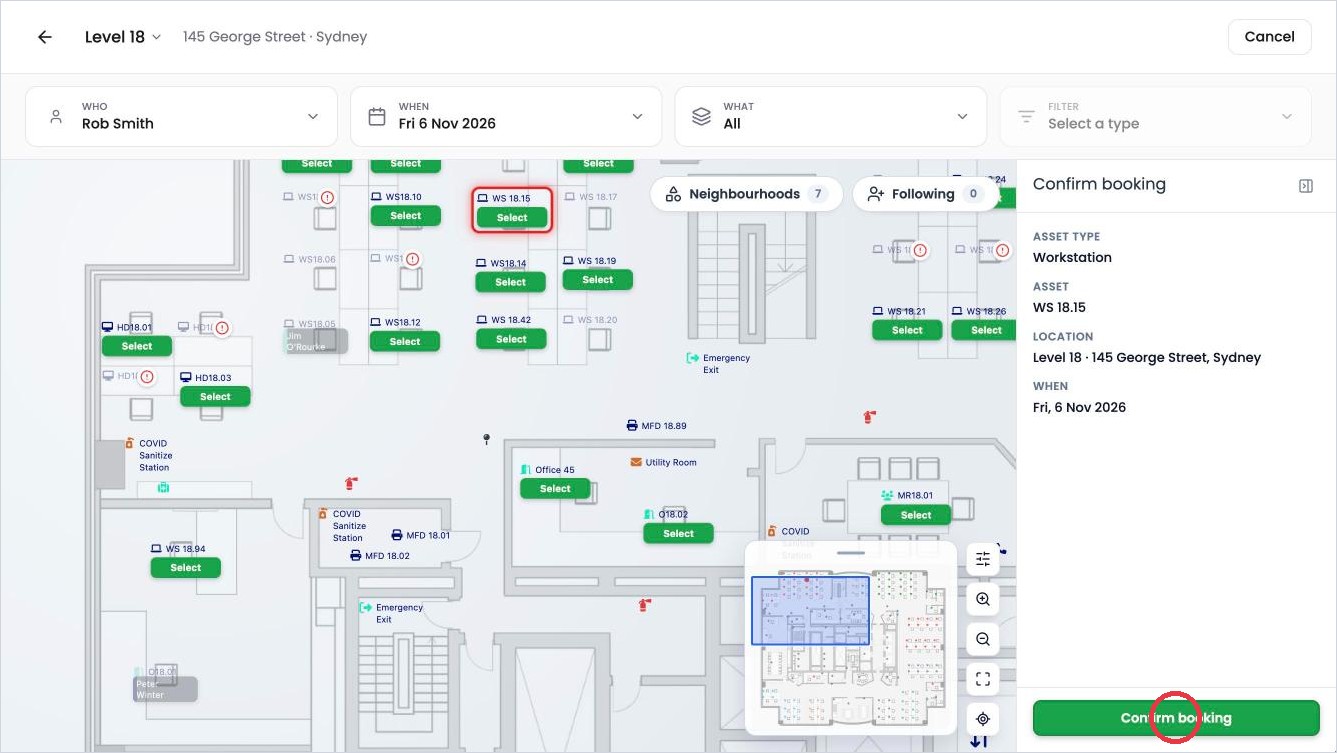
Check the details, then click Confirm booking.
If you booked for today
OfficeMaps shows Reserved and asks if you’d like to check in.
-
Click Check In now, then choose how long you need the desk, such as Today or 2 hrs.
-
Or click Later, and check in when you arrive. See How do I check in or cancel a booking?
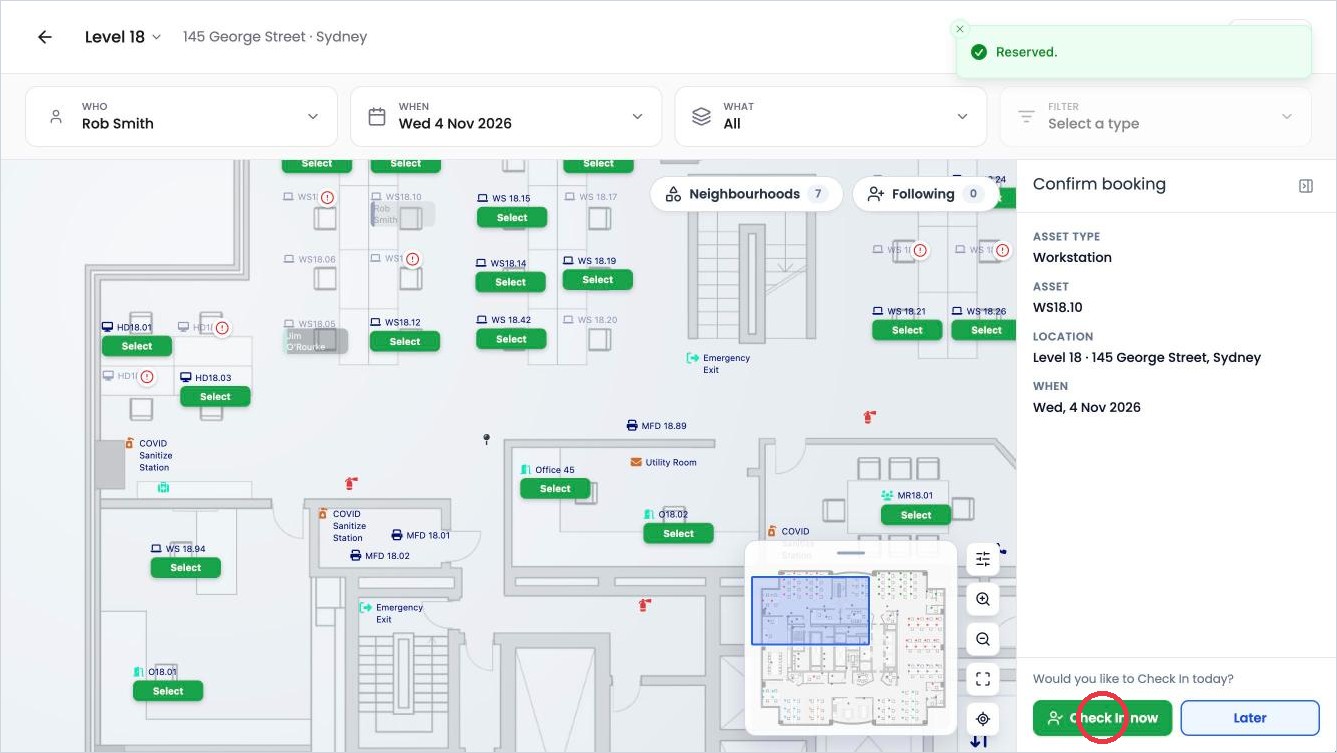
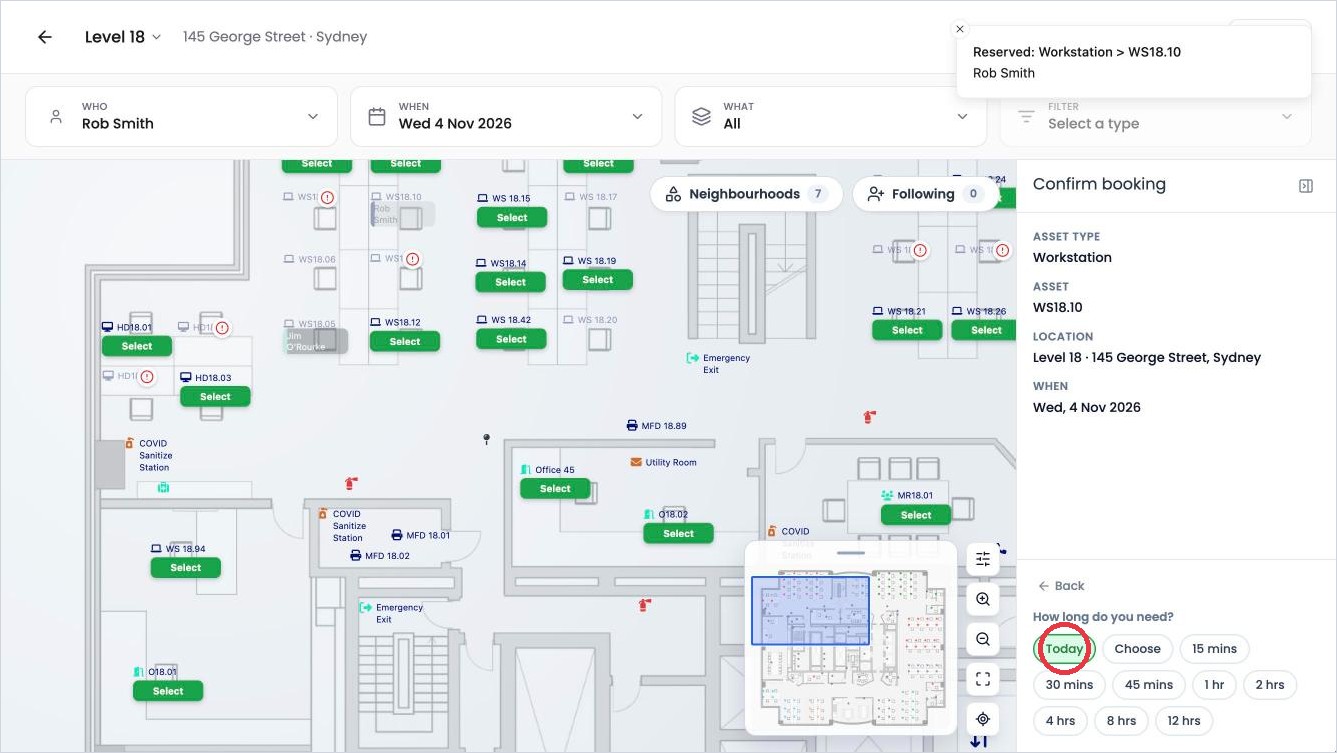
If you booked for another day
There’s no check-in step. OfficeMaps shows Reserved, and you check in on the day.
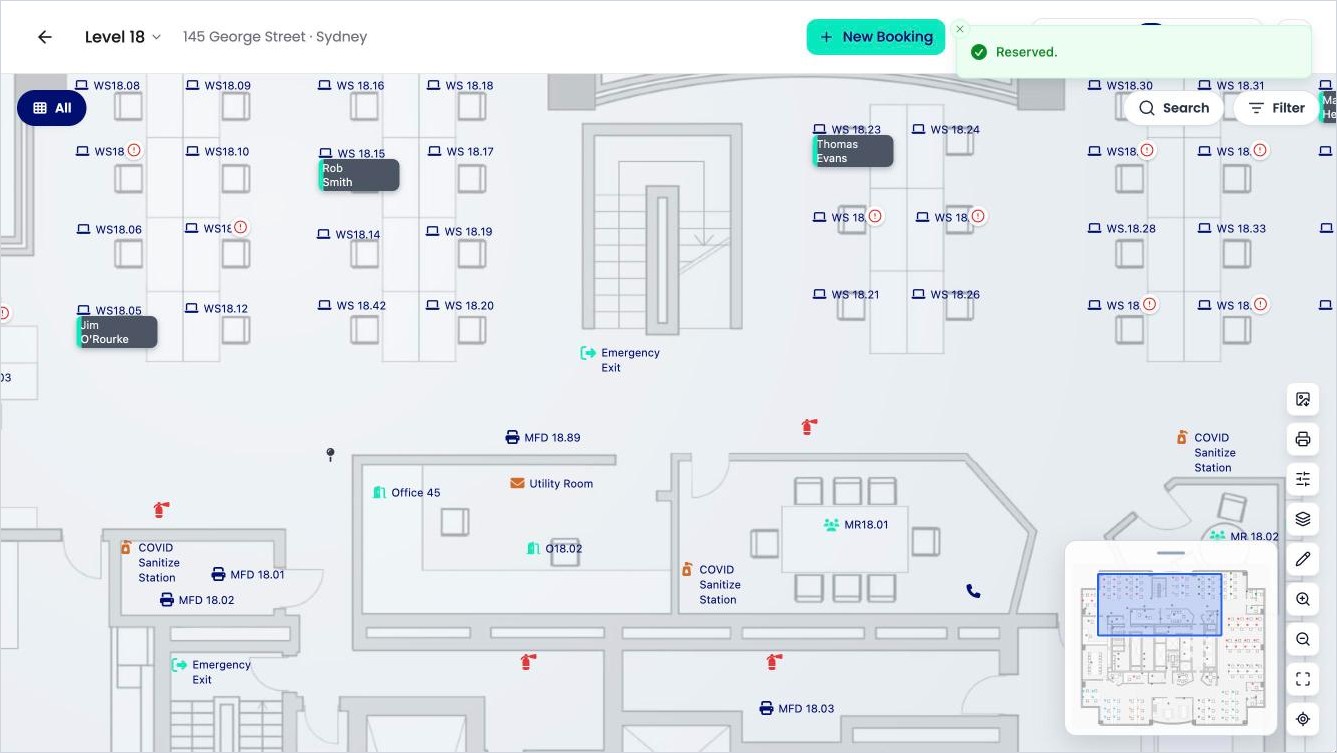
Find your booking on Home
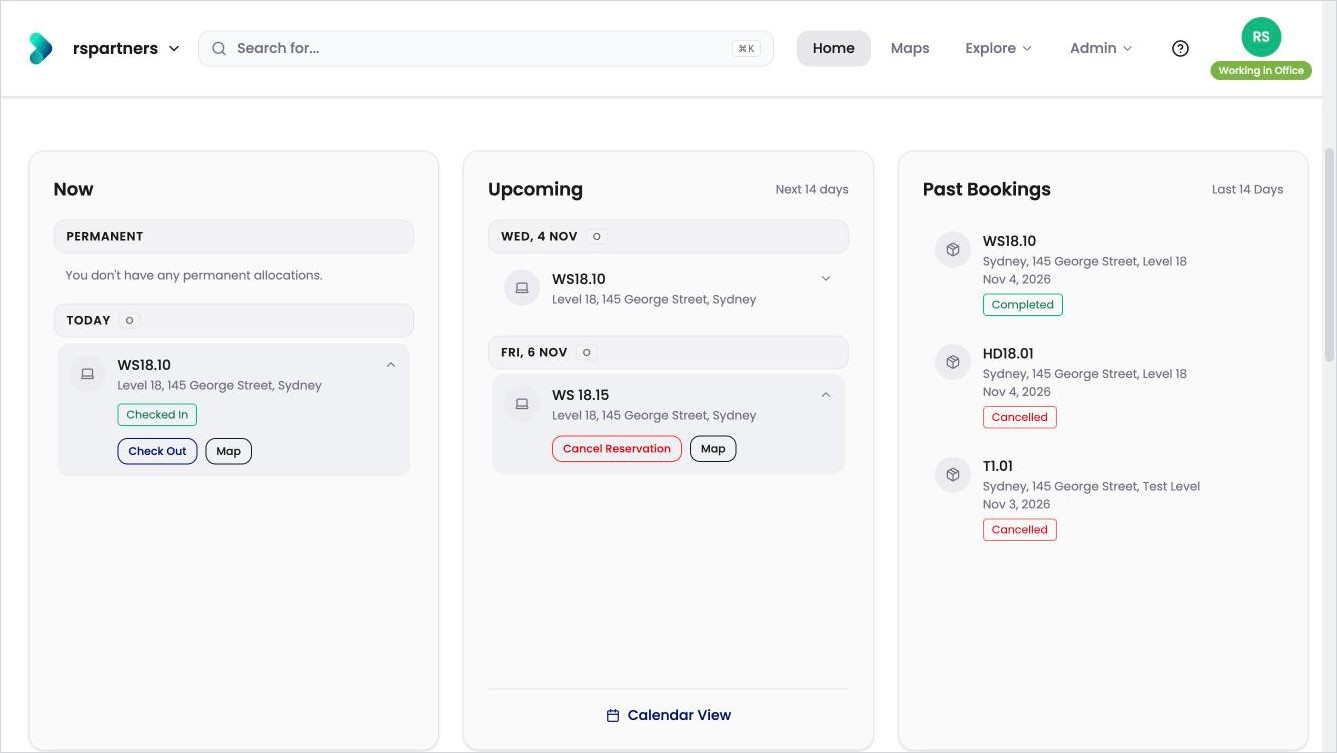
Click Home and scroll down to your bookings.
-
A booking for today is under Now, in Today.
-
Bookings for the next 14 days are under Upcoming, by date.
Click the arrow on a booking to see what you can do with it:
|
Booking |
What you can do |
|---|---|
|
Today, before you check in |
Check In, Cancel Reservation |
|
Today, after you check in |
Check Out, Map |
|
Another day |
Cancel Reservation, Map |
Book from a floorplan
If you’re already looking at a floor, click New Booking at the top. Choose the day under When, leave What set to All, and click Select on a free desk.
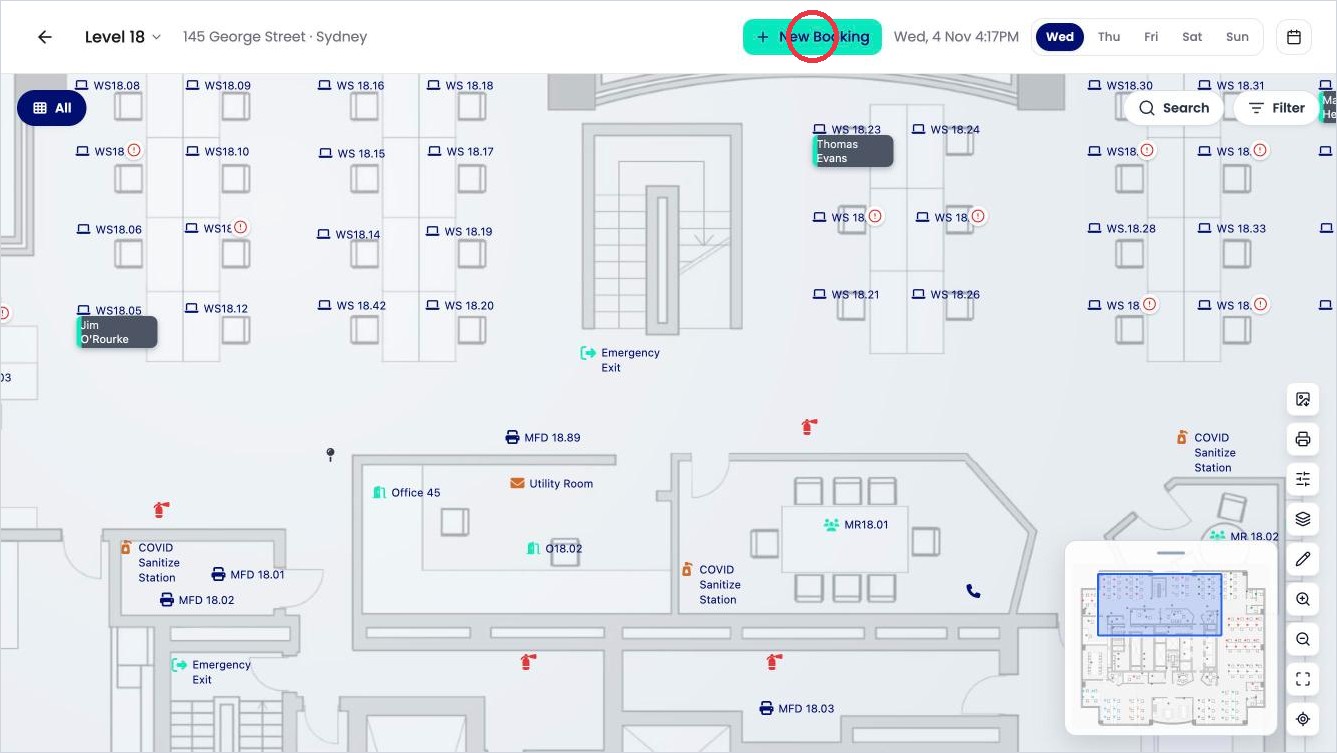
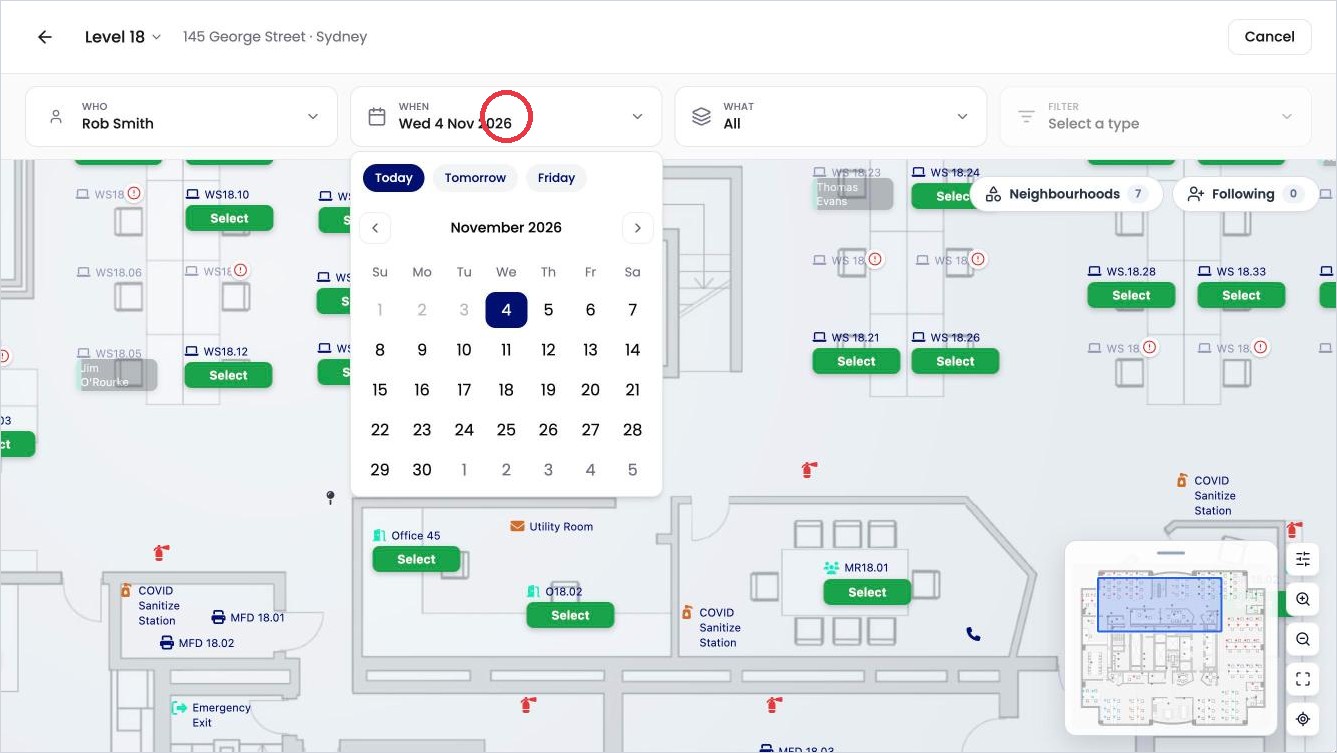
To open a floor, click one of your starred floors on Home, or click Maps and find the floor.
Tips
-
You can book one hot desk per day. Booking a second hot desk for the same day cancels the first one.
-
Leave For set to All. Choosing a type, such as Hot Desk, hides every other kind of desk.
-
A floor with 0 Available is greyed out for that day. Try another day or another floor.