There are three ways to log in to OfficeMaps. The login page asks you to choose one. This article shows you each, so you can use whichever your organisation has set up.
Note: Not sure which one to use? Try Microsoft or Google first. If neither works, log in with your email and a one-time password, or ask your OfficeMaps administrator.
Log in with Microsoft
If your administrator has turned on Microsoft log in, you can use your Microsoft 365 account. Your email address in OfficeMaps must match your Microsoft email.
-
On the login page, click Log in with Microsoft.
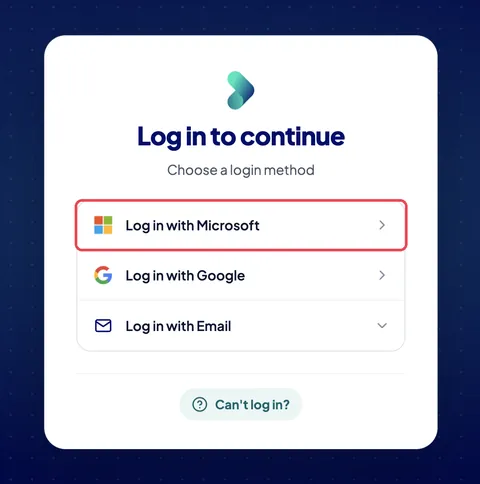
Click Log in with Microsoft. -
Choose your work account.
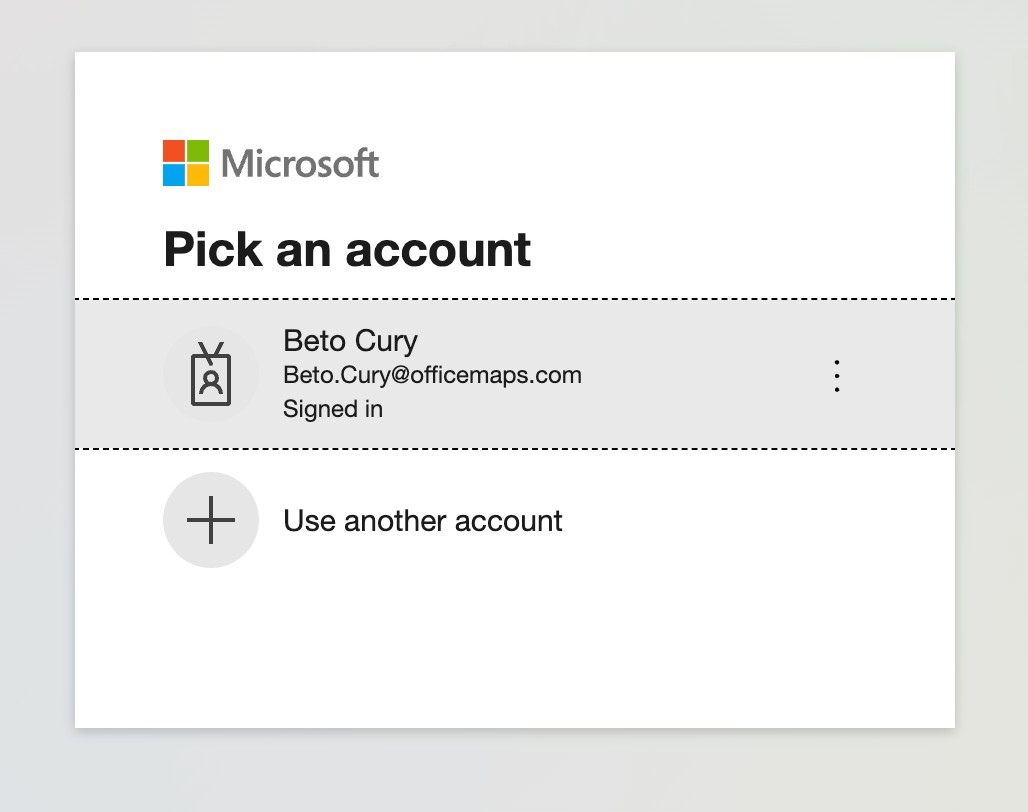
Choose your Microsoft account.
OfficeMaps matches your email to your organisation and opens Home.
Log in with Google
If your administrator has turned on Google log in, you can use your work or personal Google account. Your email address in OfficeMaps must match your Google email.
-
On the login page, click Log in with Google.
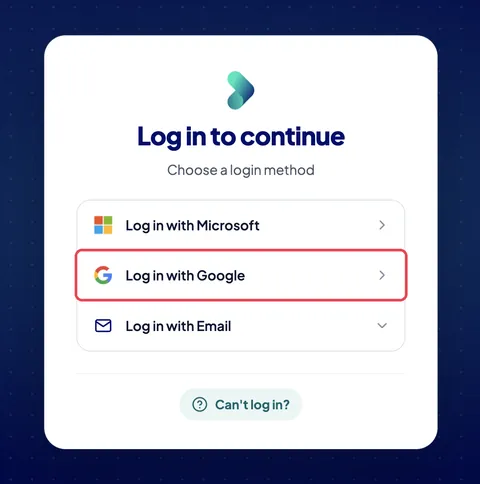
Click Log in with Google. -
Choose your account.
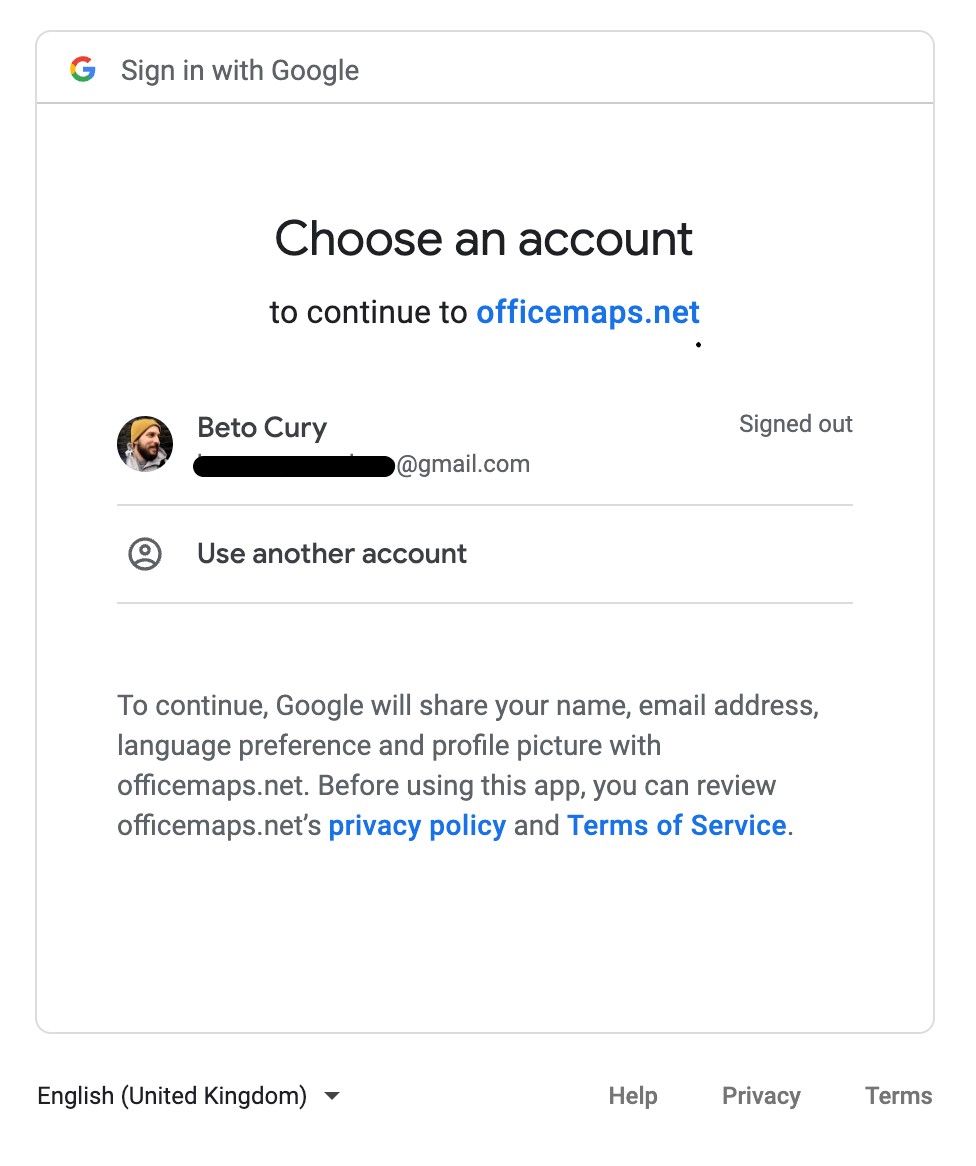
Choose your Google account.
OfficeMaps matches your email to your organisation and opens Home.
Log in with Email (one-time password)
New users, and anyone who doesn’t use Microsoft or Google, log in with their email and a one-time password. It’s a code we email you each time you log in.
-
On the login page, click Log in with Email.
-
Enter your email address and click Continue.
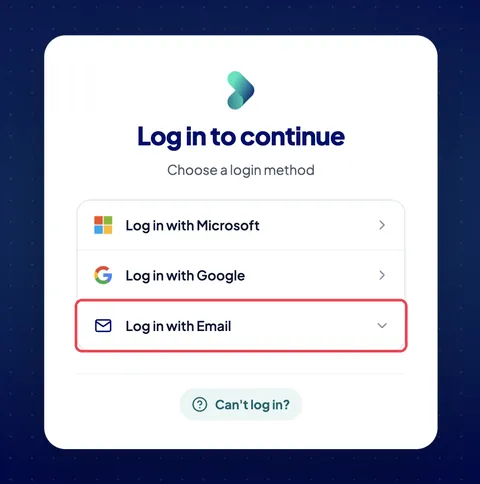
Click Log in with Email, then enter your email. -
Check your inbox for an email from OfficeMaps with your code.
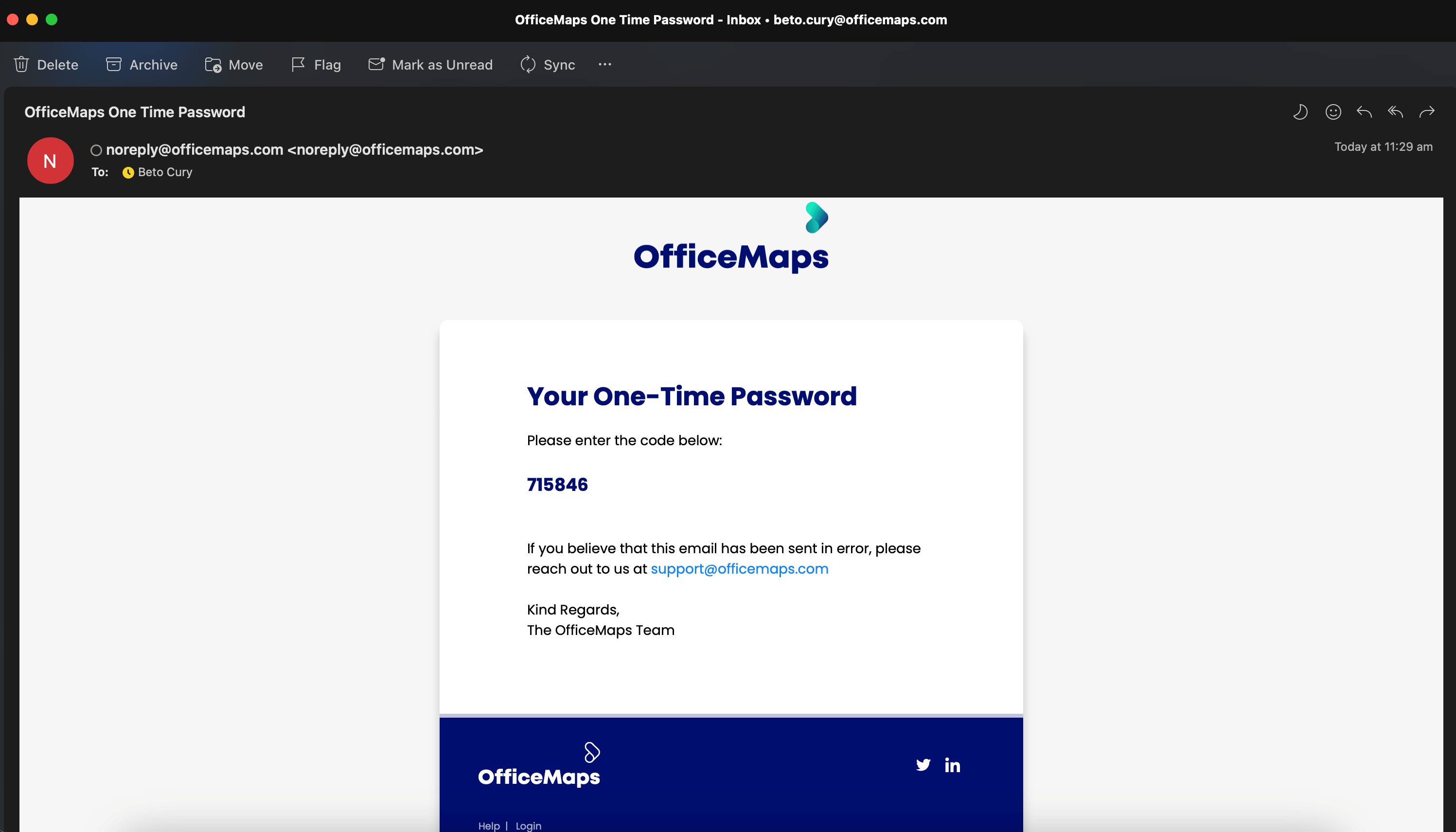
The email with your one-time password. -
Enter the code and continue.
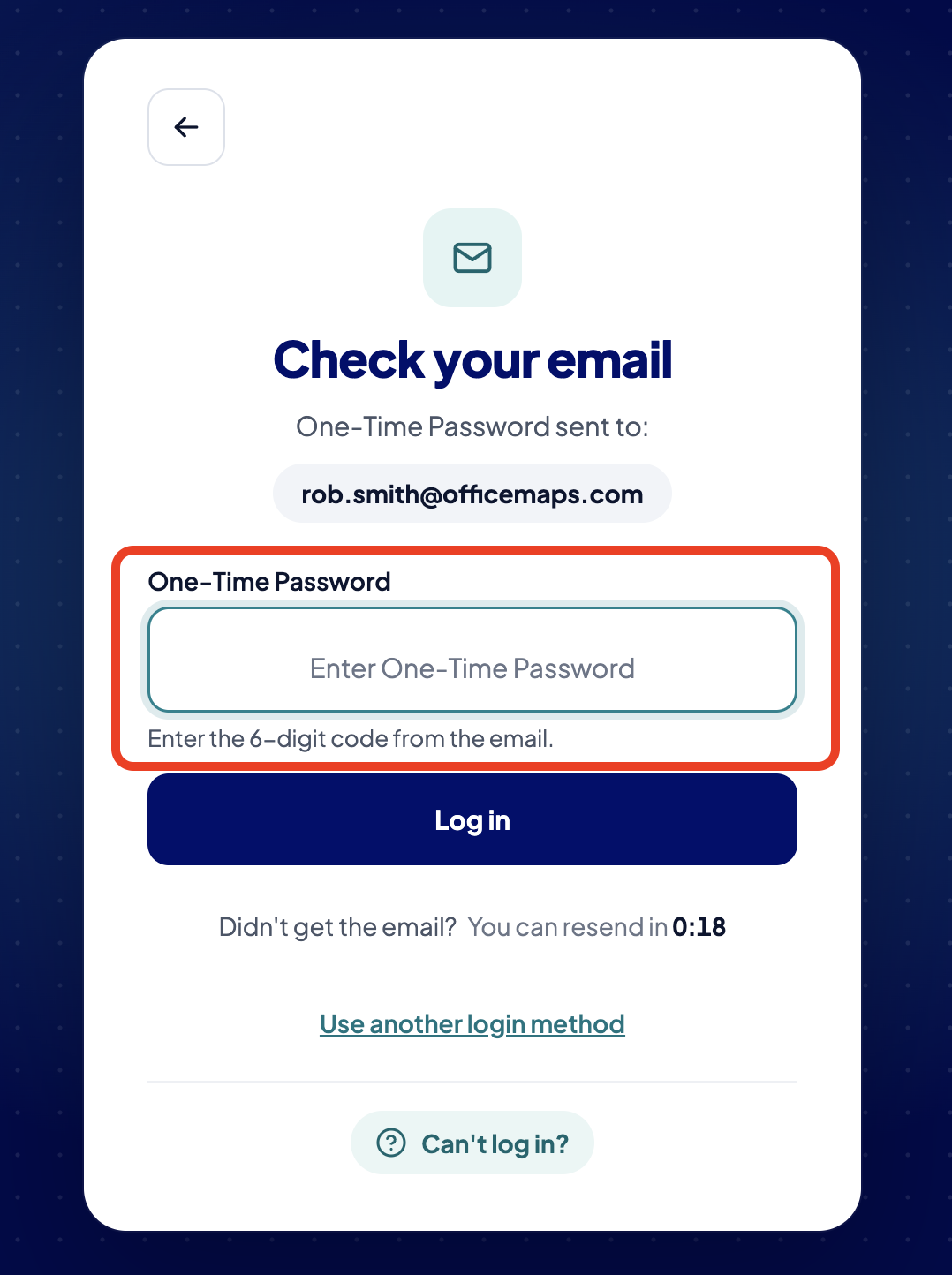
Enter the code.
Tips
-
No code arriving? Check your junk folder, and make sure you used the email address your organisation added to OfficeMaps.
-
Still stuck? Click Can’t log in? at the bottom of the login page, or see Can’t log in?