
Want your people to use OfficeMaps from Teams, Outlook or managed phones? This article shows IT administrators how to install the OfficeMaps 365 app for everyone, show Teams presence in OfficeMaps, and let the mobile app work under Intune.
Install the 365 app for everyone
You need to be a Microsoft Teams administrator.
-
Go to Manage apps in the Teams admin center: https://admin.teams.microsoft.com/policies/manage-apps
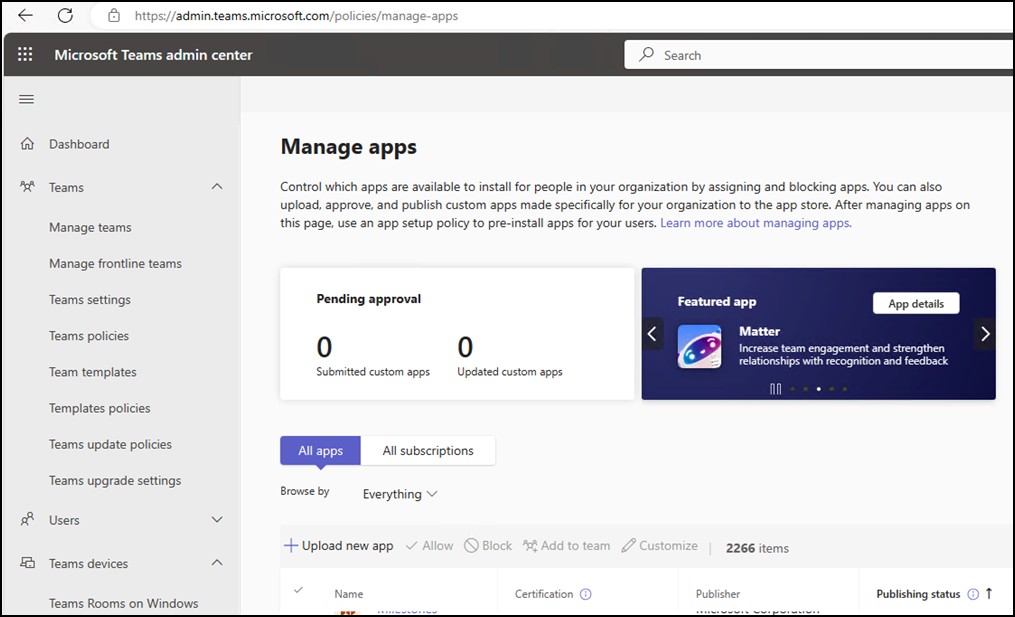
Manage apps in the Teams admin center. -
Search for OfficeMaps and allow it.
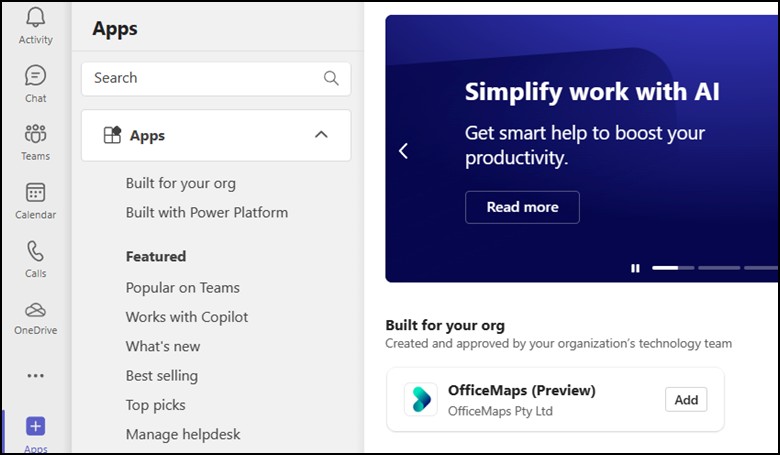
Find and allow OfficeMaps.
It can take a few hours for Microsoft to make the app available to everyone.
Install and pin it automatically
You can also push the app to people with a setup policy.
-
Go to Setup policies: https://admin.teams.microsoft.com/policies/app-setup
-
Choose a policy, such as Global (Org-wide default).
-
Add OfficeMaps to the installed apps, and pin it if you like.
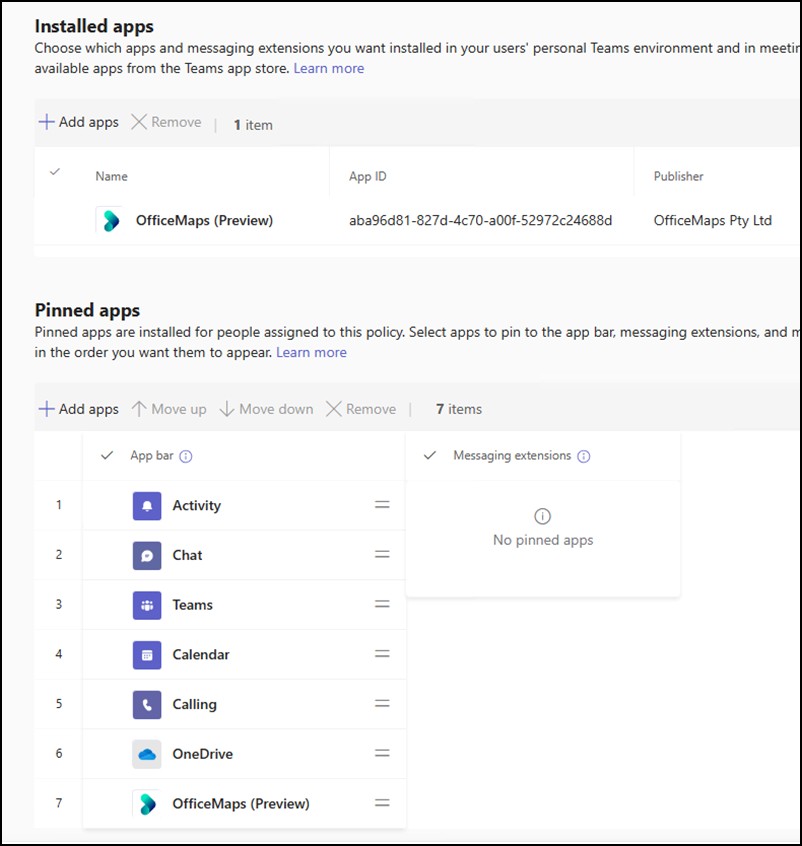
Add OfficeMaps to a setup policy.
Show Teams presence in OfficeMaps
You need a Microsoft 365 integration set up first. See How do I sync people from Microsoft Entra (Azure AD)?
-
In OfficeMaps, open Preferences, then Integrations, and choose your Microsoft integration.
-
Under Teams User Presence, enter the user name of a Teams service account. It must not use MFA, but it doesn’t need any special permissions.
-
Click Set Password and enter the account’s password.
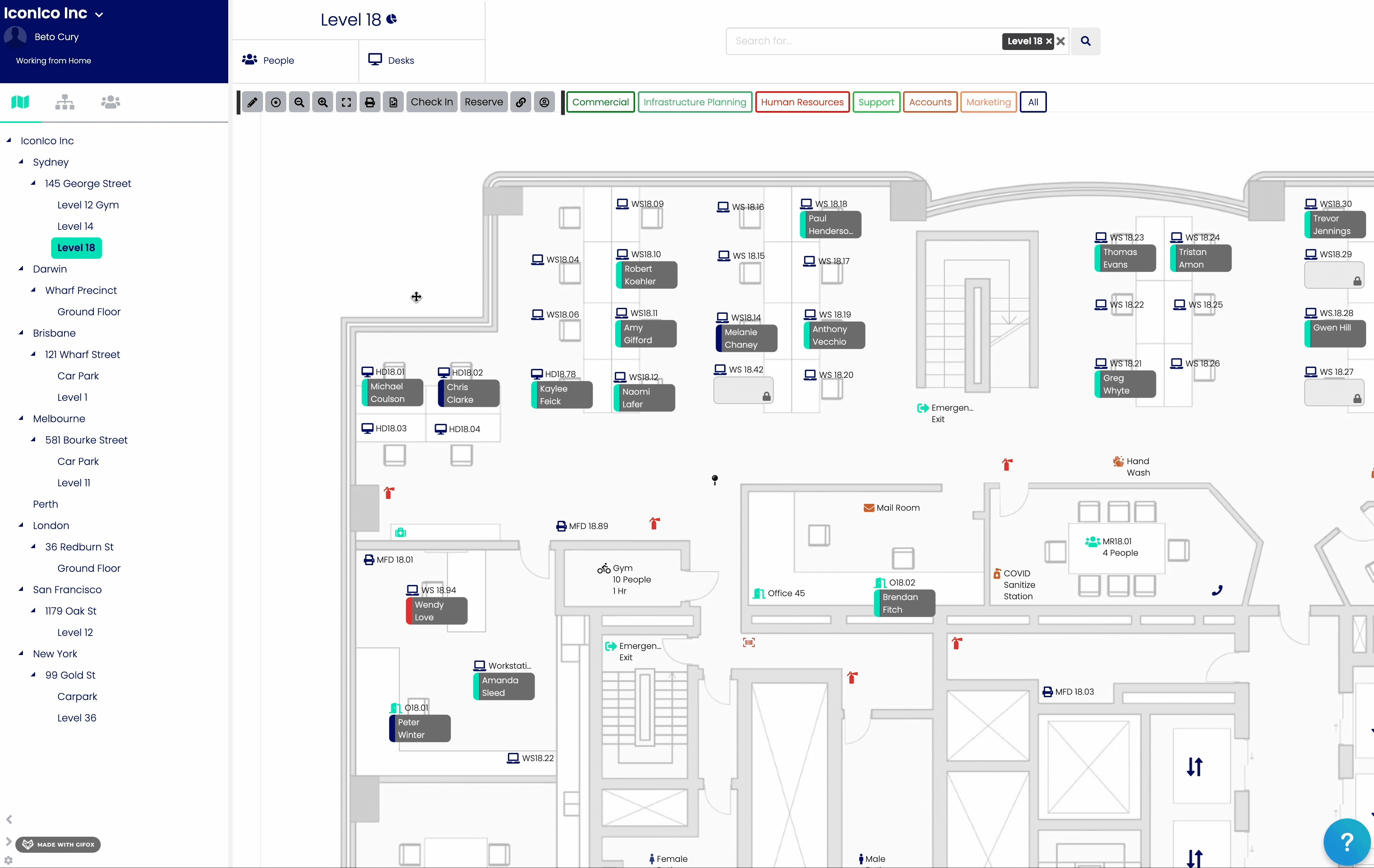
Teams User Presence settings. -
To let everyone see it, open Preferences, then People, and tick Teams User Presence under the fields visible to all users.
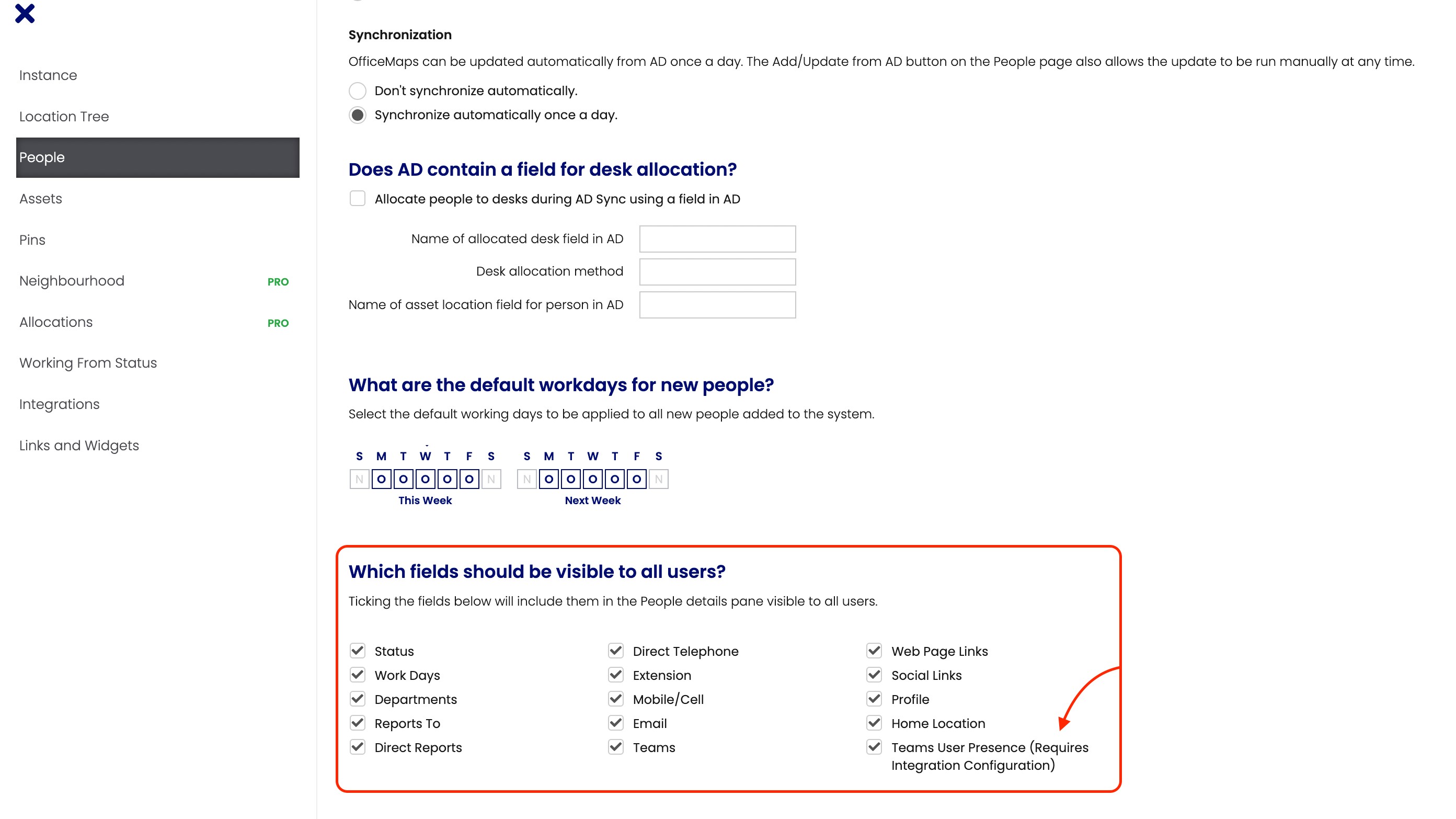
Make presence visible to everyone.
Let the mobile app work under Intune
If your iPhones use Intune app protection with Edge as the browser, people may see “Something went wrong” after logging in to the mobile app. Add OfficeMaps as an exempt app to fix it.
-
In the Intune admin center, click Apps, then iOS/iPadOS.
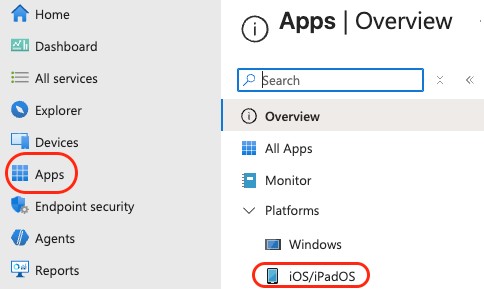
Apps, then iOS/iPadOS. -
Click Protection.
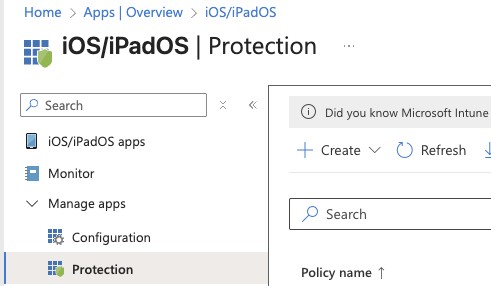
Click Protection. -
Open your app protection policy, then Properties. Next to Data protection, click Edit.
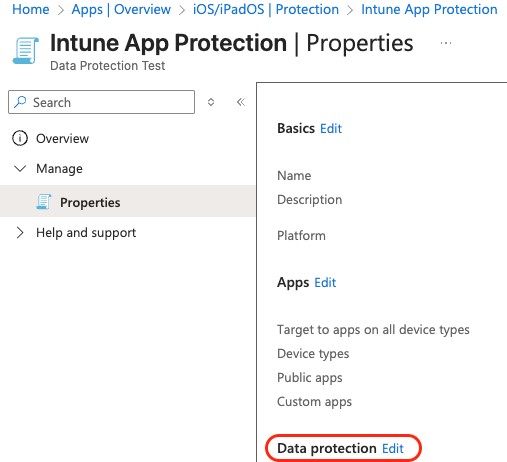
Edit Data protection. -
Under Select apps to exempt, click Select.
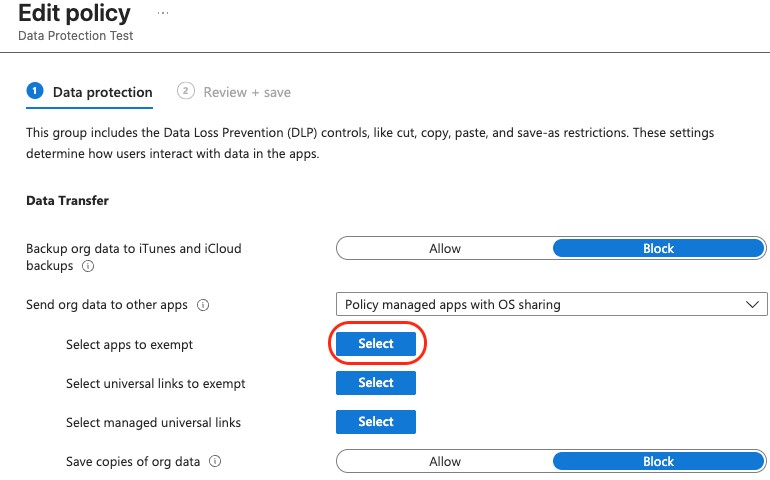
Select apps to exempt. -
Add this entry, click OK, then save the policy.
-
Name: OfficeMaps Mobile
-
Value: officemapsmobile01;com.officemaps.officemapsmobile01
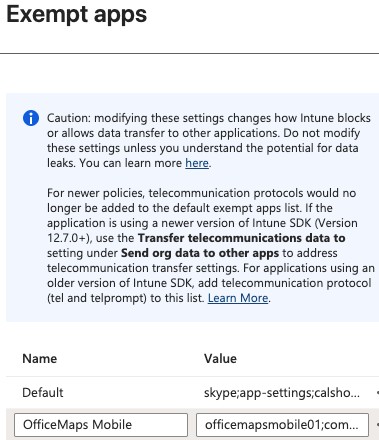
The OfficeMaps exemption. -
Tips
-
Need help with the 365 app? See How do I contact OfficeMaps support?