
Use Microsoft 365 and want OfficeMaps to keep your people up to date automatically? This article shows you how to connect Microsoft Entra (formerly Azure AD), choose what to sync and run the sync, so people are added and updated for you.
Note: You’ll need a Microsoft 365 administrator who can give consent for your organisation. Changes made to people in OfficeMaps are overwritten by Entra at the next sync.
1. Connect Microsoft 365
-
Click Admin, then Administration.
-
Under Settings, click Integrations.
-
Click + Add, then Add Microsoft 365.
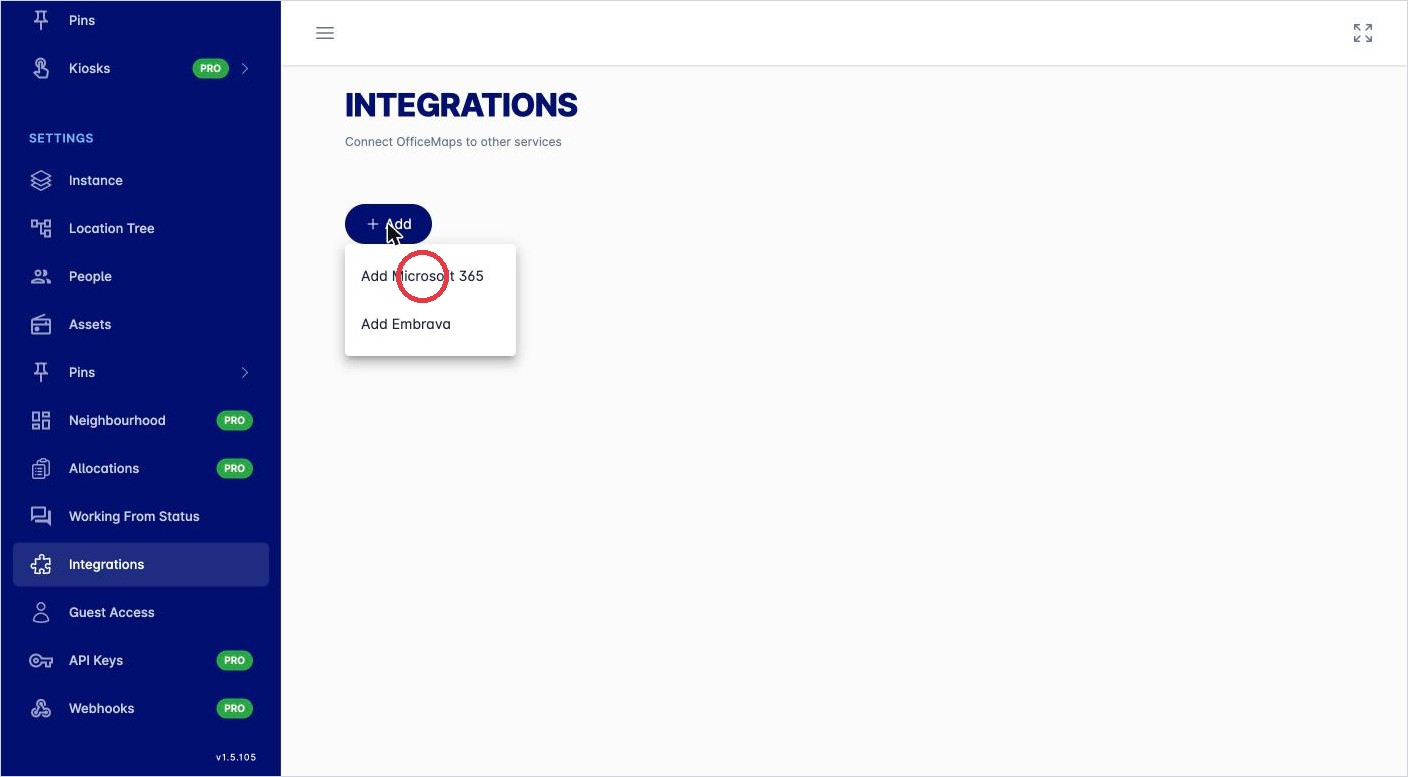
Add a Microsoft 365 integration. -
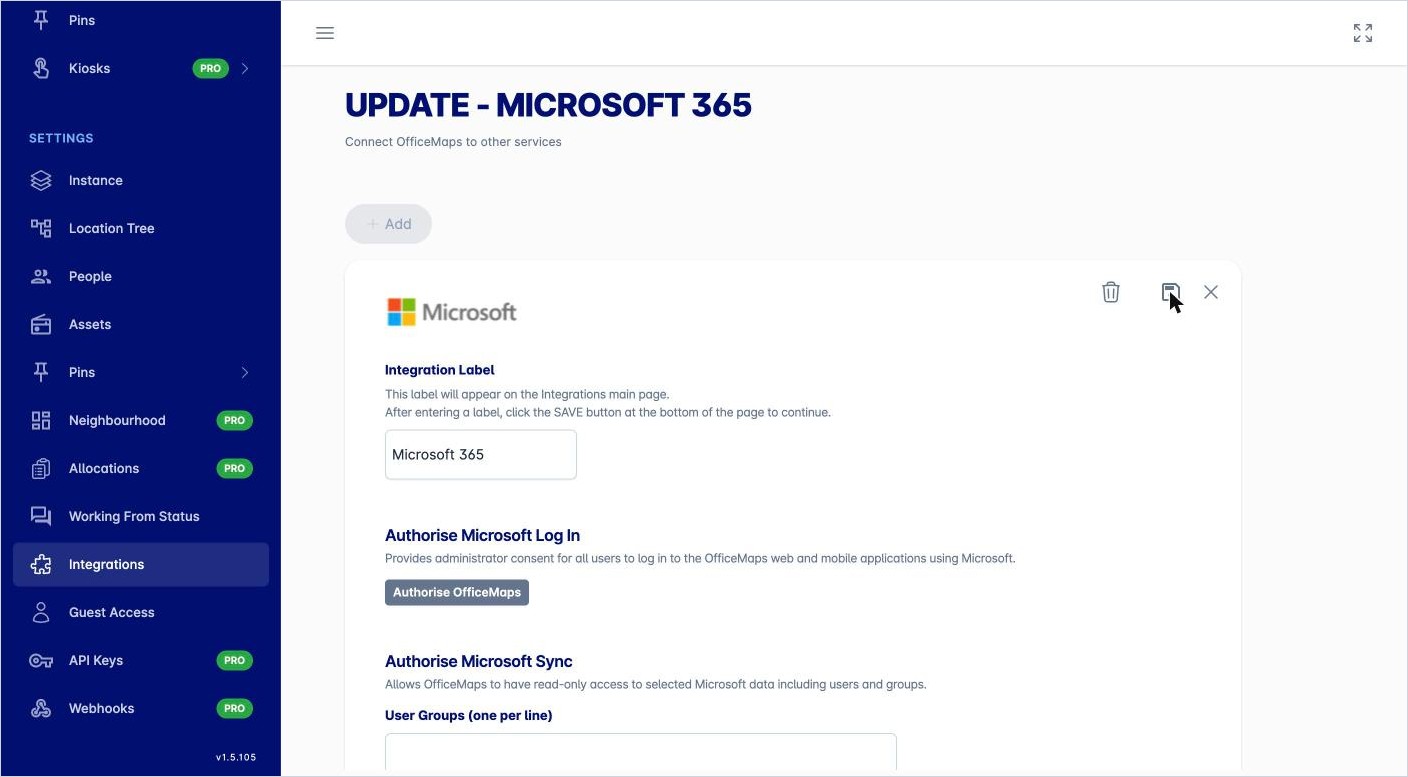
Enter an Integration Label, for example Microsoft 365, and click the save icon (the disk).
The integration page now shows three sections. A Microsoft 365 administrator completes each one:
|
Section |
What it does |
What to do |
|---|---|---|
|
Authorise Microsoft Log In |
Lets everyone log in to the OfficeMaps web and mobile apps with Microsoft. |
Click Authorise OfficeMaps and give consent. |
|
Authorise Microsoft Sync |
Gives OfficeMaps read-only access to your users and groups. |
Enter the User Groups to sync, one per line. Optionally add a Tenant Schema Extension App Client ID to sync extended attributes such as initials. Click Authorise Access to Microsoft. |
|
Calendar access |
Lets OfficeMaps read Microsoft 365 calendars, and optionally create meetings. |
Tick Allow Calendar Read and, if you want it, Allow Calendar Write. Click Authorise Access for Calendar. |
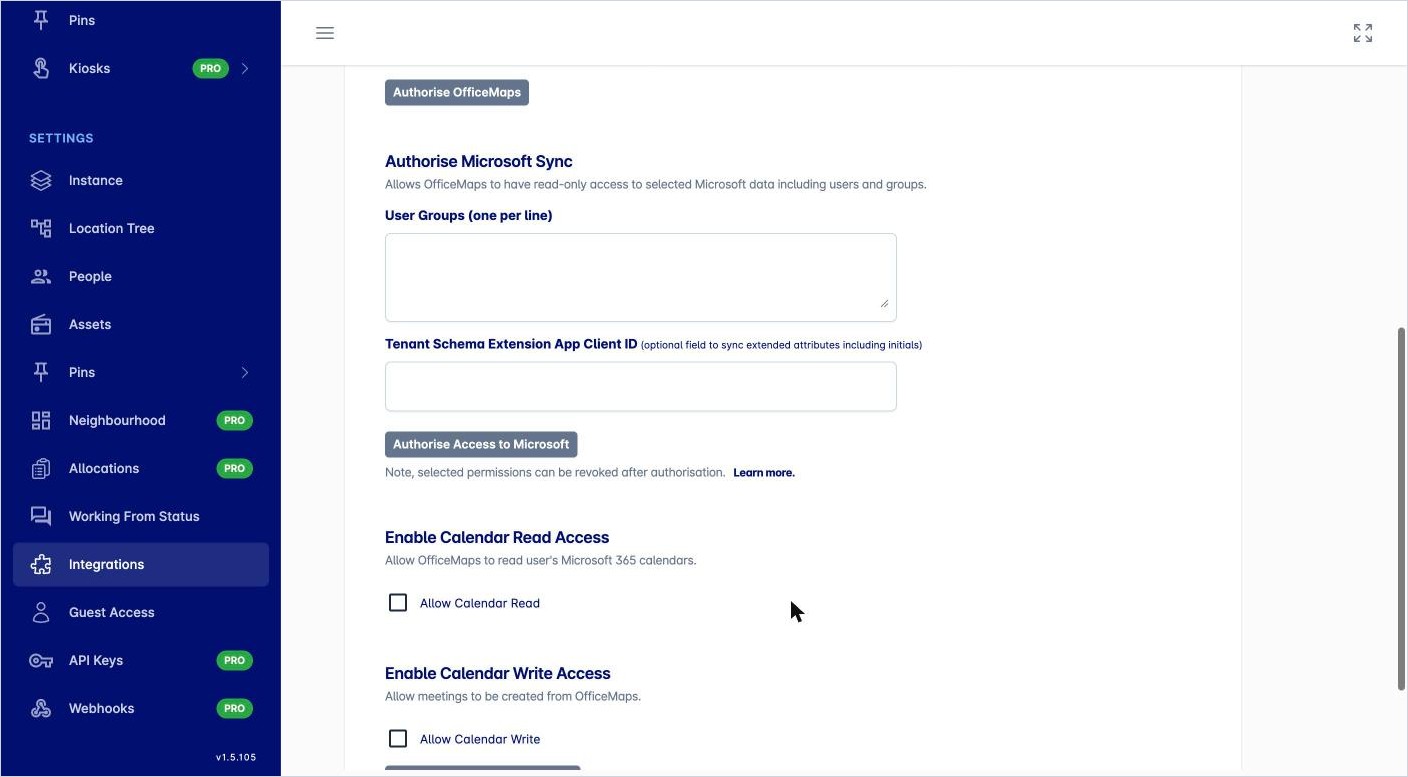
You can revoke the permissions in Microsoft later if you need to.
2. Choose the sync settings
-
Under Settings, click People.
-
Under How are new people added?, choose People are added from Microsoft Entra.
-
Choose what happens when people change in Entra:
-
Set OfficeMaps Role to Non-User/Disabled if Microsoft Entra account disabled.
-
Set OfficeMaps Role to Non-User/Disabled if user removed from specified Microsoft Entra group.
-
Set OfficeMaps role from Non-User/Disabled to User if account is enabled in Entra and member of specified Entra group.
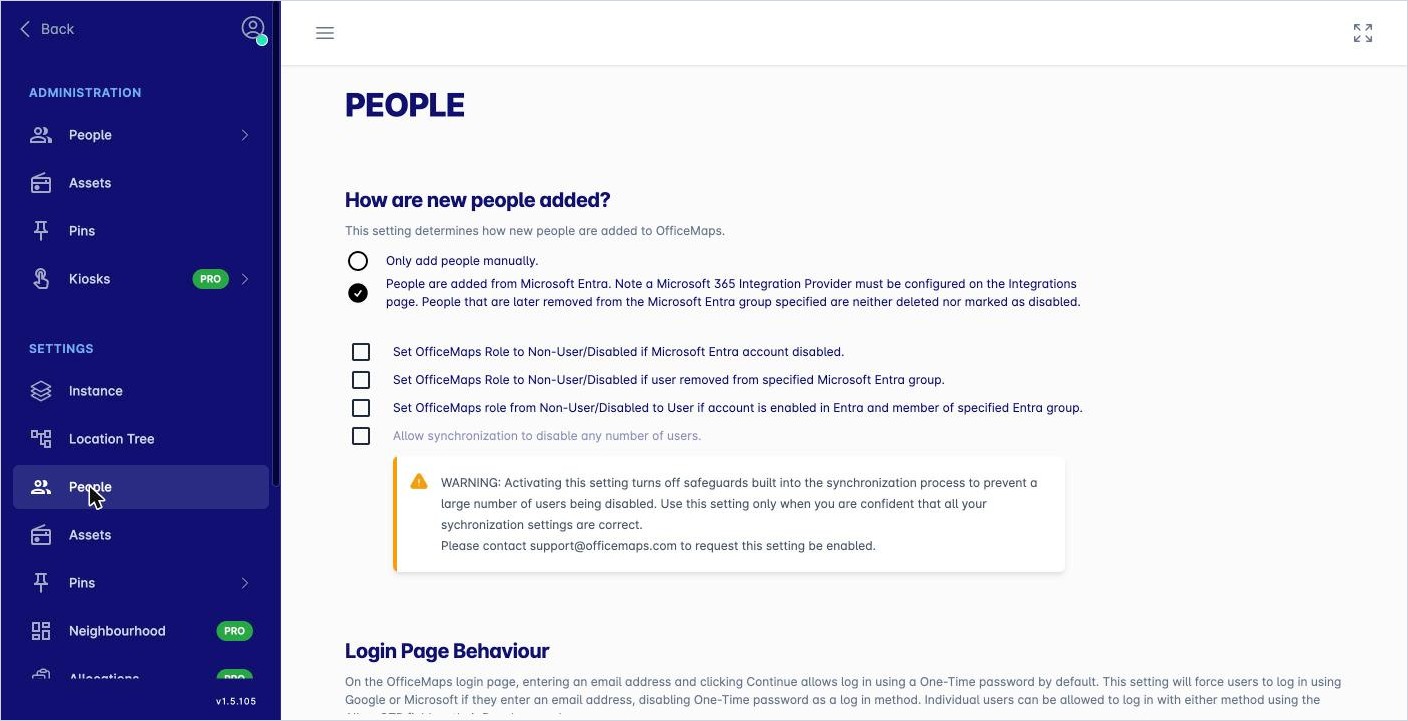
How new people are added. -
Then, further down the same page:
|
Setting |
What it does |
|---|---|
|
Which fields should be included from Microsoft Entra? |
Tick the fields Entra keeps up to date, such as Position, Phone and Mobile/Cell. |
|
Department Fields |
Don’t sync departments, add departments from Entra, or add and remove them to match Entra. You can also add departments that exist in Entra but not in OfficeMaps. |
|
Reports To Fields |
Don’t sync managers, add them from Entra, or add and remove them to match Entra. |
|
Profile Picture |
Sync profile photos, or update them only when you run the sync by hand. Syncing photos makes the sync take longer. |
|
Synchronization |
Sync automatically once a day, or only when you run it. |
|
Does Microsoft Entra contain a field for desk allocation? |
Seat people on desks during the sync, using a desk field in Entra. Enter the field name, the allocation method and the asset location field. |
Note: By default, OfficeMaps won’t disable a large number of people in one sync, as a safeguard. To turn that safeguard off, contact support@officemaps.com.
3. Run the sync
-
Under Administration, click People, then People Actions.
-
Click Sync People from Microsoft Entra.
-
Tick Include Profile Pictures if you want photos updated too.
-
Click Sync.
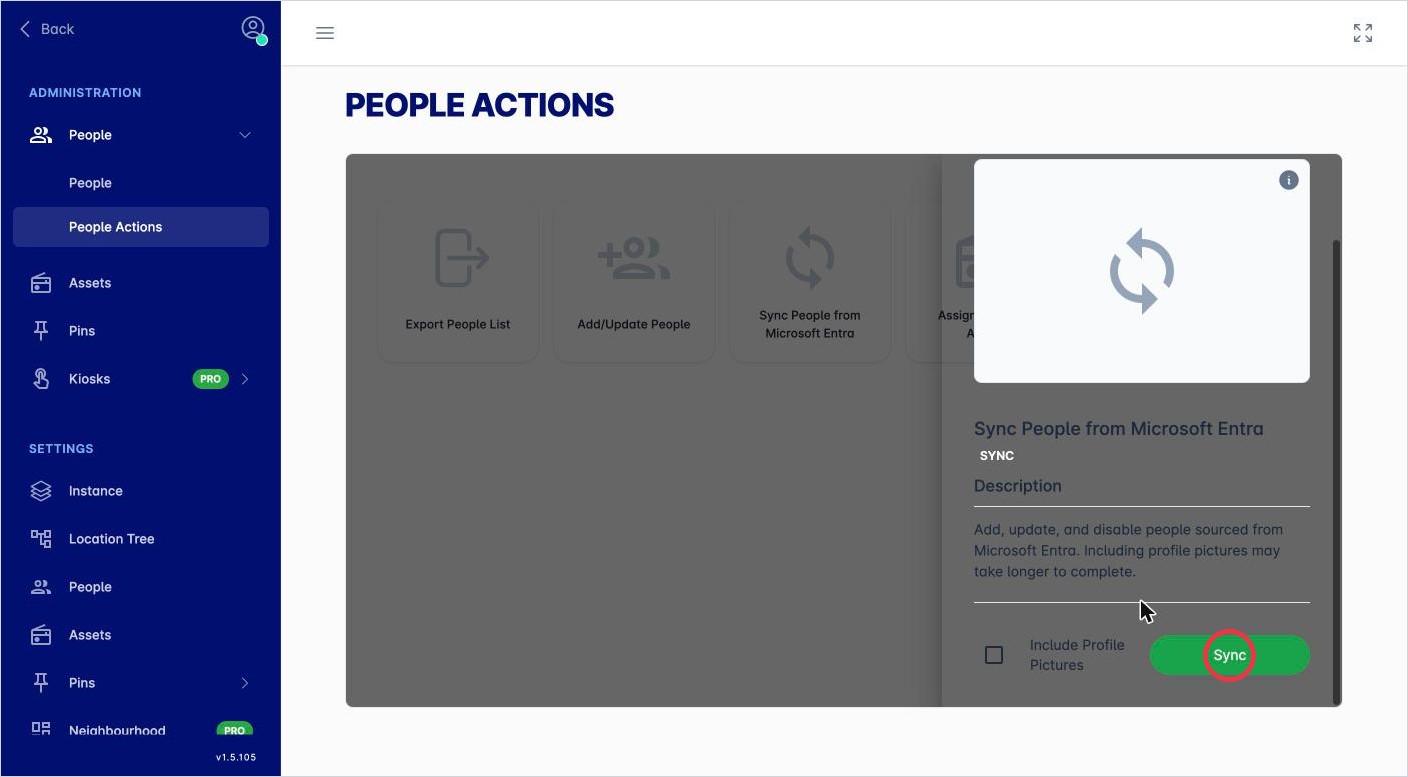
Run a sync now.
When it finishes, a results window lists what was added, updated and disabled. Click Export to Excel to keep a copy.
Tips
-
Test with a small Entra group first, then add your other groups.
-
Don’t let people edit fields that Entra updates. See How do I choose what shows on people's profiles?
-
To require Microsoft log in for everyone, see How do I change how people log in?