
Want everyone to log in with Microsoft or Google? This article shows you how to choose how people log in to OfficeMaps, and how to let certain people keep using a one-time password.
Note: To use Microsoft log in, your Microsoft 365 integration must be set up and authorised. See How do I sync people from Microsoft Entra (Azure AD)?
How log in works by default
On the OfficeMaps login page, people choose how to log in: Log in with Microsoft, Log in with Google or Log in with Email. By default, logging in with email sends them a one-time password.
For step-by-step instructions people can follow, see Log in: Microsoft, Google or one-time password.
Require Microsoft or Google log in
-
Click Admin, then Administration.
-
Under Settings, click People.
-
Find Login Page Behaviour. It’s set to OTP (one-time password) by default.
-
Choose Microsoft or Google. If your organisation has its own single sign-on set up, it’s listed here too.
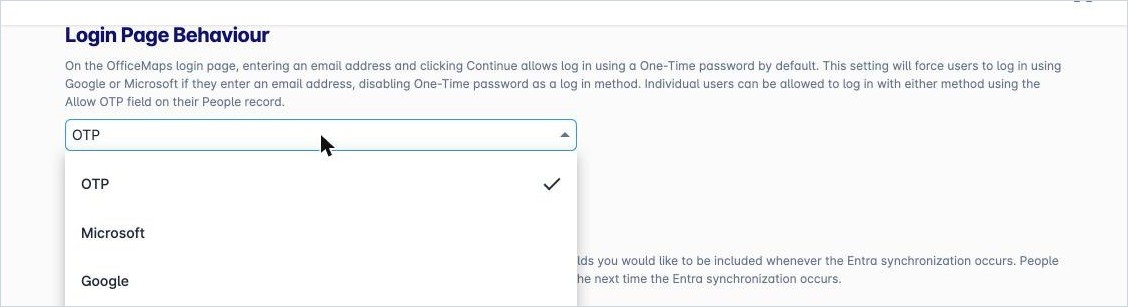
The Login Page Behaviour options.
Once it’s set, people log in with Microsoft or Google, and one-time passwords are switched off.
To go back to one-time passwords, choose OTP again.
Let one person use a one-time password
Some people may not have a Microsoft or Google account, such as contractors. You can let them keep using a one-time password:
-
When you add them: tick Allow OTP in the New Person panel.
-
For someone already in OfficeMaps: open their profile, click Edit, tick Allow OTP and click Save.
The Allow OTP column in the People list shows who can use a one-time password.
Tips
-
Test the change with your own account before you tell everyone.
-
If someone can’t log in after the change, check that their OfficeMaps email matches the email of their Microsoft or Google account.