
Want to control what's shown on people's profiles, or add fields like First Aider or Fire Warden? This article shows you how to choose which fields people see and can edit, set the defaults for new people, and add your own fields.
Open the people settings
-
Click Admin, then Administration.
-
Under Settings, click People.
This is one long page. The sections below are in the order they appear.
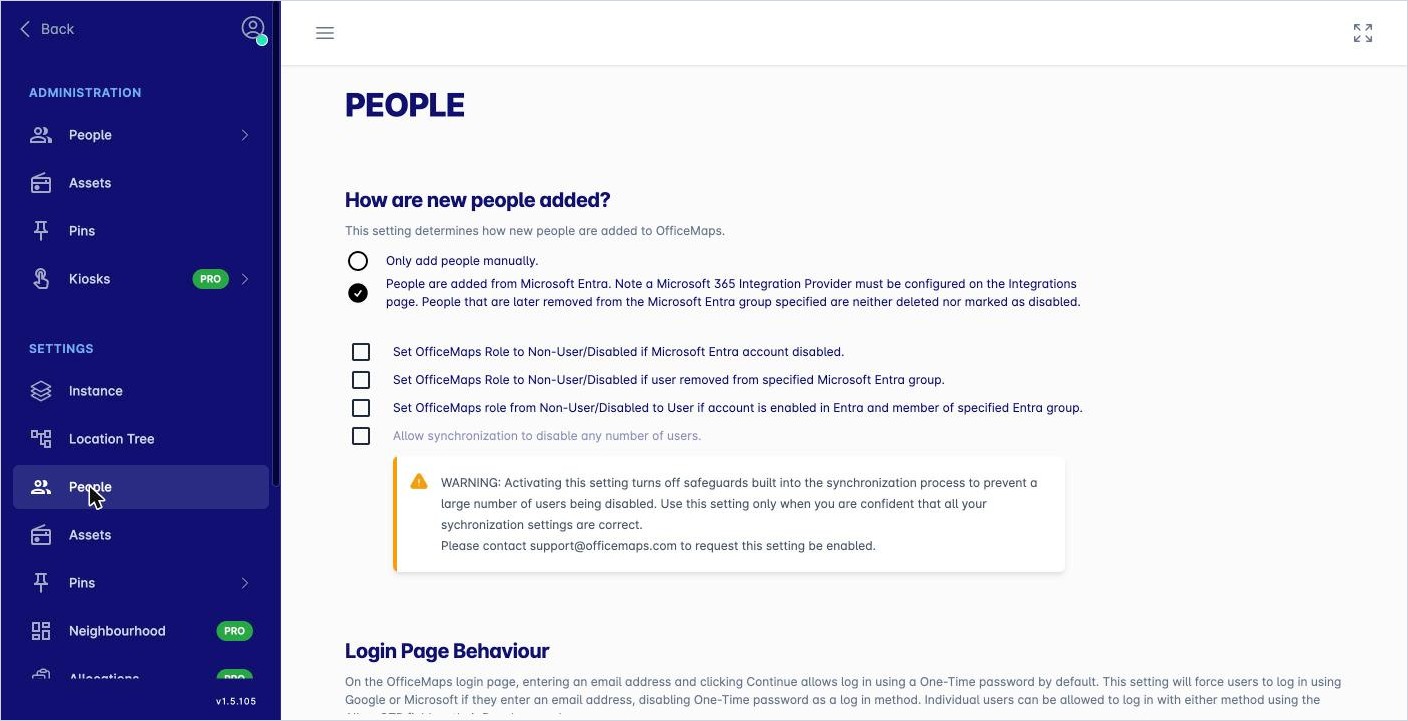
How new people are added
Choose one:
-
Only add people manually. You add people yourself, one at a time or from Excel.
-
People are added from Microsoft Entra. People are added and updated from a Microsoft Entra group. This needs a Microsoft 365 integration on the Integrations page.
If you use Entra, you can also choose what happens when someone’s Entra account is disabled or they leave the group. See How do I sync people from Microsoft Entra (Azure AD)? for this and the other Entra settings on this page.
Note: Login Page Behaviour is also on this page. See How do I change how people log in?
Default workdays for new people
Set the two-week pattern of workdays that new people start with. Set each day to O (Office), R (Remote) or N (Non-workday). People can change their own plan afterwards from their profile.
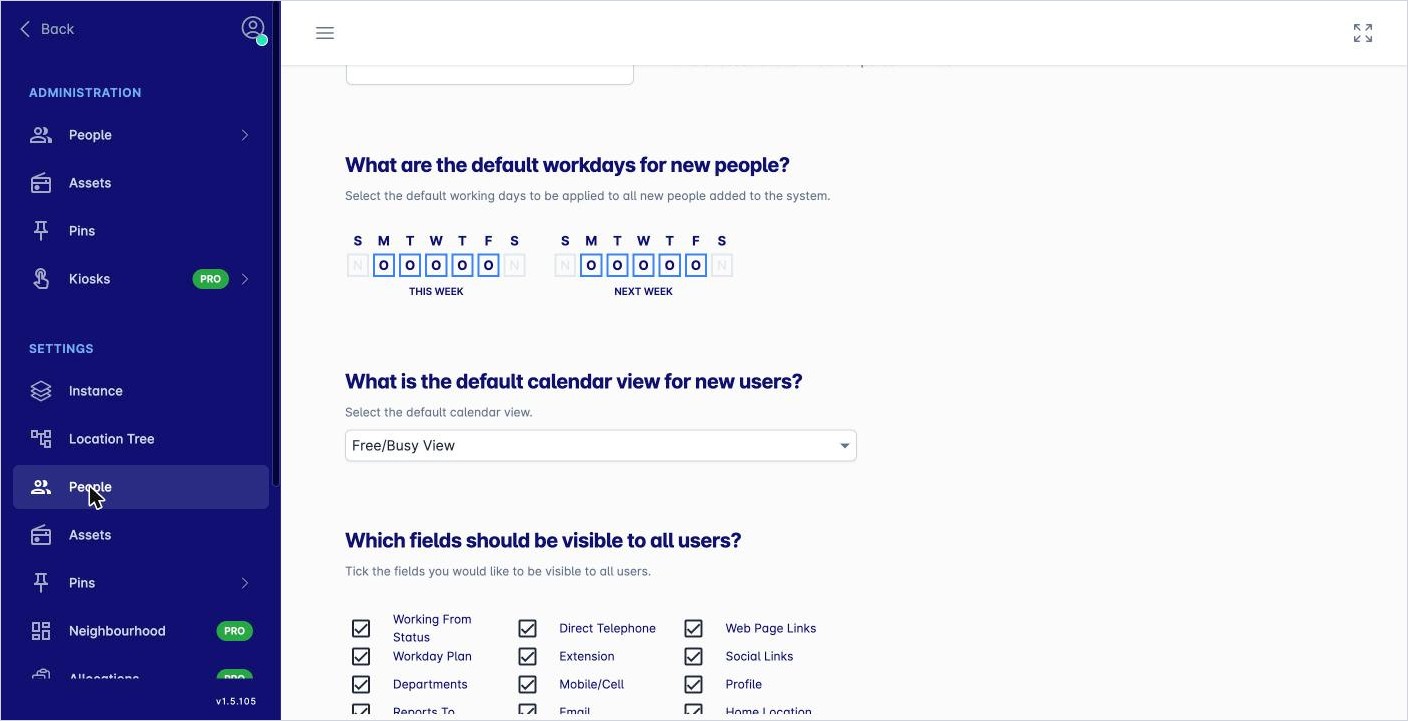
Default calendar view for new people
Choose how much of a new person’s calendar others can see, for example Free/Busy View.
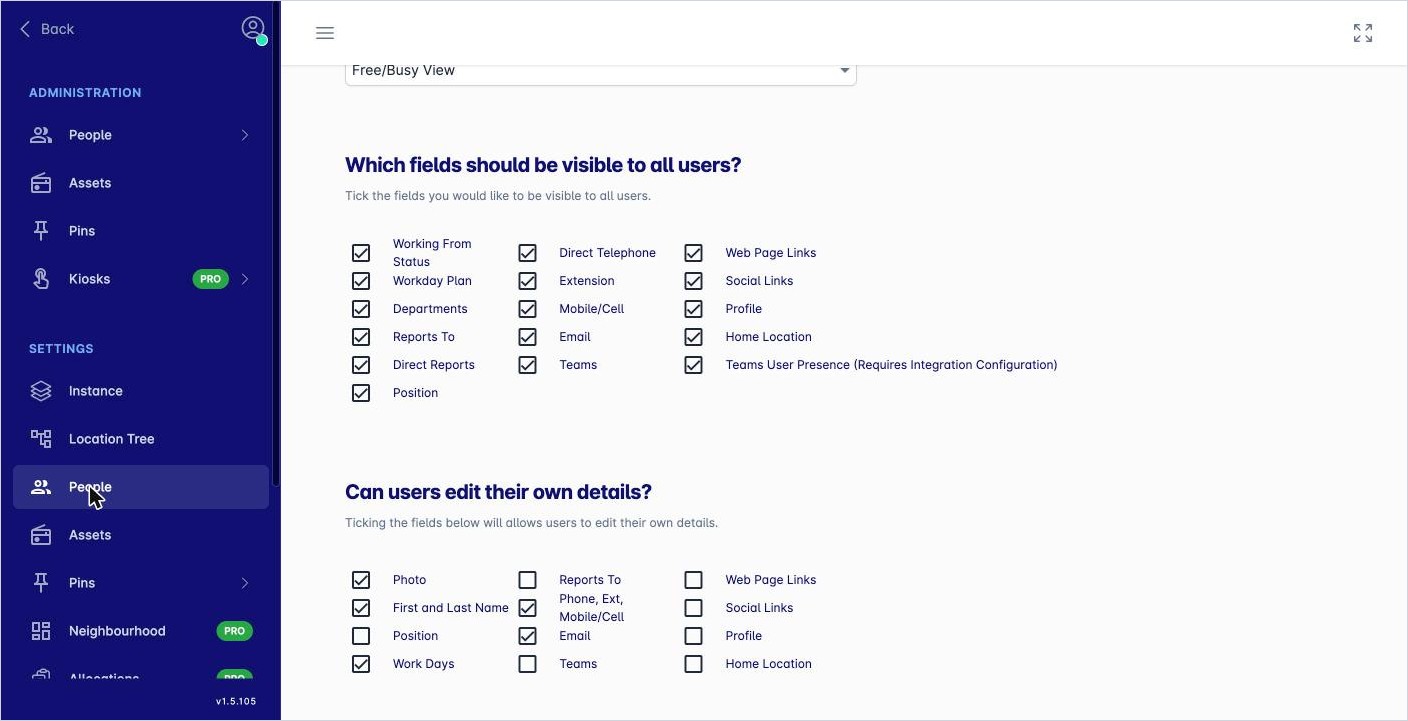
Fields everyone can see
Under Which fields should be visible to all users?, tick the details everyone can see on a person’s profile, such as Working From Status, Workday Plan, Departments, Position, Email, Mobile/Cell and Home Location.
Untick a field to hide it from everyone except administrators.
Fields people can edit themselves
Under Can users edit their own details?, tick the details people can change on their own profile, such as Photo, First and Last Name, Position, Work Days and phone numbers.
Tip: If you sync from Entra, don’t let people edit fields that Entra updates. Their changes would be overwritten at the next sync.
On-click actions
On-Click http Actions decide what happens when someone clicks the icon next to a field on a profile. Enter the protocol handler you want for each field, for example msteams:/l/chat/0/0?users= to start a Microsoft Teams chat.
Add your own fields
Use Additional Fields for People to keep extra information about each person, such as First Aider, Fire Warden or Language.
-
Click + Add.
-
Fill in the Field Label and choose a Field Type: Text, MultiSelect, Boolean (yes or no), DropDownList or Date.
-
Set the Order, and tick the options you need:
-
Can Group: lets lists and reports group people by this field.
-
Can Edit Self: lets people fill in the field on their own profile.
-
Only Admin Visible: hides the field from everyone except administrators.
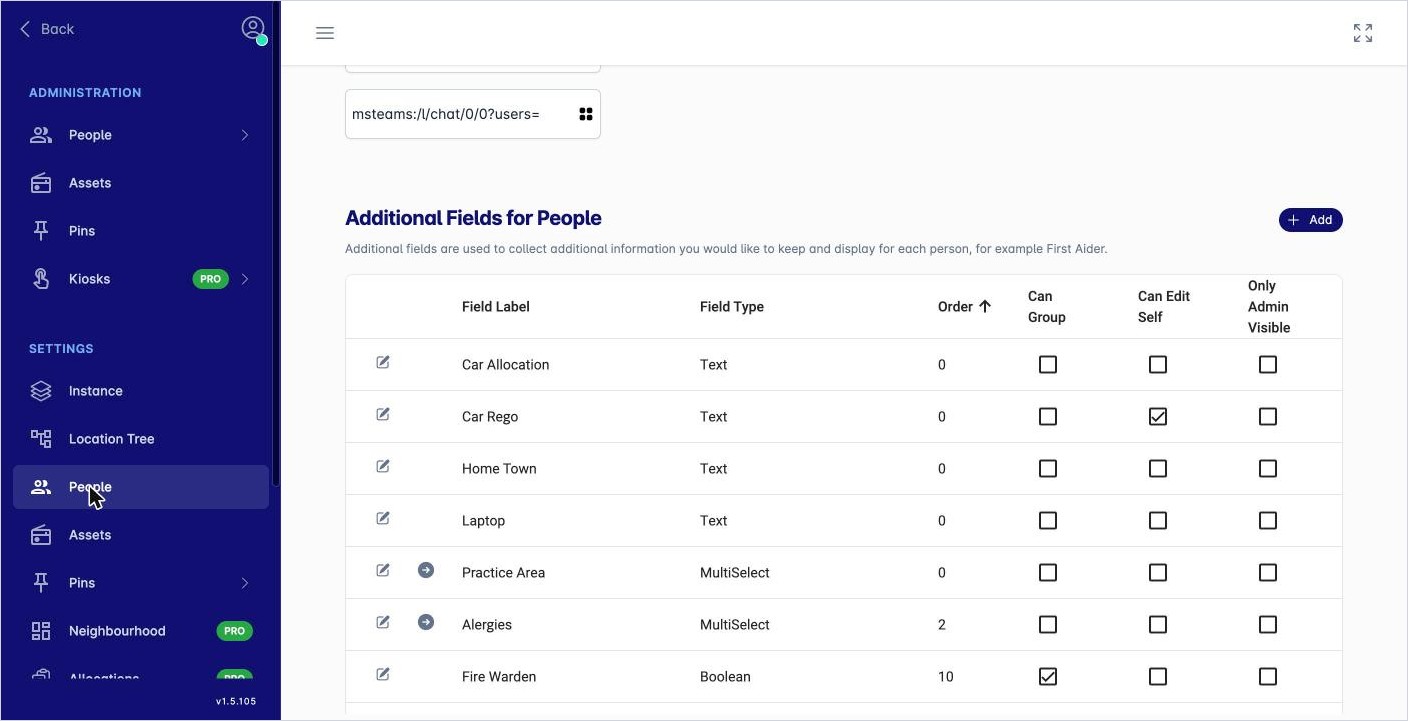
Additional fields for people. -
To change a field, click the pencil next to it.