
Want to organise your people into teams? This article shows you how to add departments, put people in them, choose managers and administrators, and hide or delete departments.
Open departments
Click Explore, then Department.
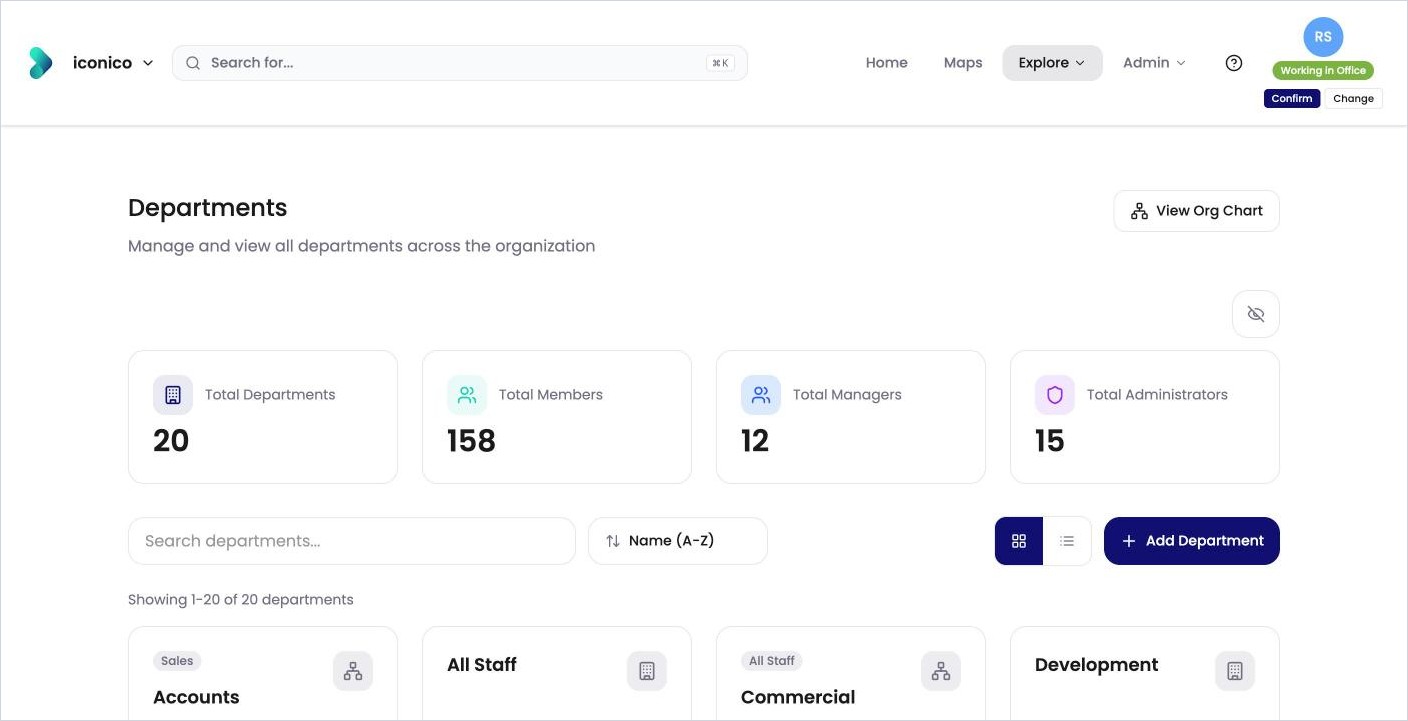
The page shows totals for departments, members, managers and administrators, then a card for each department. Each card shows its parent department and its numbers of members, managers, administrators and neighbourhoods.
-
Use Search departments… and the sort button to find a department.
-
Switch between cards and a list with the buttons next to + Add Department.
-
Click View Org Chart to see the whole structure.
Add a department
-
Click + Add Department.
-
Fill in:
-
Department Name (required).
-
Parent Department: the department it sits under, or None (Root Department) for the top level.
-
Department Code and Description (optional).
-
Department Color.
-
-
Click Create Department.
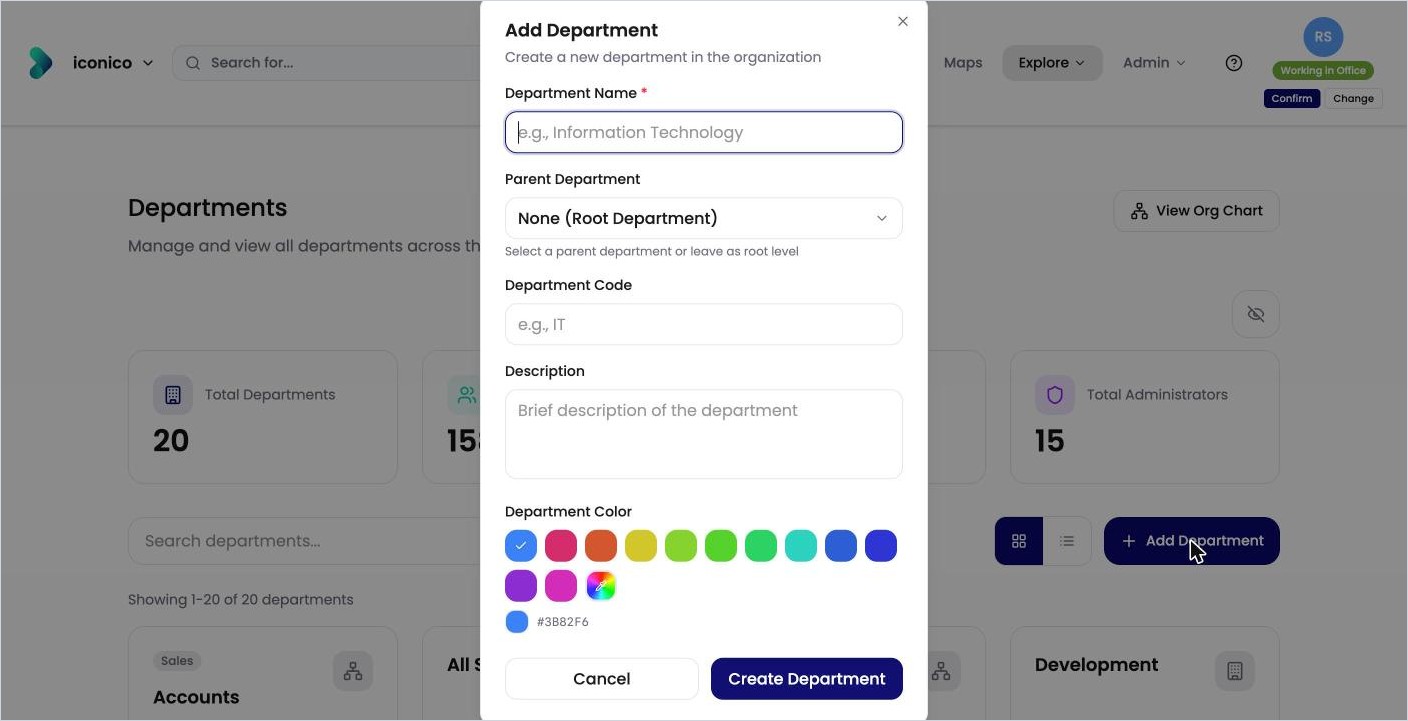
The Add Department dialog.
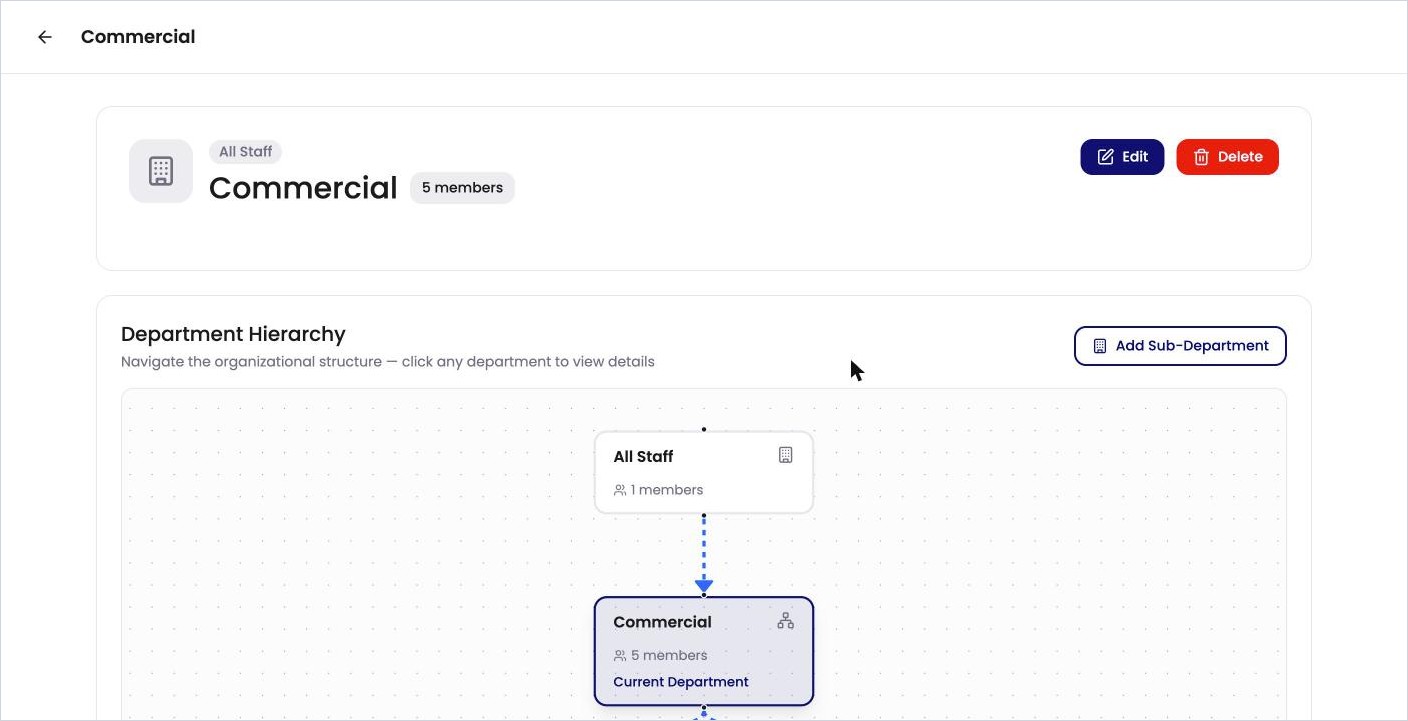
To add a department straight under an existing one, open the parent and click Add Sub-Department.
Open a department
Click a department card. Its page shows:
-
Department Hierarchy: where it sits, with its parent and sub-departments. Click any department in the diagram to open it.
-
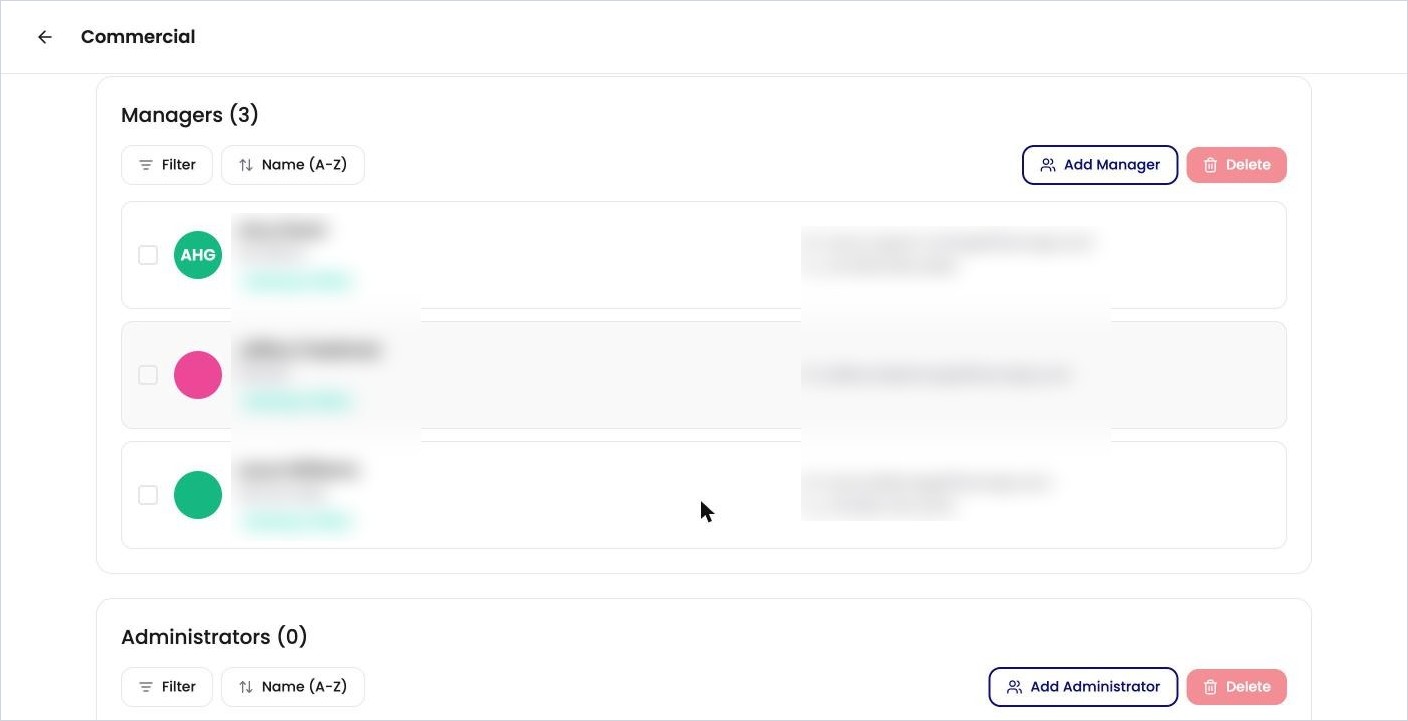
Managers, Administrators and Members, each with its own add and delete buttons.
-
Neighbourhoods linked to the department. See How do I keep desks for one team only?
Add members, managers and administrators
On the department’s page:
-
Add Member puts people in the department.
-
Add Manager marks people as the department’s managers.
-
Add Administrator makes people department administrators. They can manage the people in this department without being full administrators. See How do I make someone an admin?
To remove someone, tick them and click Delete in that section. This removes them from the department, not from OfficeMaps.
You can also set a person’s departments when you edit them. See How do I add or remove a person?
Edit, hide or delete a department
-
Open the department and click Edit.
-
Change the name, parent, code, description or colour, then click Update Department.
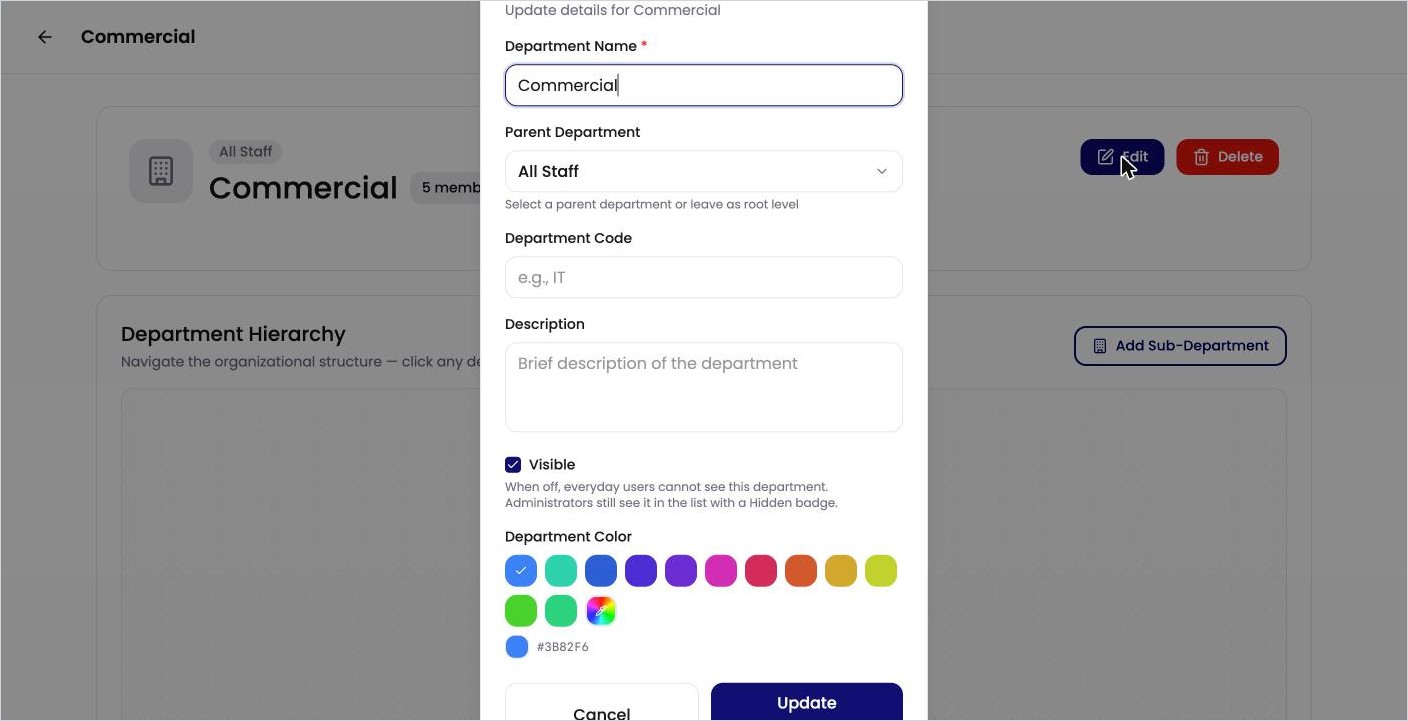
Editing a department.
To hide a department, untick Visible in the Edit dialog. Everyday users can’t see a hidden department. Administrators still see it, marked Hidden. To show hidden departments in the list, click the eye icon above the department cards.
To delete a department, open it and click Delete.
Tip: Hiding is a safer first step than deleting, because you can make the department visible again at any time.