
Need to book a desk for a colleague or a visitor? This article shows you how to make a booking in someone else's name and check them in when they arrive.
Book a desk for someone
-
Open the level’s floorplan and click New Booking.
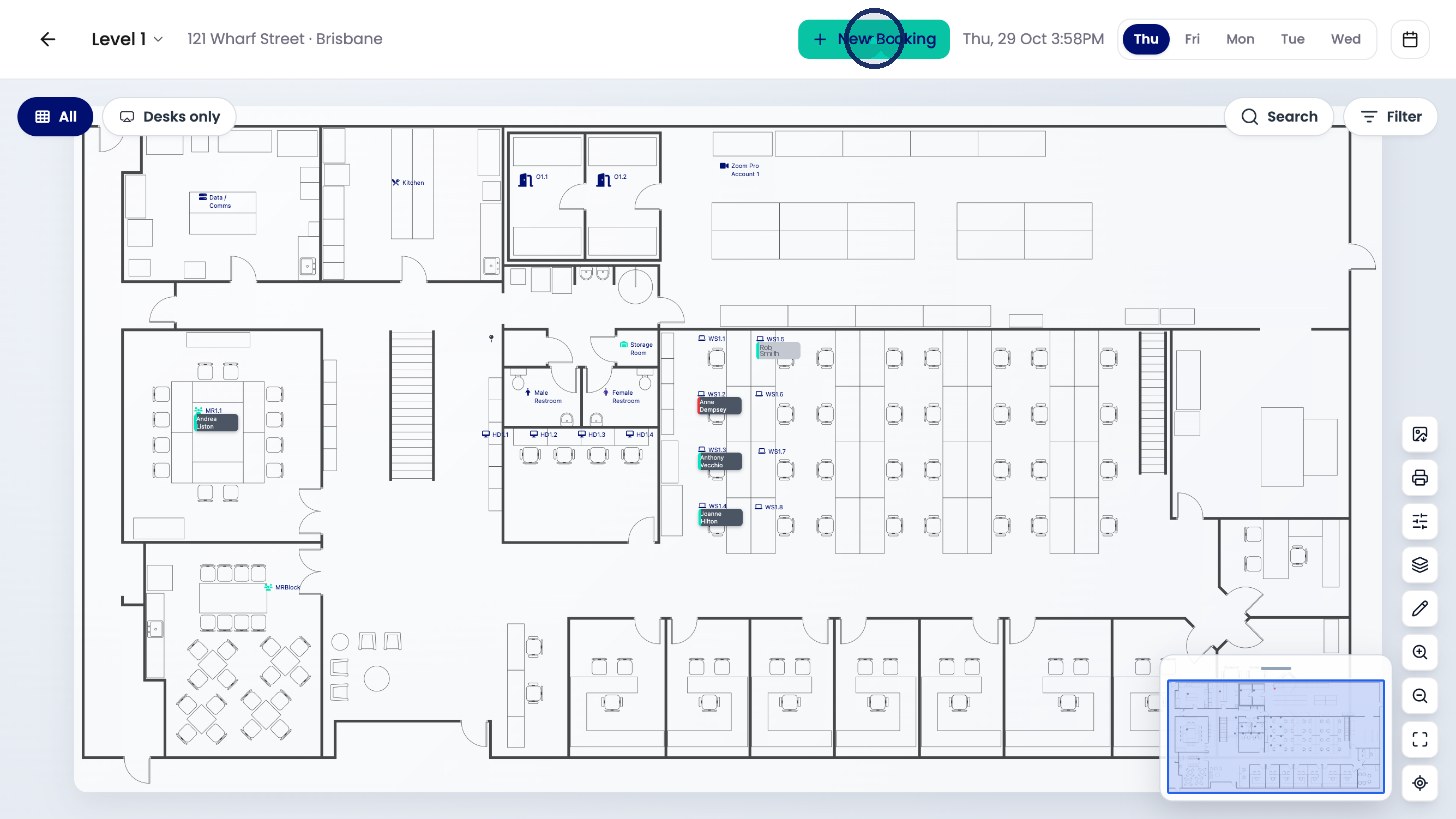
Click New Booking on the floorplan. -
Click Who, and search for the person you’re booking for.
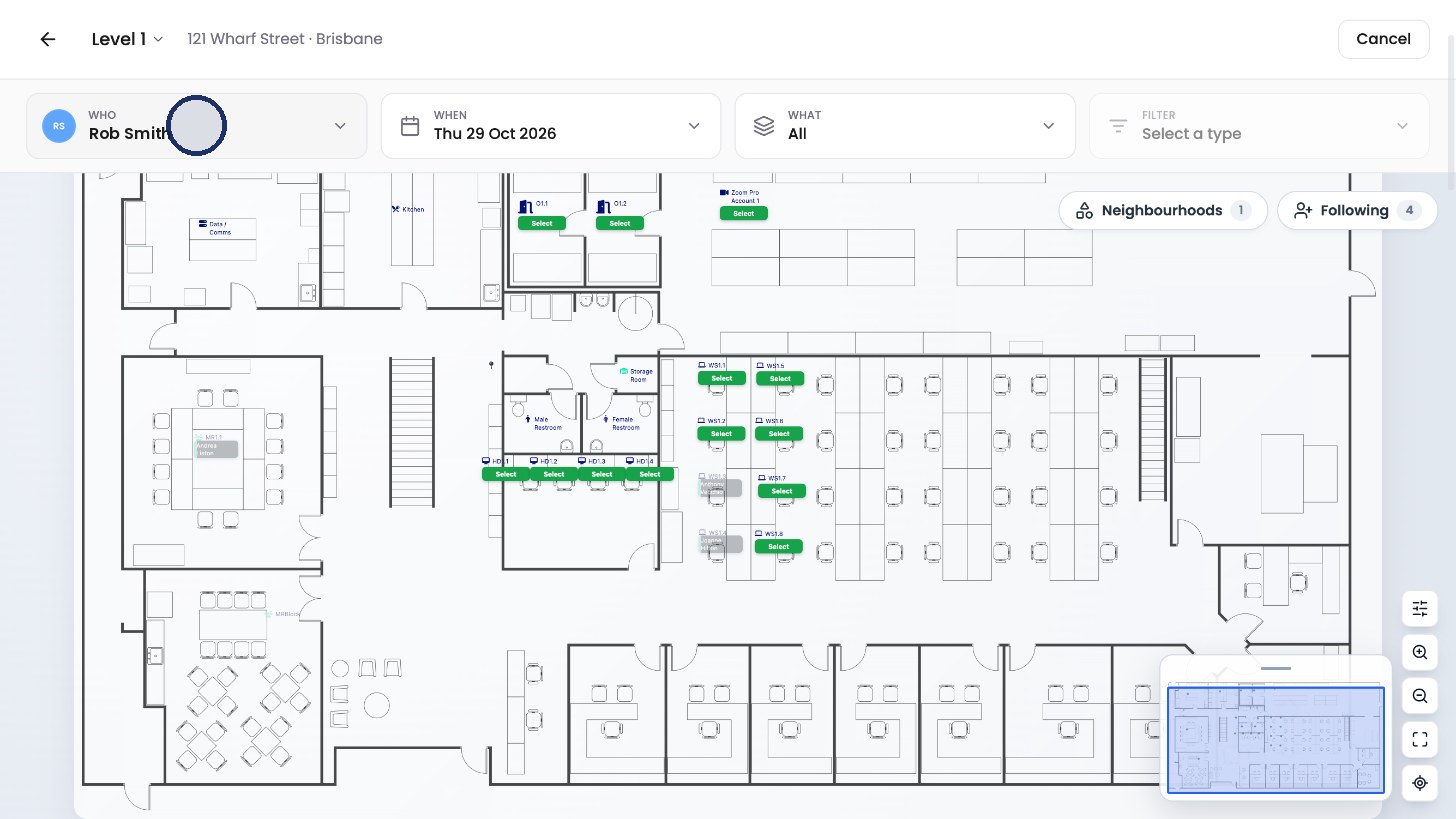
Click Who to choose the person. 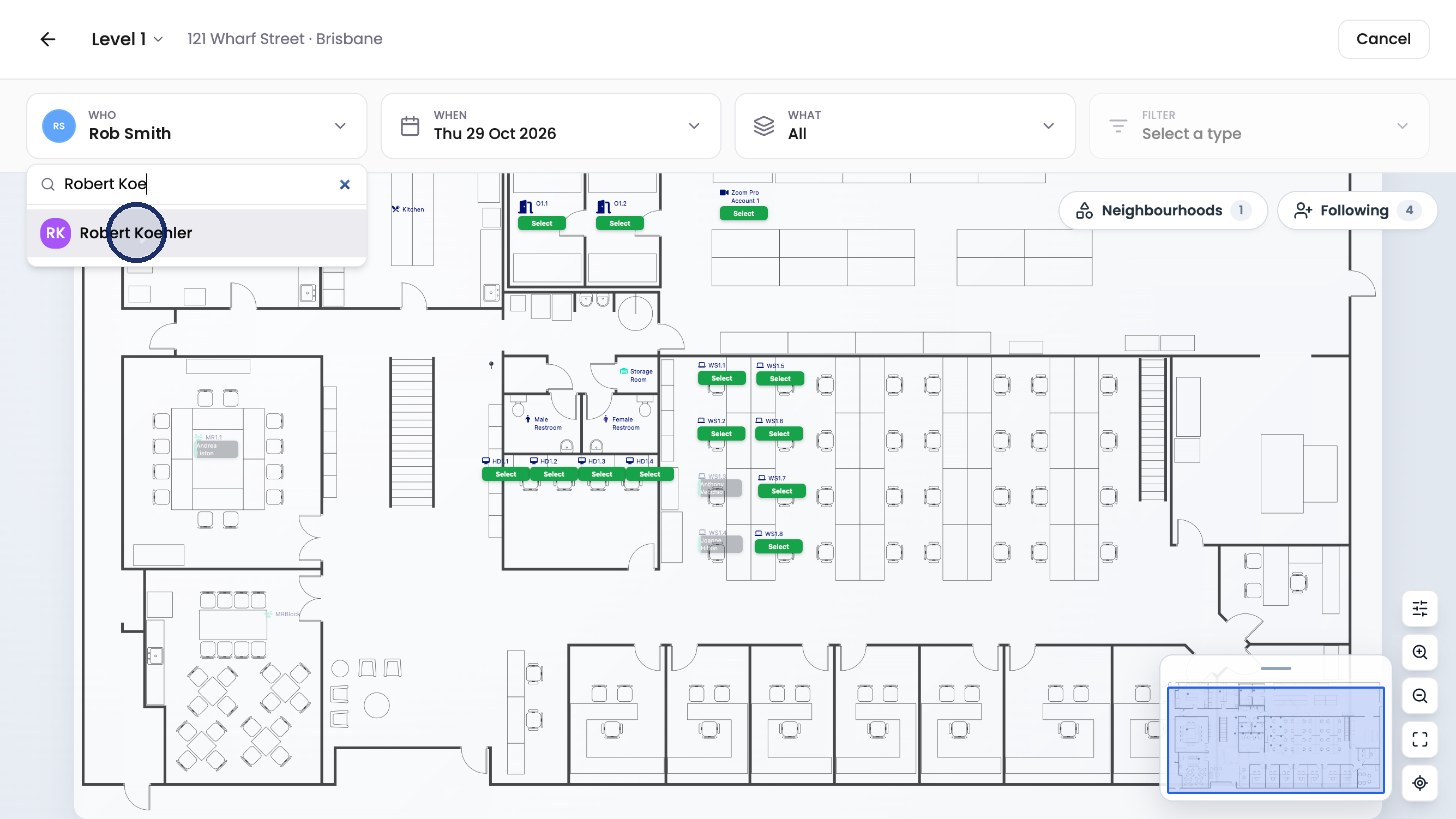
Select the person from the list. -
Click When and choose the day of the booking. Leave What set to All.
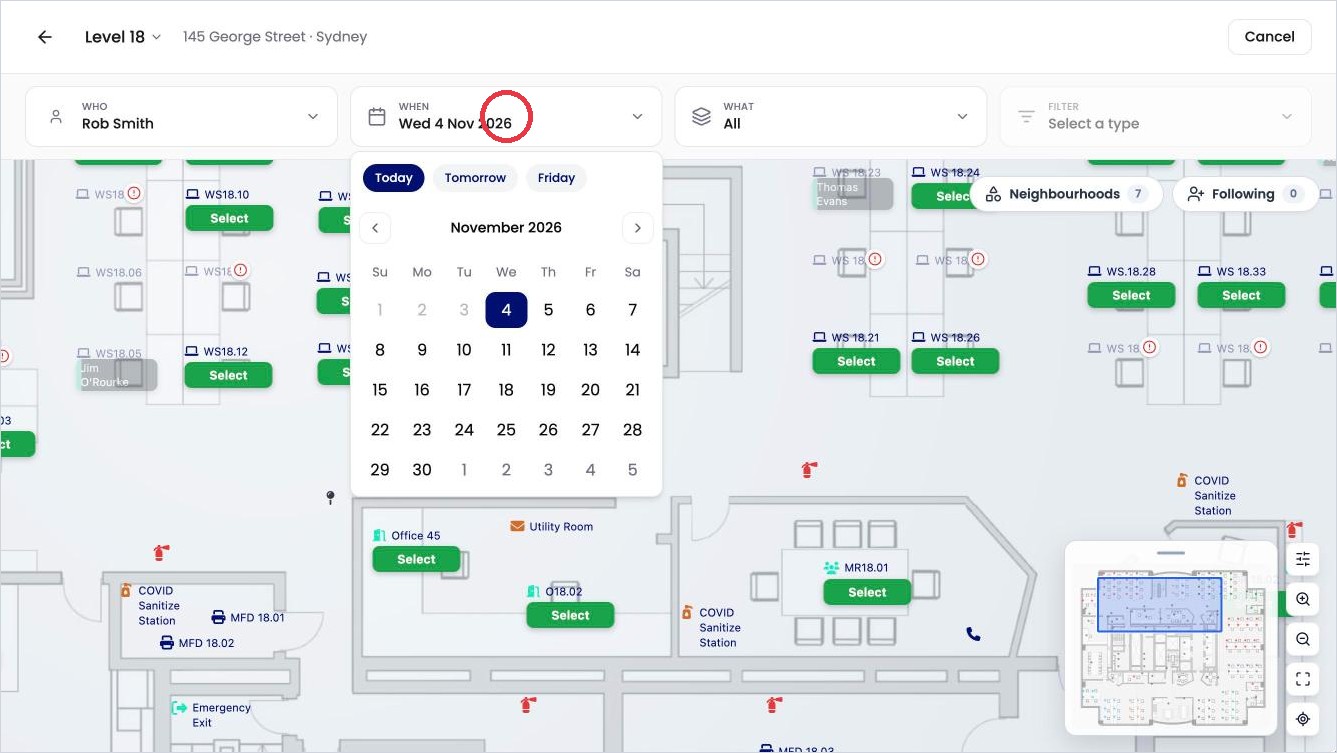
Choose the day under When.
-
Click Select on the desk you want for them.
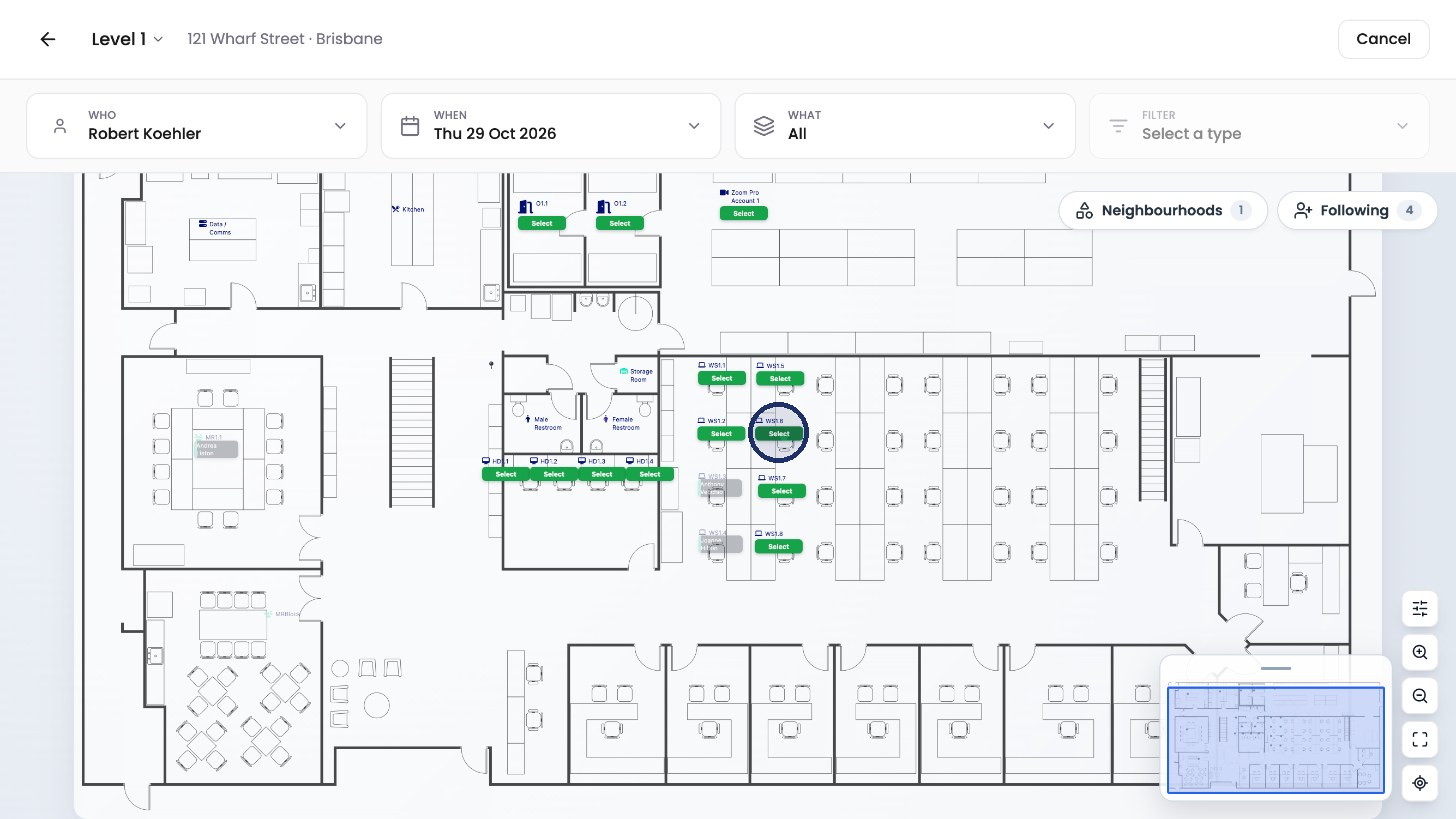
Click Select on their desk. -
Check the details on the right, then click Confirm booking.
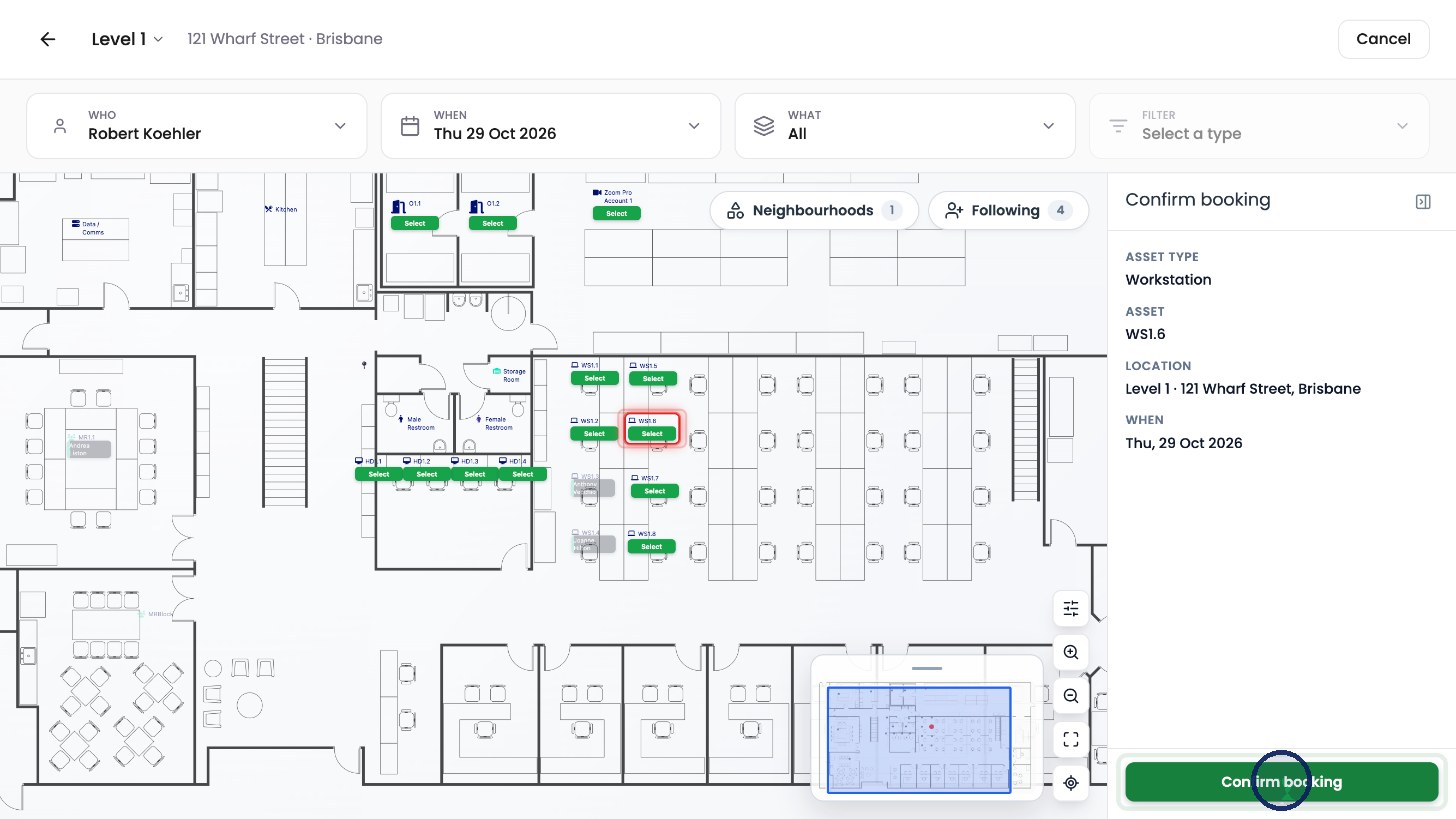
Click Confirm booking.
Check them in
If the booking is for today, OfficeMaps asks if you'd like to check them in. If the person is already in the office:
-
Click Check in now.
-
Choose how long they need the desk, and confirm.
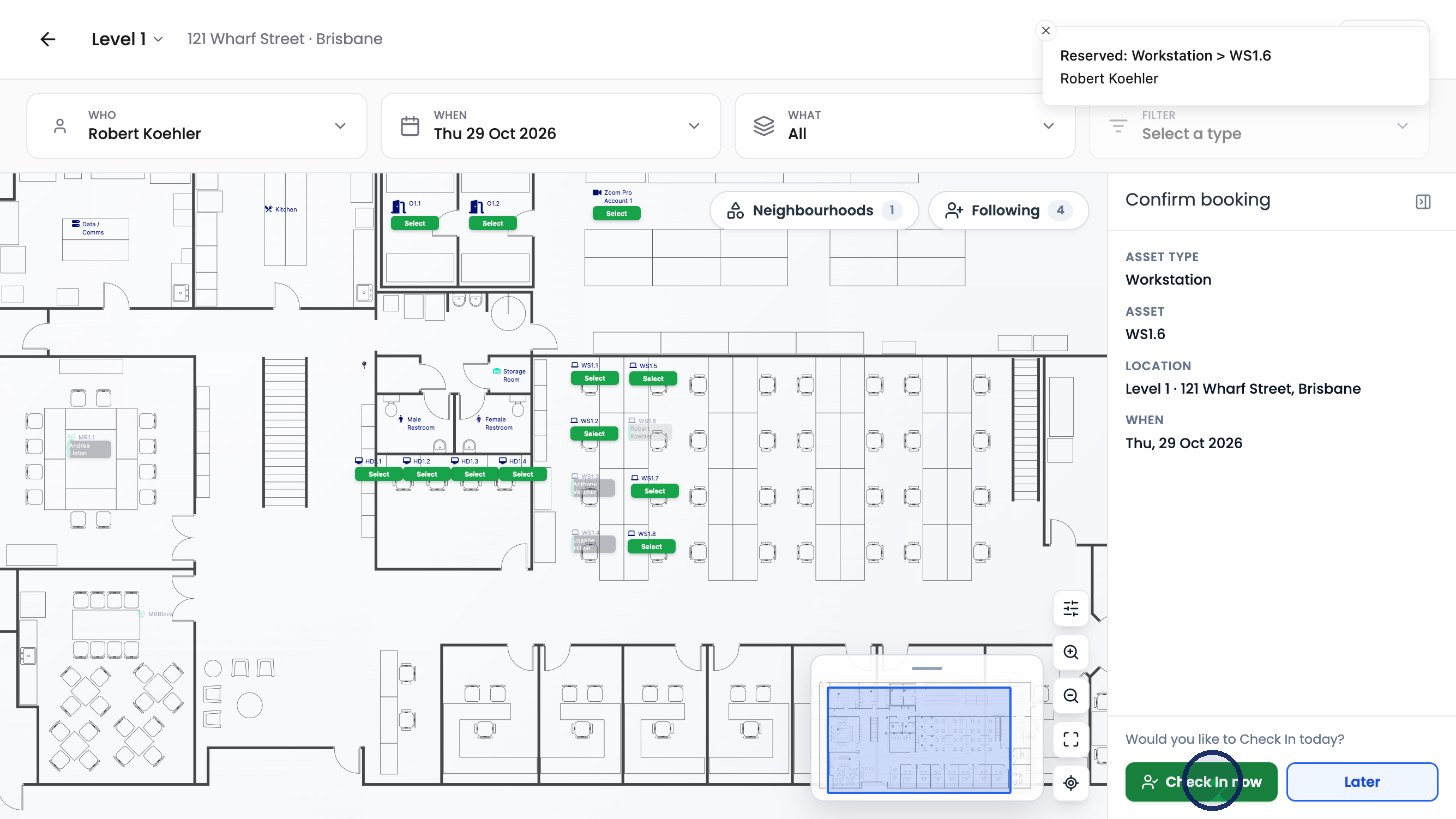
Click Check in now. 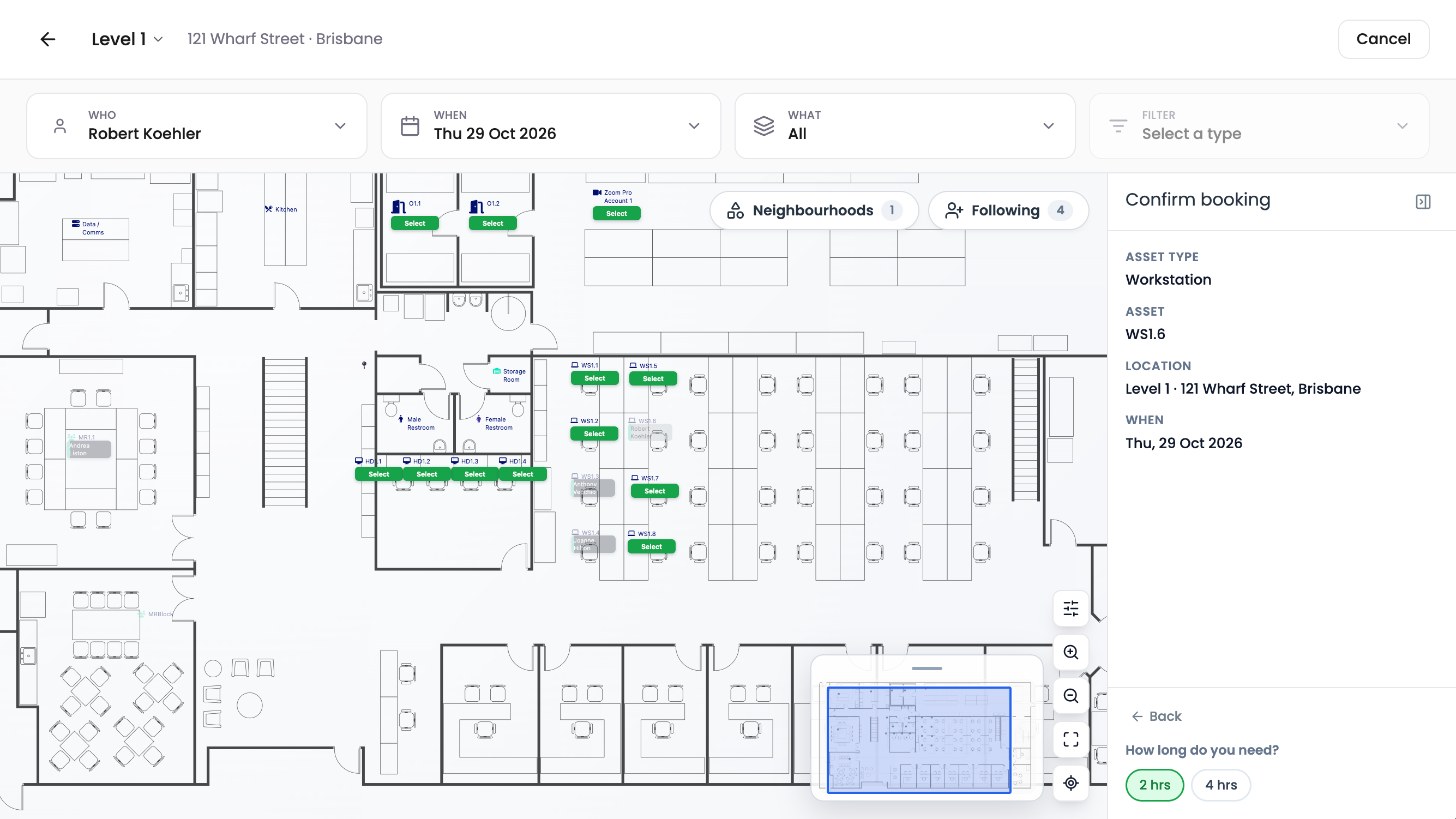
Choose how long they’ll stay.
To check them in later, click Later.
If the booking is for another day, there's no check-in step. The desk is reserved straight away, and they can check in on the day.