Looking for a particular floor, or the tools to manage it? This article shows you how to find any level in Maps, what's on its page, and where the admin tools are.
Find a level
-
Click Maps in the top menu.
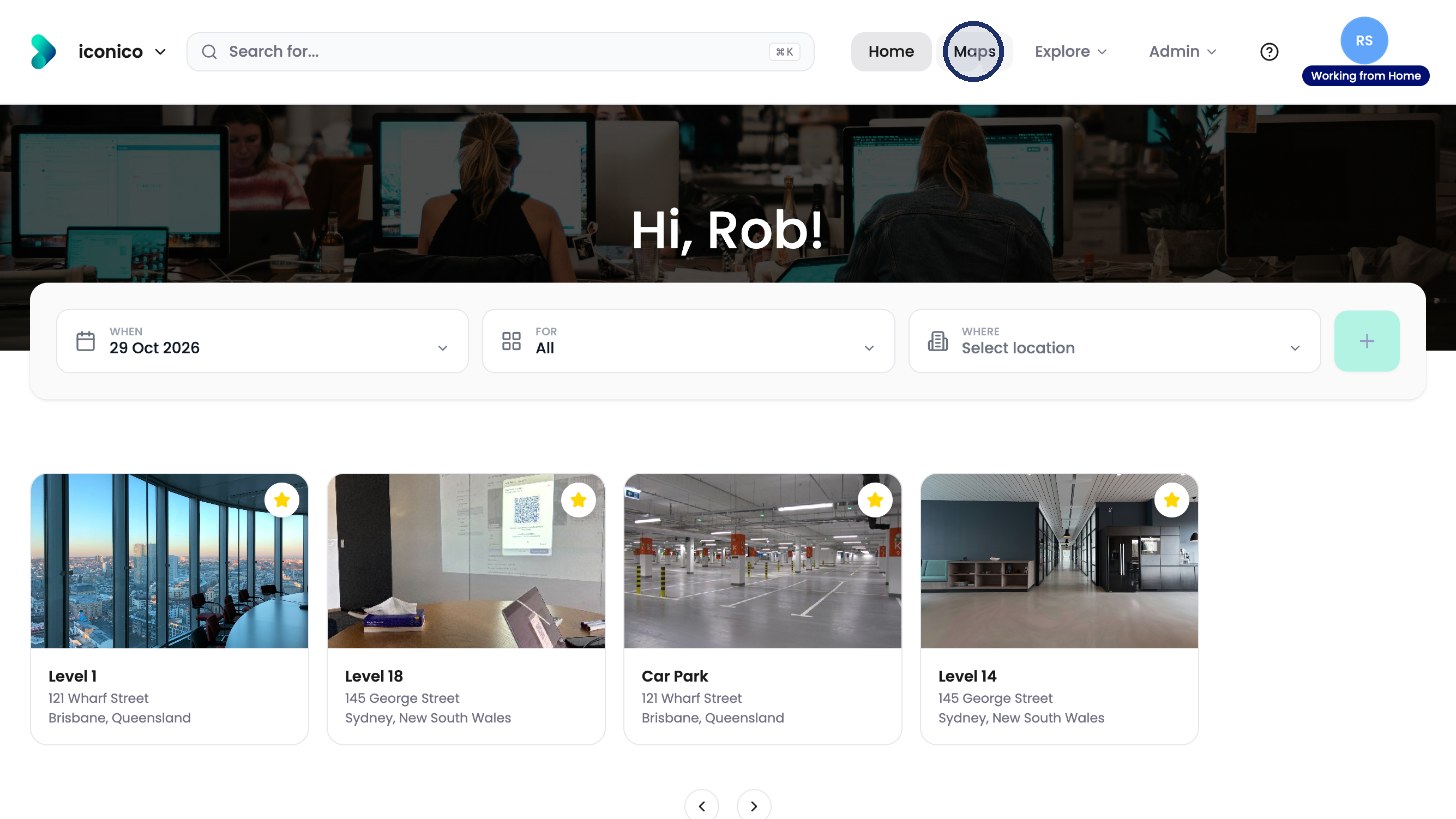
Click Maps in the top menu. -
In the list on the left, open a city, then a building, then a level.
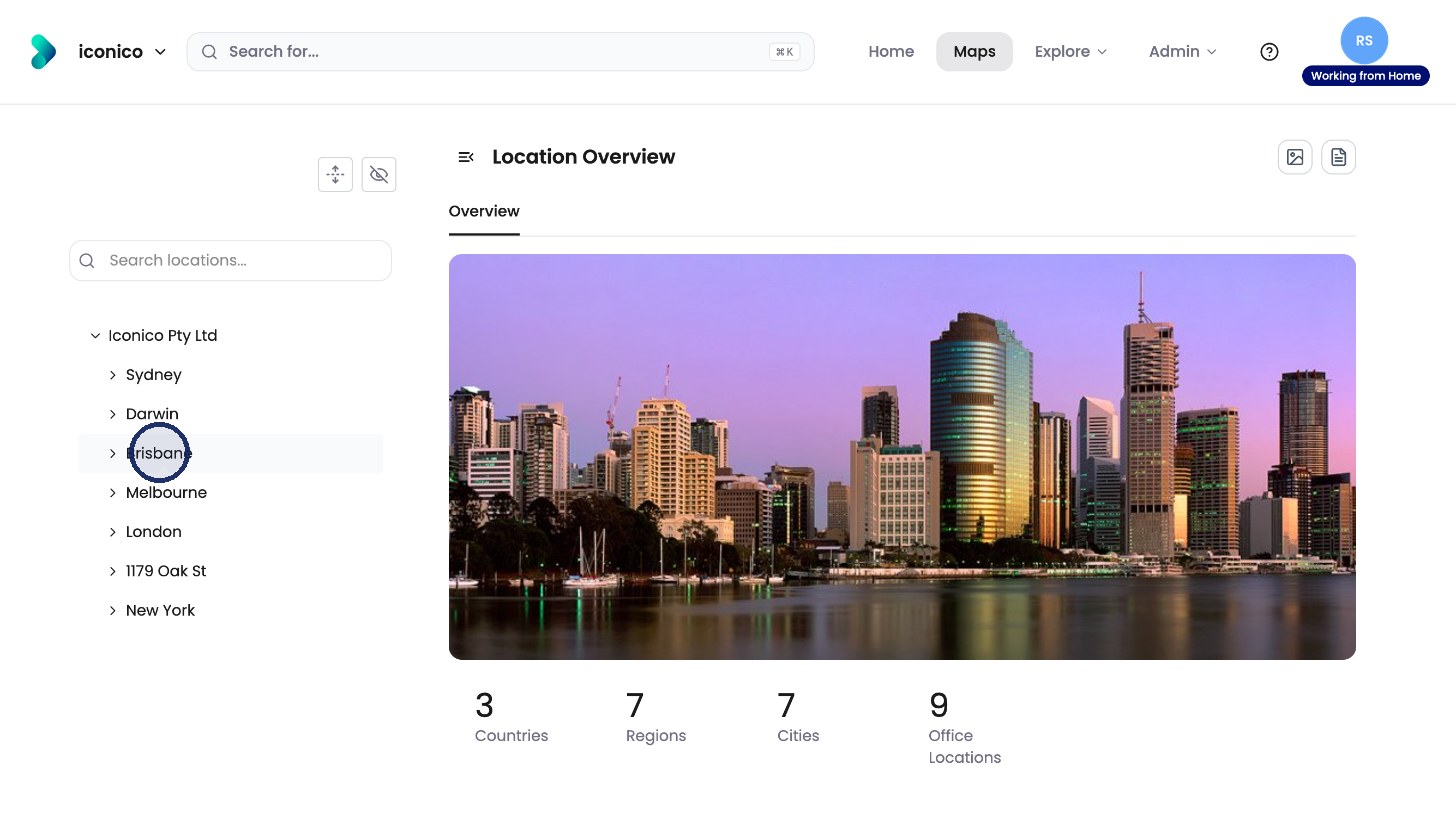
Open a city in the location list. 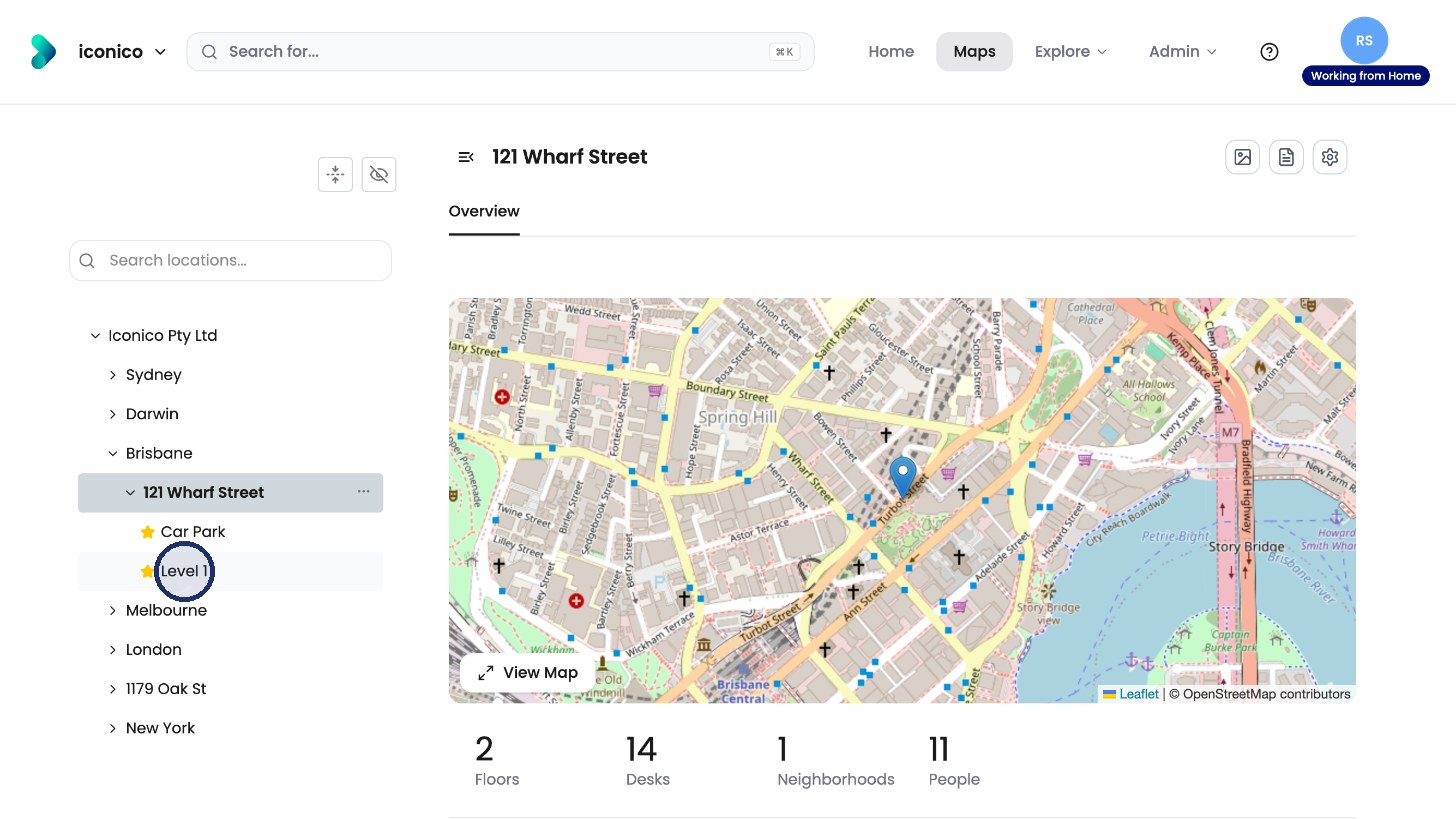
Then a building, then a level.
The level page
Each level has its own page, with photos, desks, neighbourhoods and people.
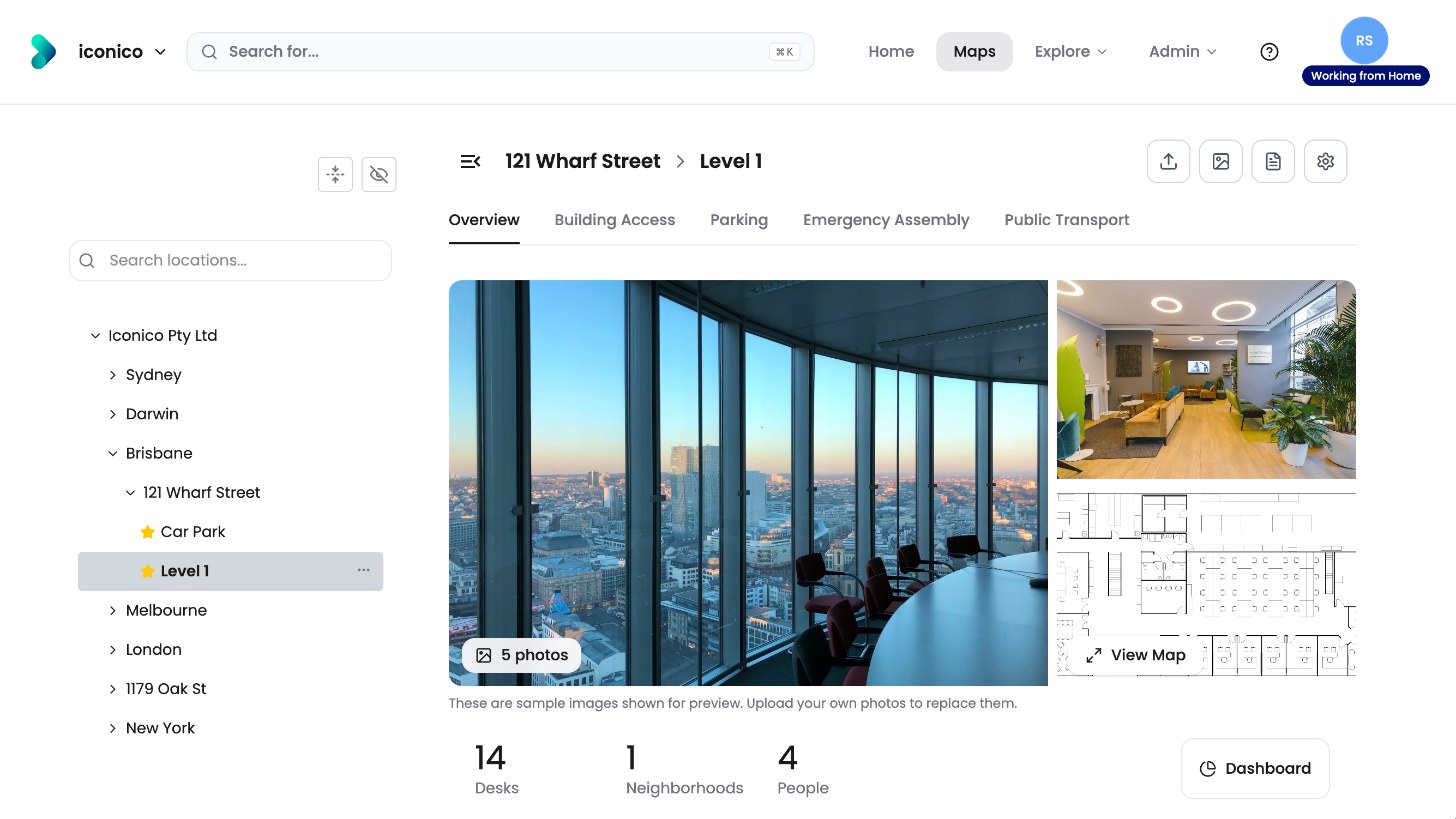
The tabs under the photos take you straight to each section, such as Building Access, Parking or Public Transport.
Admin tools
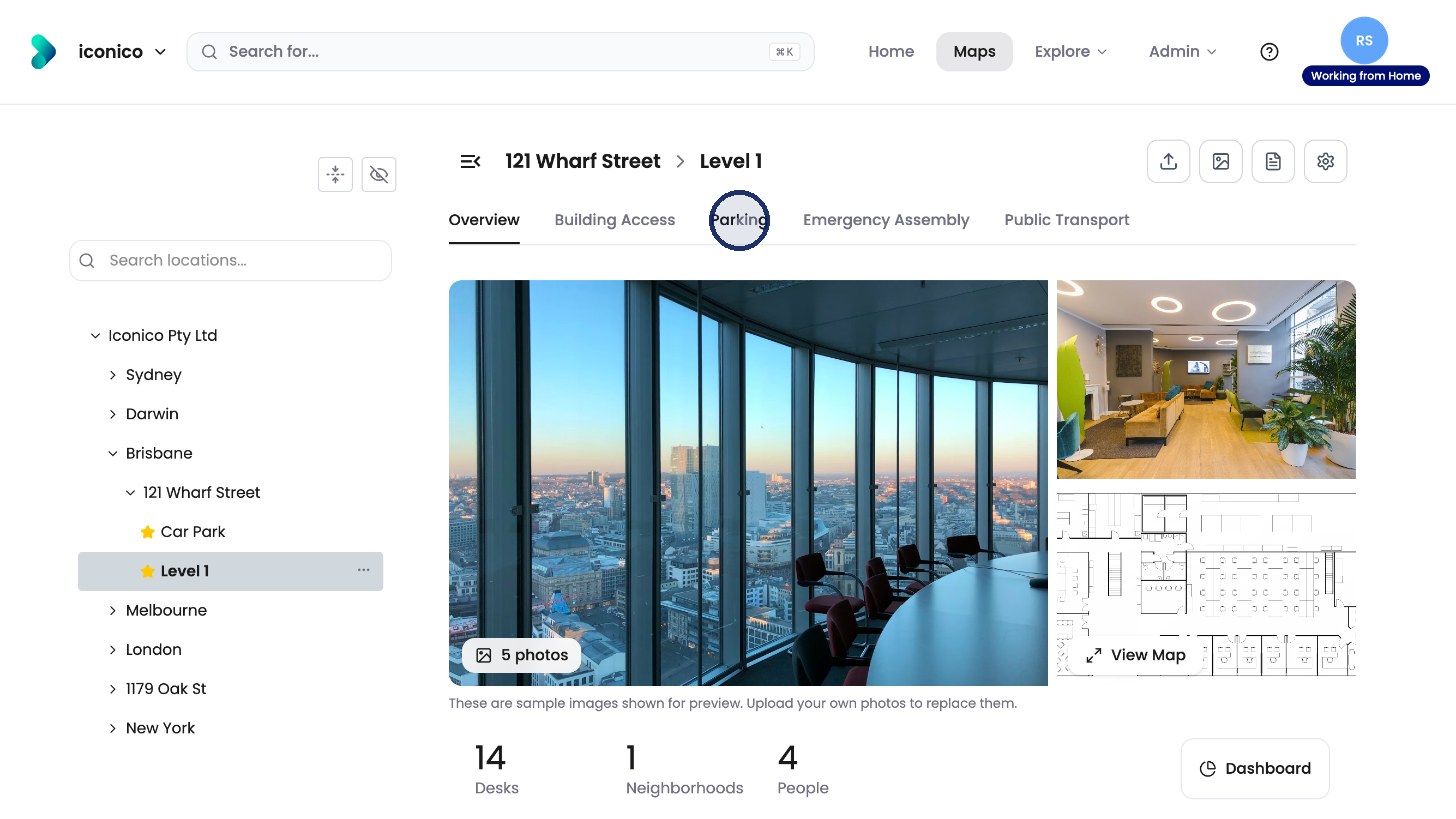
As an admin, you also see four icons at the top right of the page:
|
Icon |
What it opens |
|---|---|
|
Upload (arrow) |
Upload a new floorplan image |
|
Picture |
Add Photos |
|
Document |
Edit Information |
|
Cog |
Location Settings, Location Alerts and Neighbourhoods |
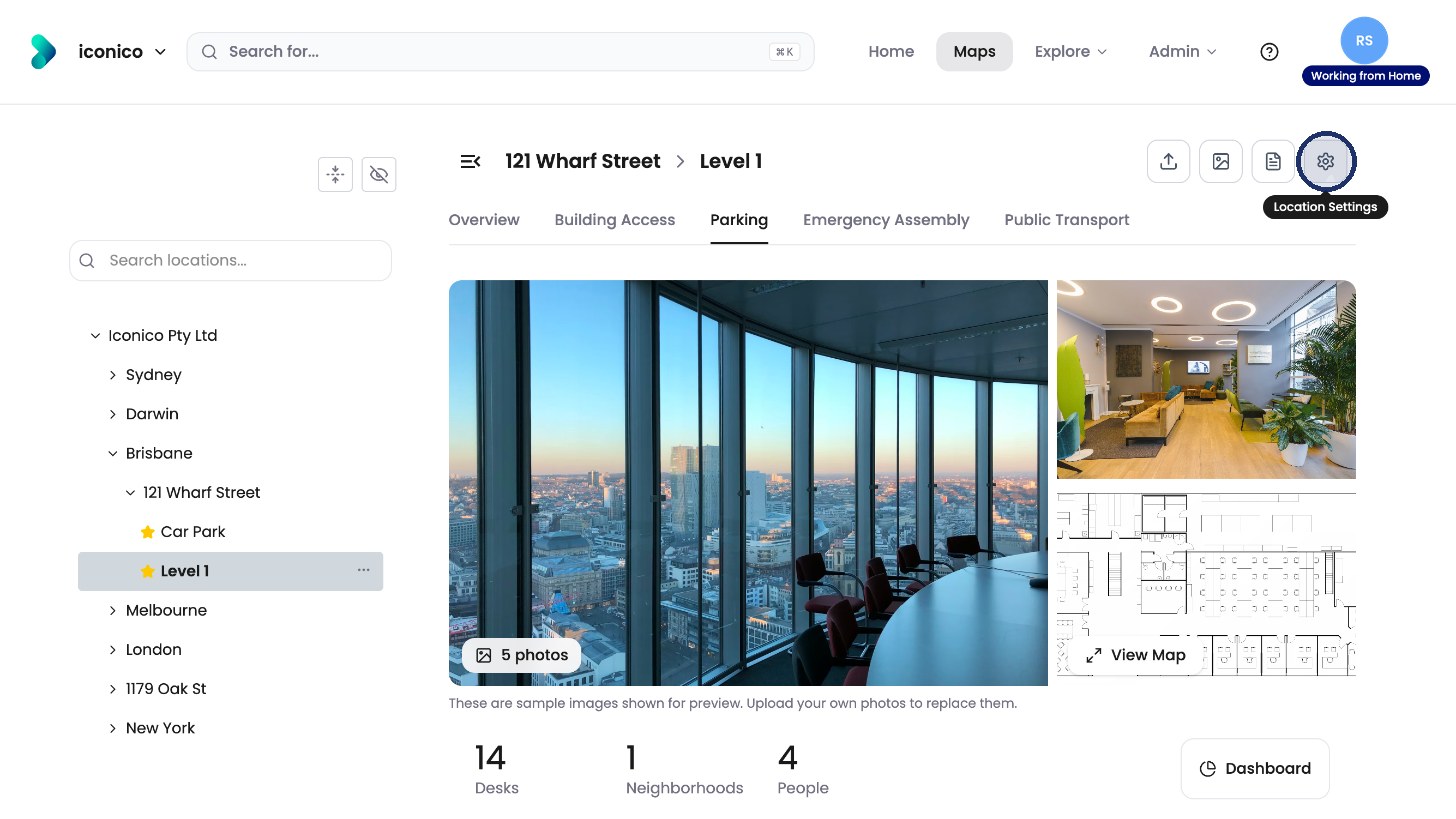
Location Settings shows the level’s details.
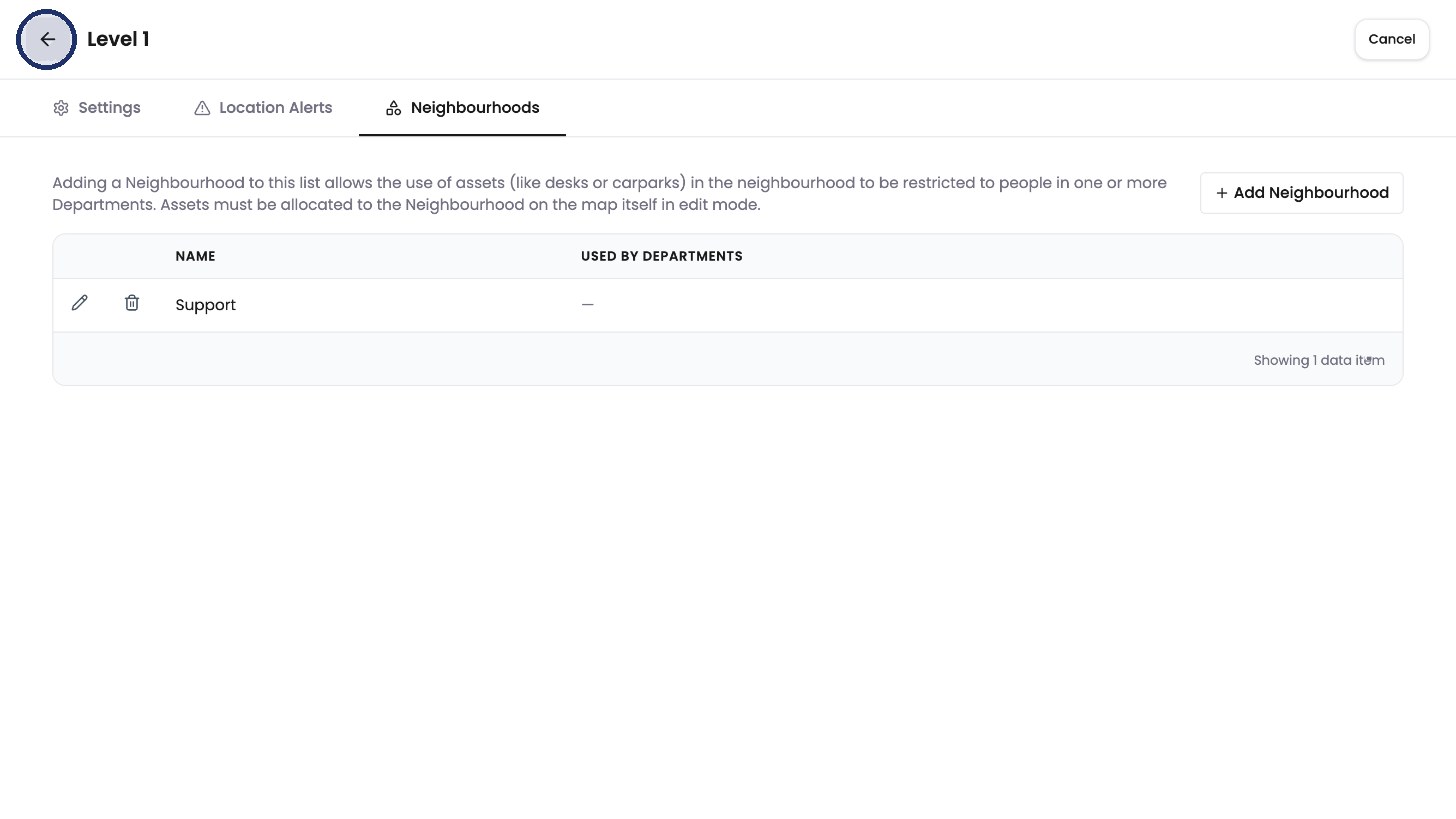
The Neighbourhoods tab lists the groups of desks reserved for teams.
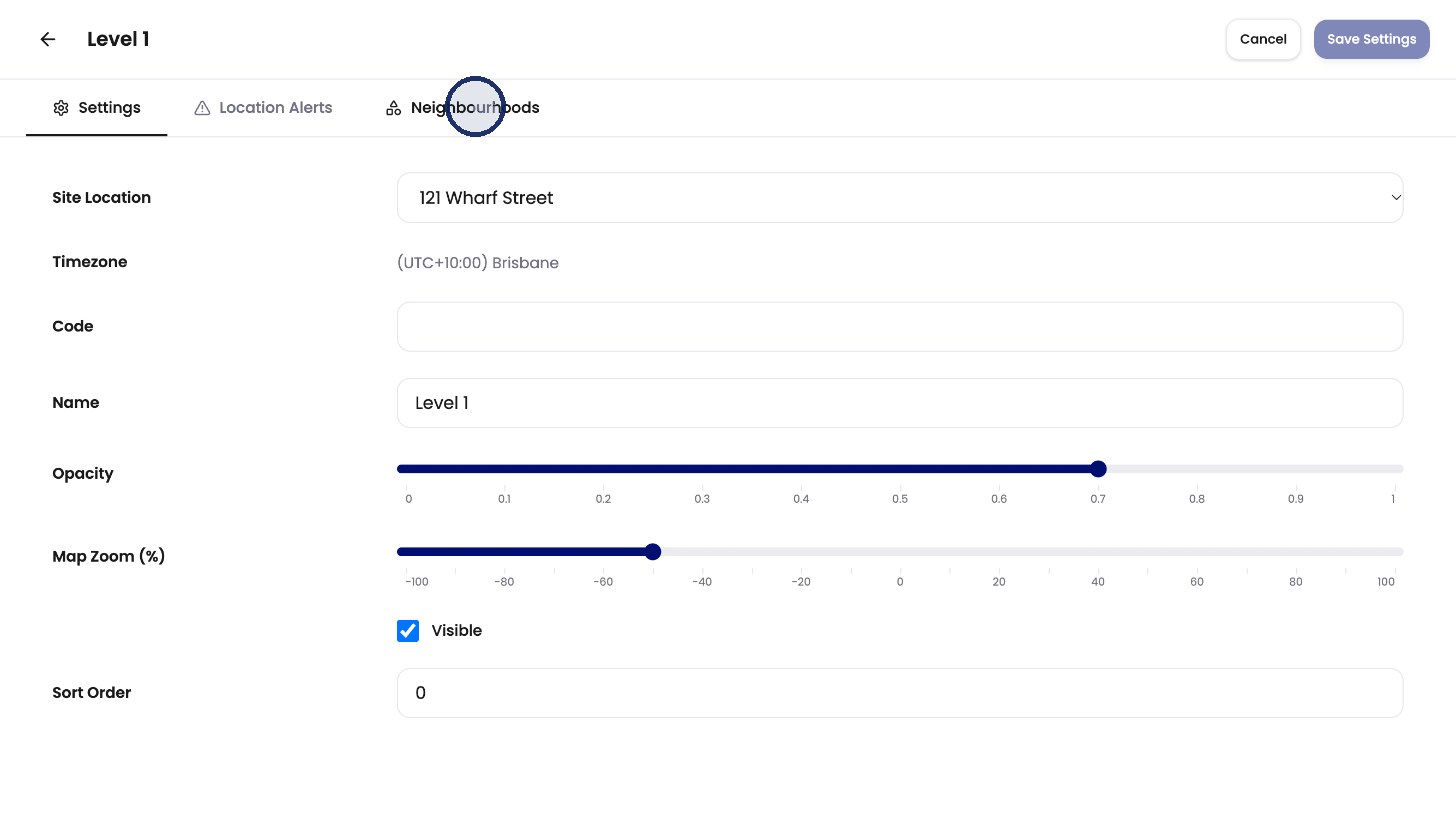
To go back to the level page, click the arrow at the top left.