
Need to warn people about a fire drill, a broken lift or anything else affecting a floor? This article shows you how to add an alert that appears on the level page and pops up when people open the map, and how to change or remove it.
Add an alert
-
Open the level from Maps.
-
Click the Location Settings icon (the cog) at the top right.
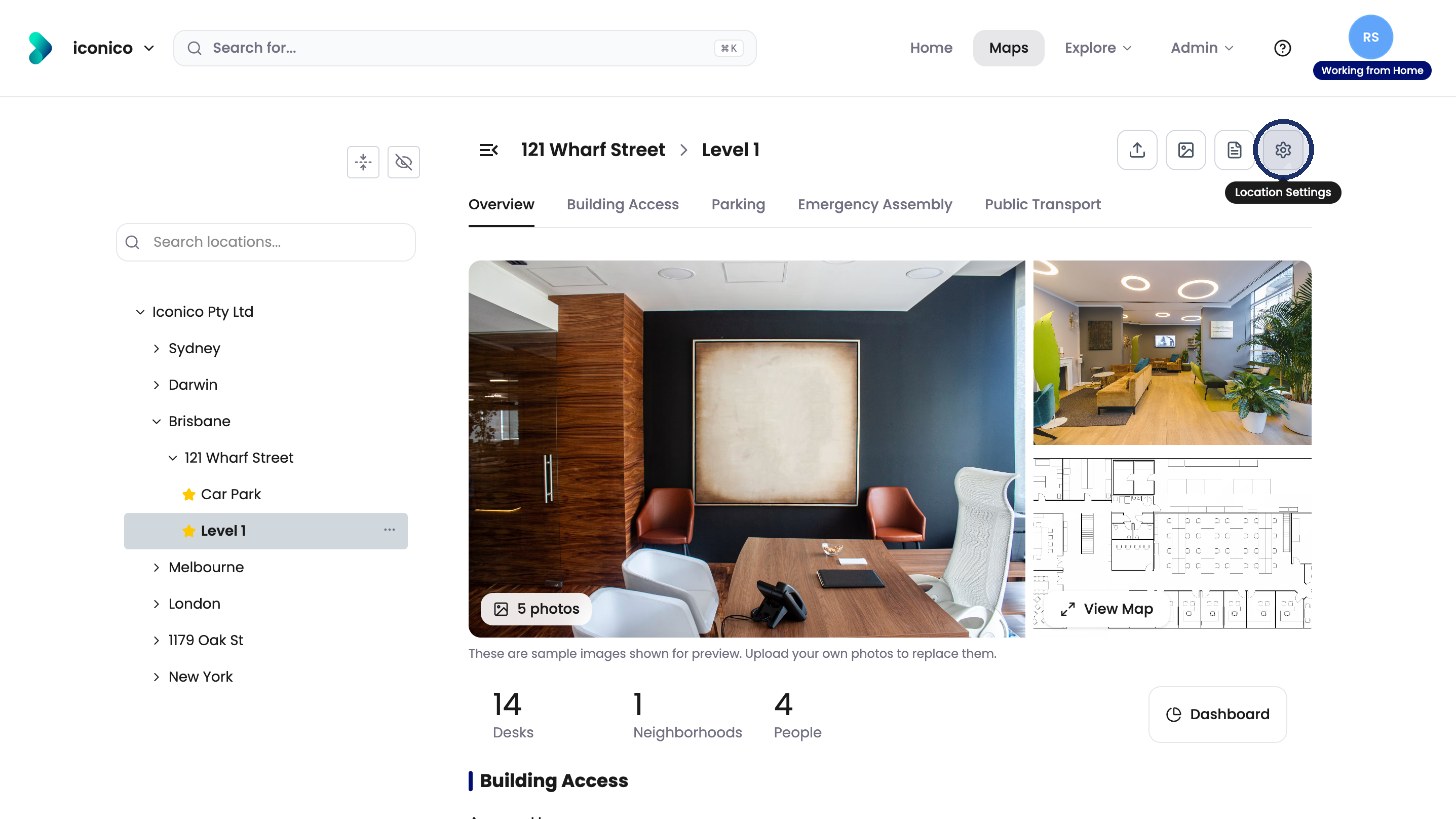
Click the cog to open Location Settings. -
Click the Location Alerts tab.
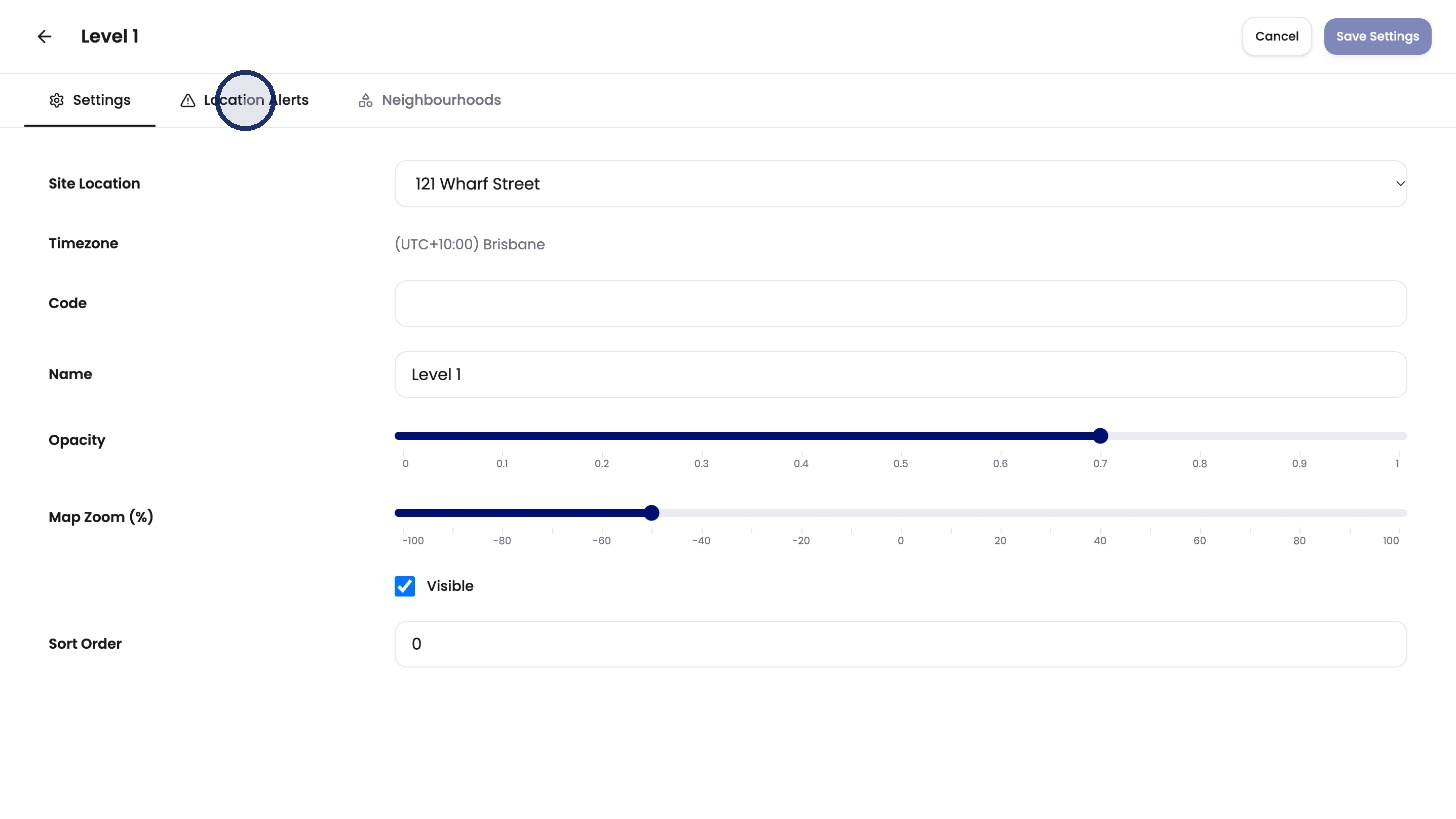
Open the Location Alerts tab. -
Click + Add Alert.
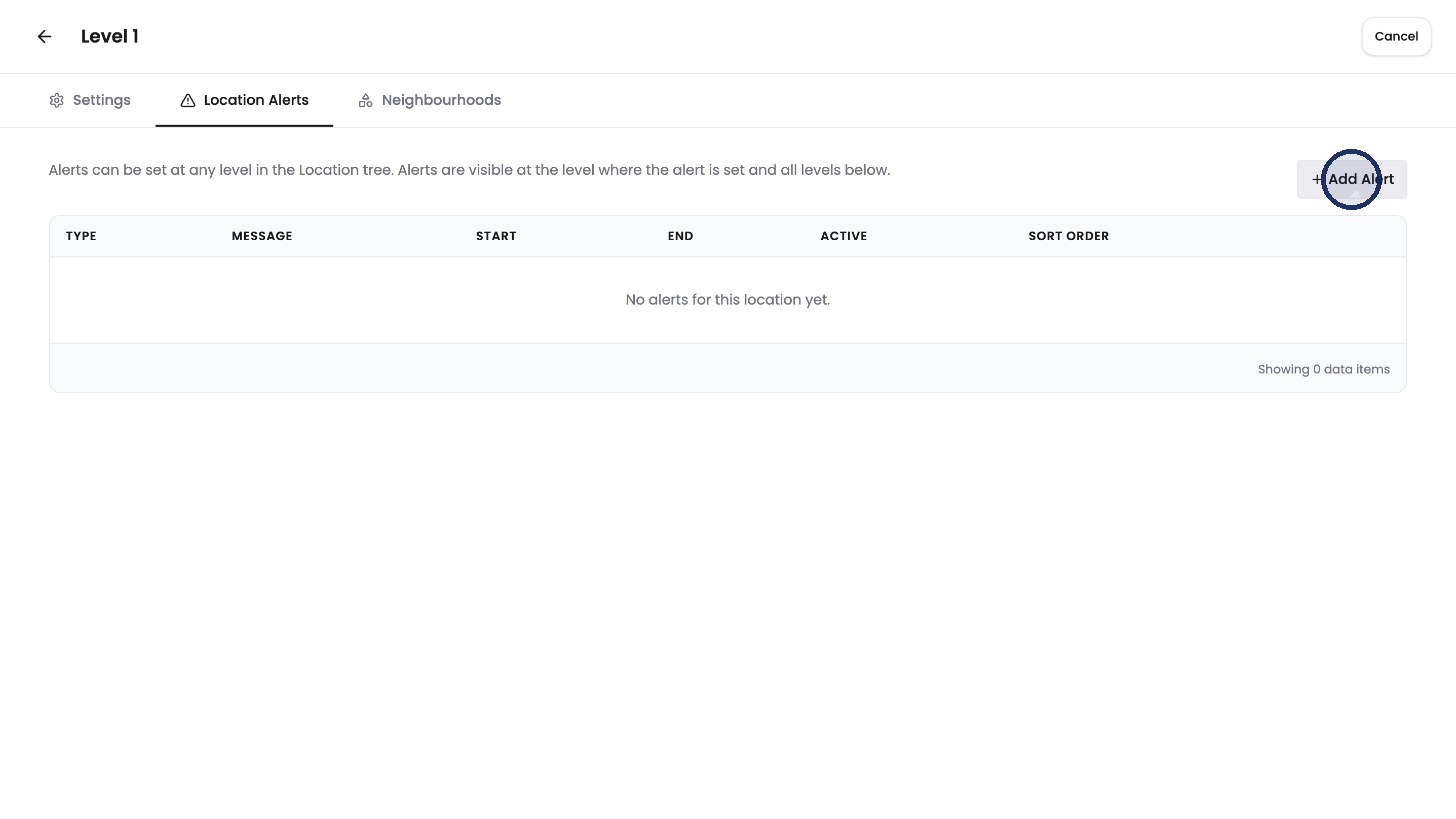
Click Add Alert. -
Choose a Type: Info, Warning or Error.
-
Write your Message (up to 1,000 characters).
-
Set the Start and End dates and times.
-
Leave Active ticked, and click Add.
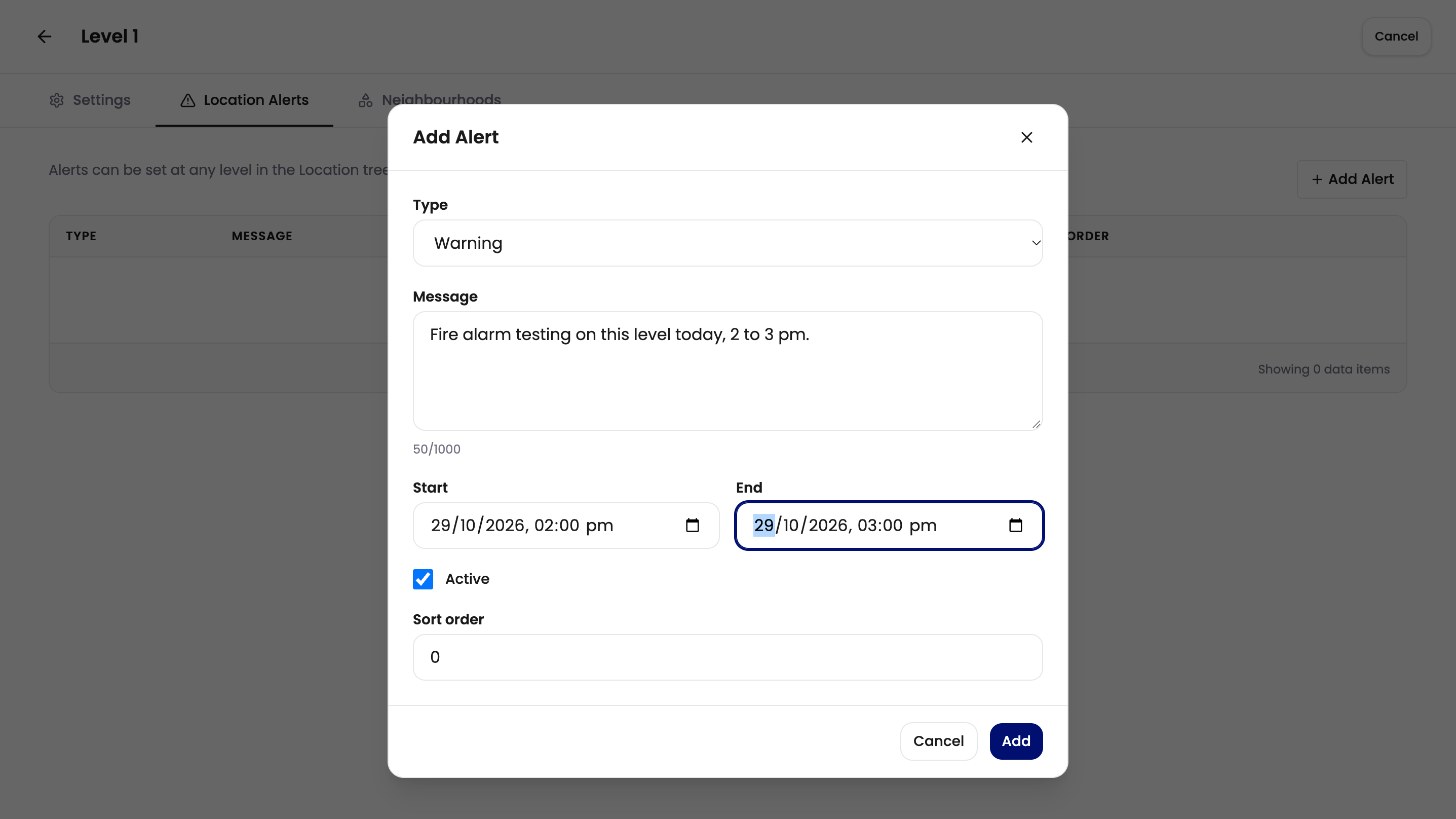
Choose the type, write the message and set when it runs. 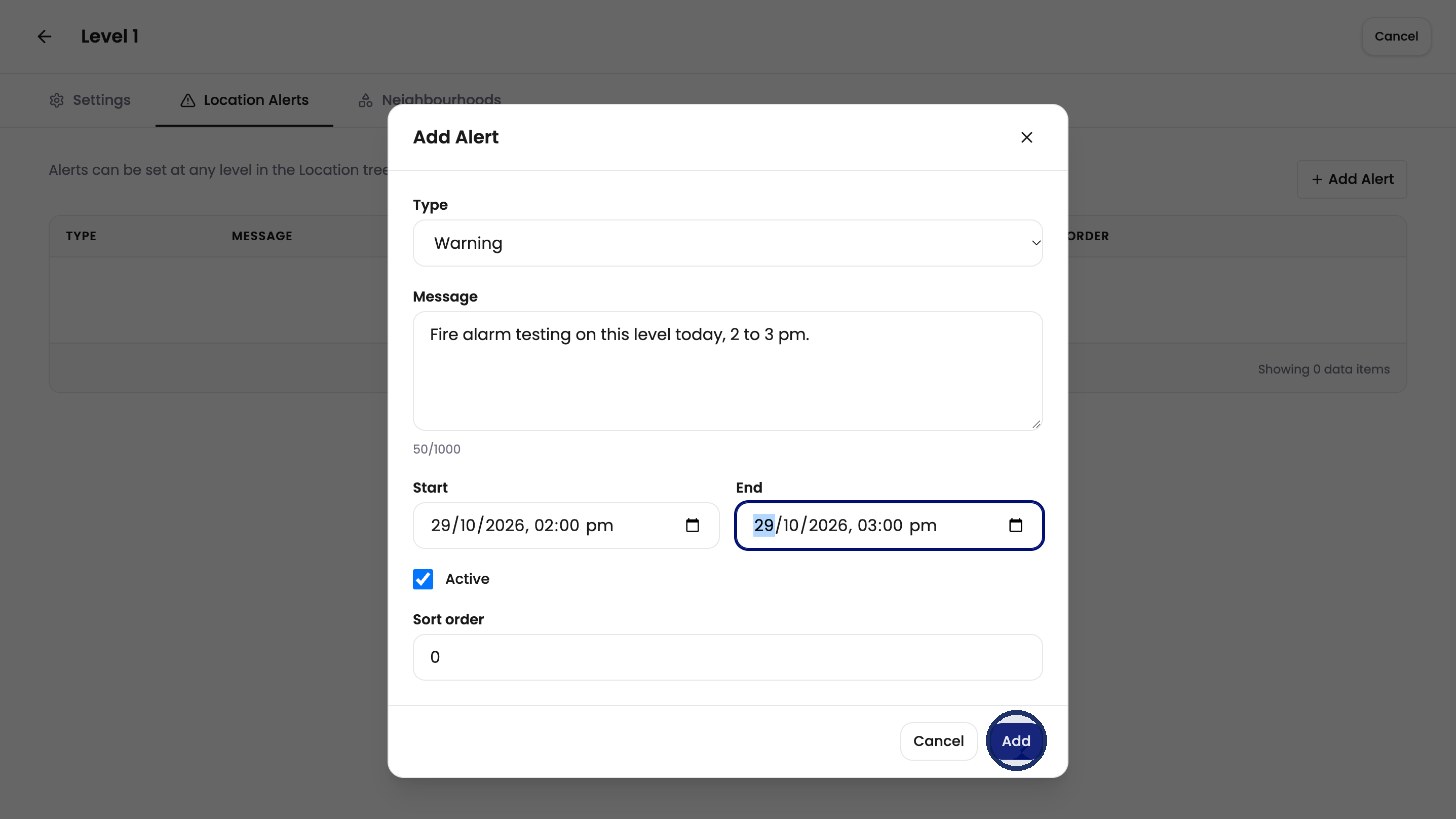
Click Add to publish the alert.
Where people see it
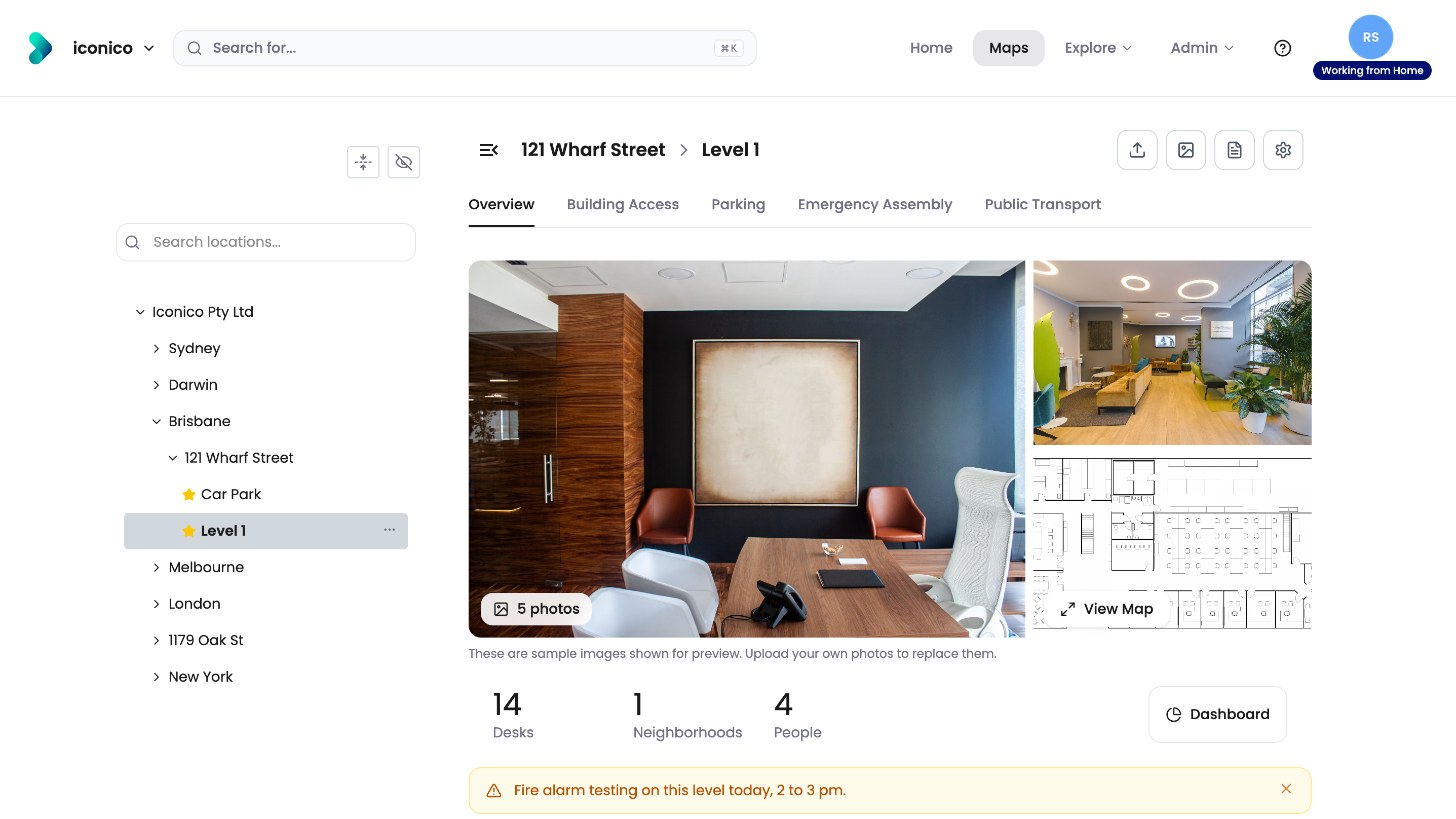
The alert shows at the top of the level page.
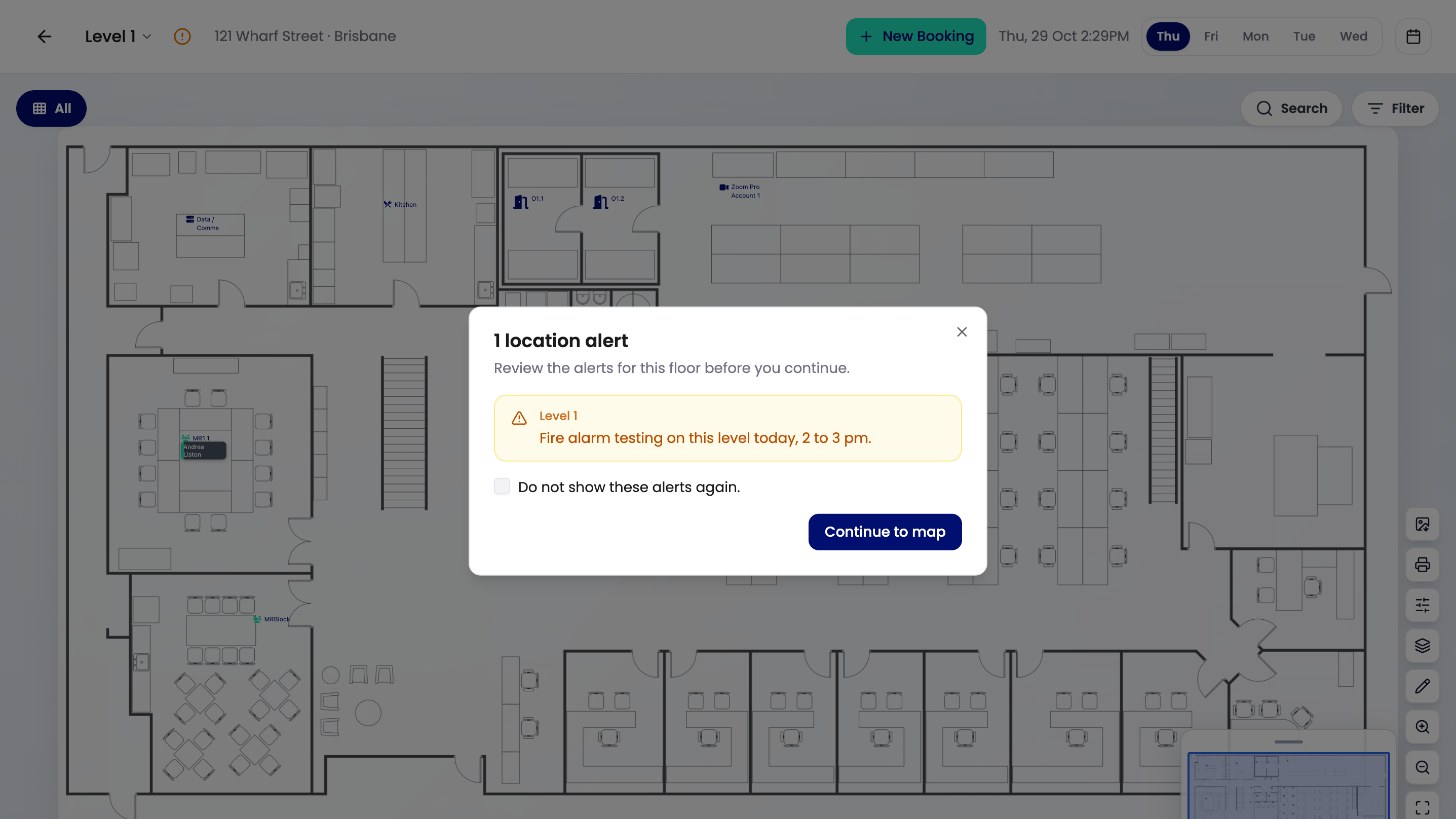
It also pops up when people open the map, until they click Continue to map.
Edit an alert
-
On the Location Alerts tab, click the pencil in the alert’s row.
-
Update the details and click Save.
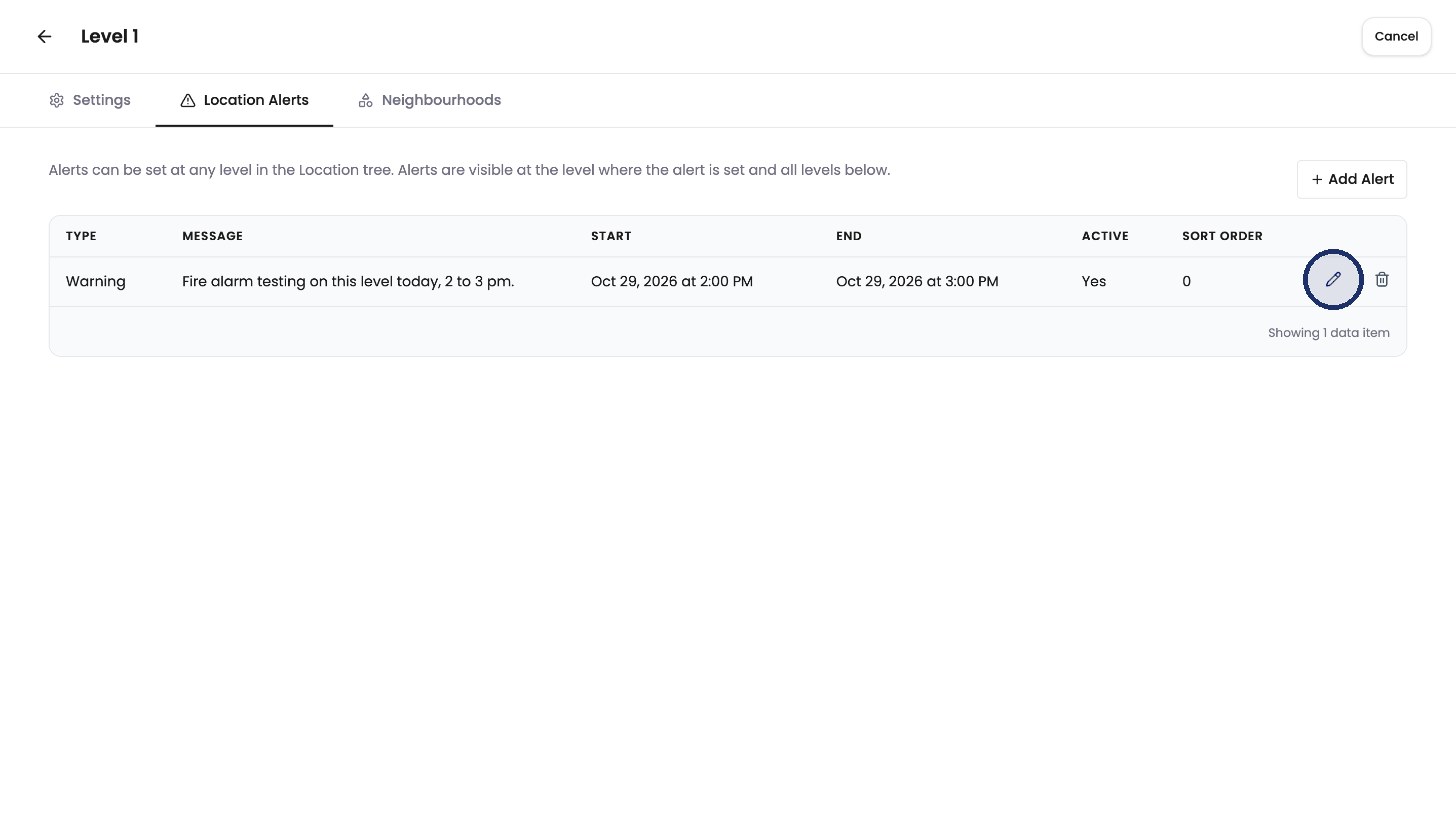
Click the pencil to edit an alert.
Delete an alert
-
Click the bin in the alert’s row.
-
Click Delete to confirm.
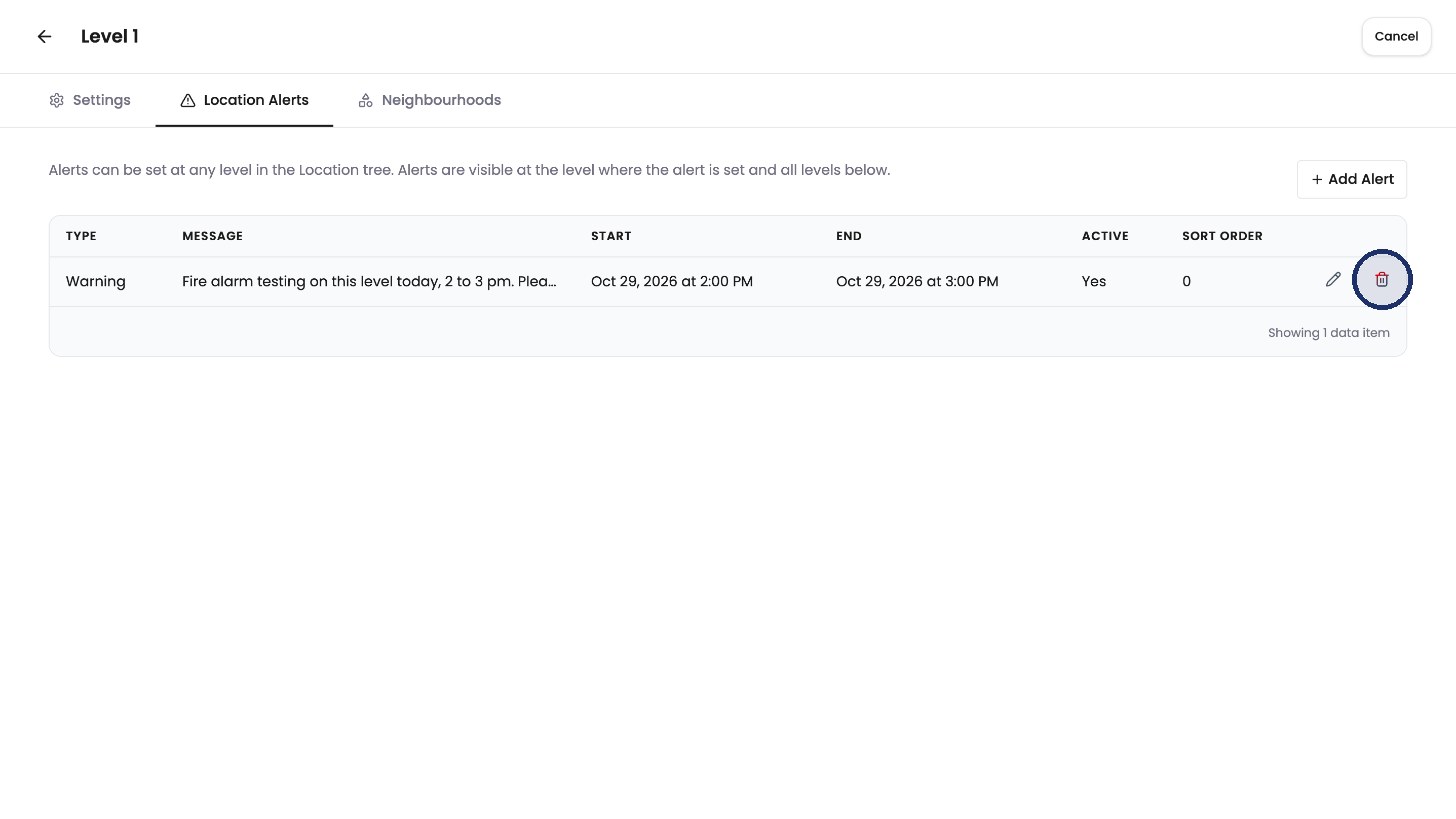
Click the bin to delete an alert. 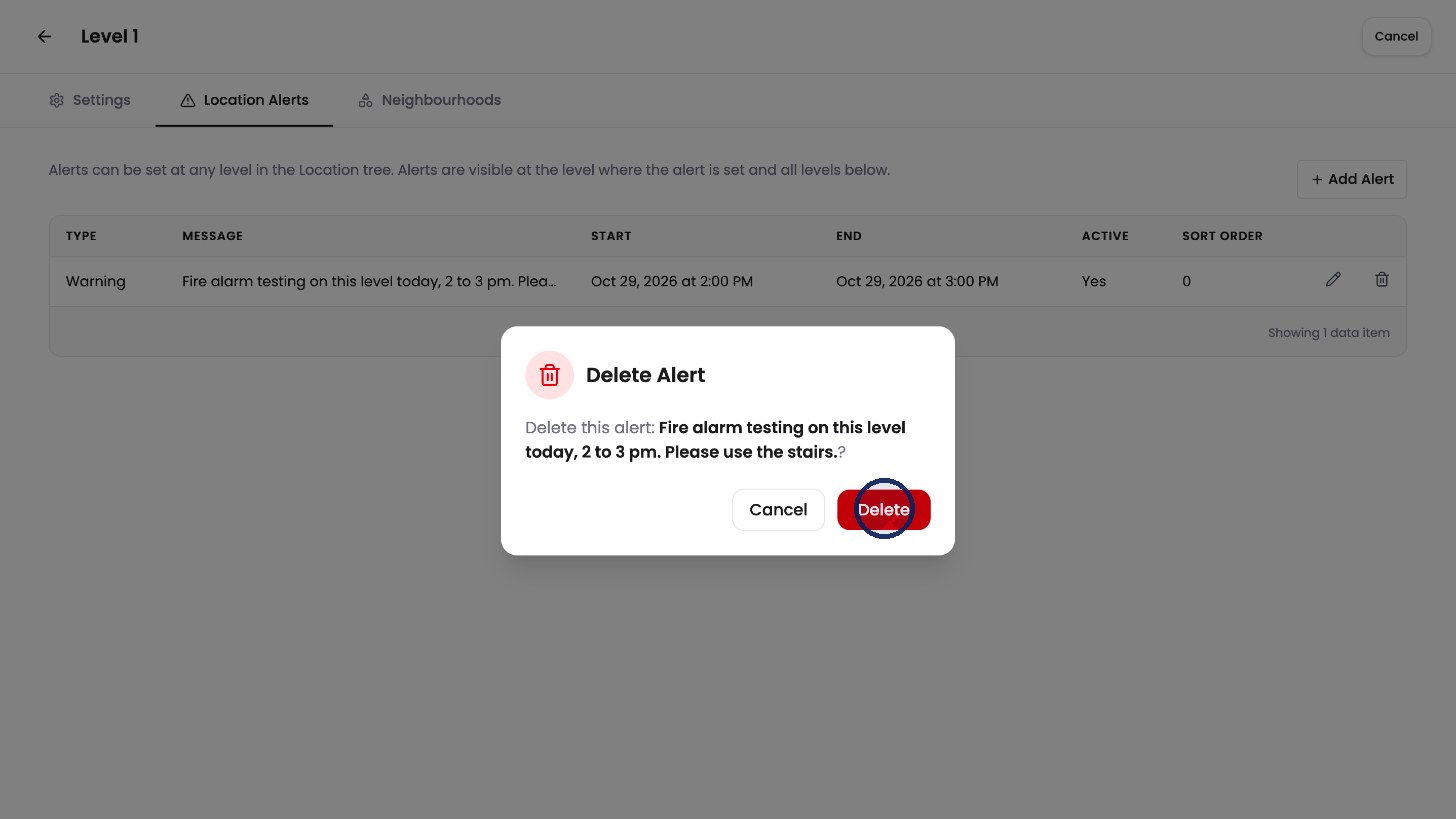
Click Delete to confirm.
Tips
-
An alert on a building shows on every floor in it.
-
To pause an alert without deleting it, edit it and untick Active.