
Need to hide a floor while you set it up, or remove an office you no longer use? This article shows you how to hide, delete and restore locations and levels, and how to delete one permanently.
Note: Hiding and deleting can both be undone. Only a permanent delete can’t.
Hide a location or level
-
Click Maps in the top menu bar.
-
In the location tree, hover over the location and click … (More option).
-
Click Hide.
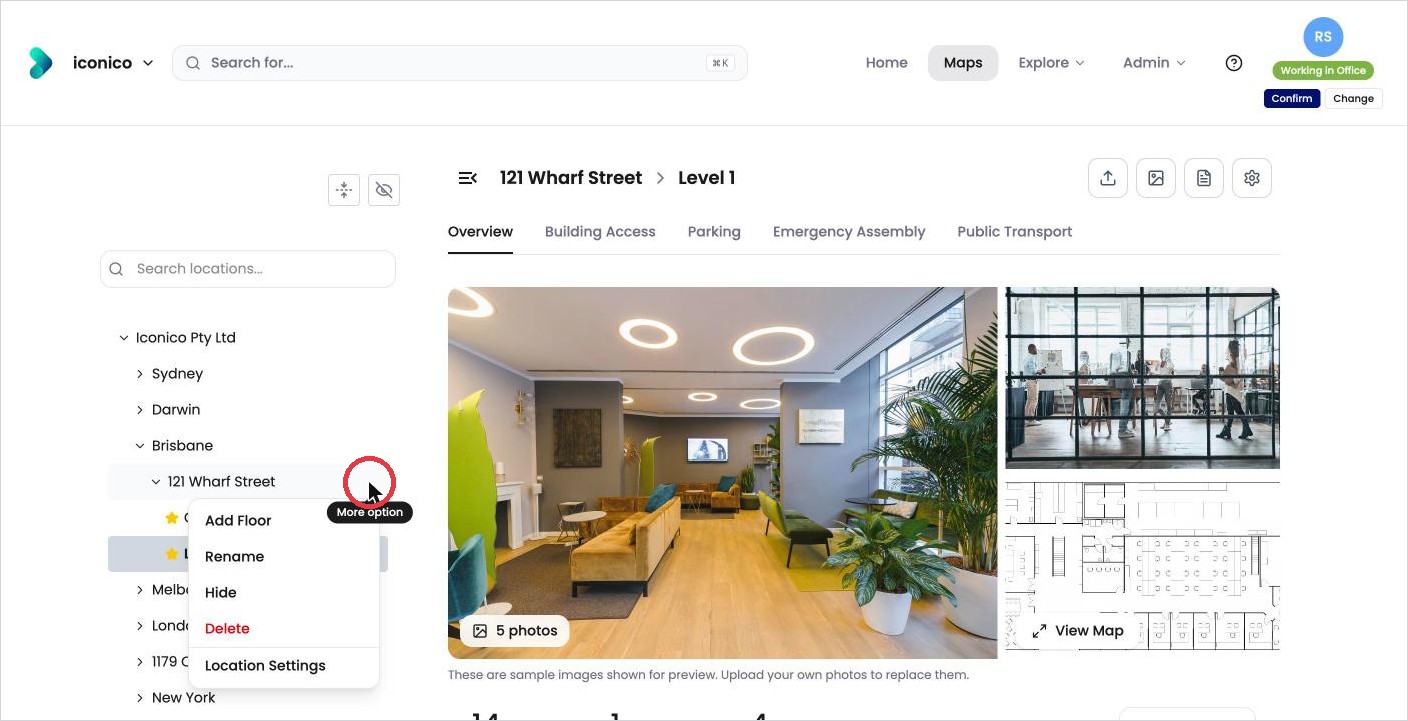
Hide is in the … menu for every location.
People who aren’t administrators no longer see the location. It disappears from your tree too, until you show hidden locations.
You can also hide a location from its settings: click …, then Location Settings, untick Visible and click Save Settings.
See hidden locations
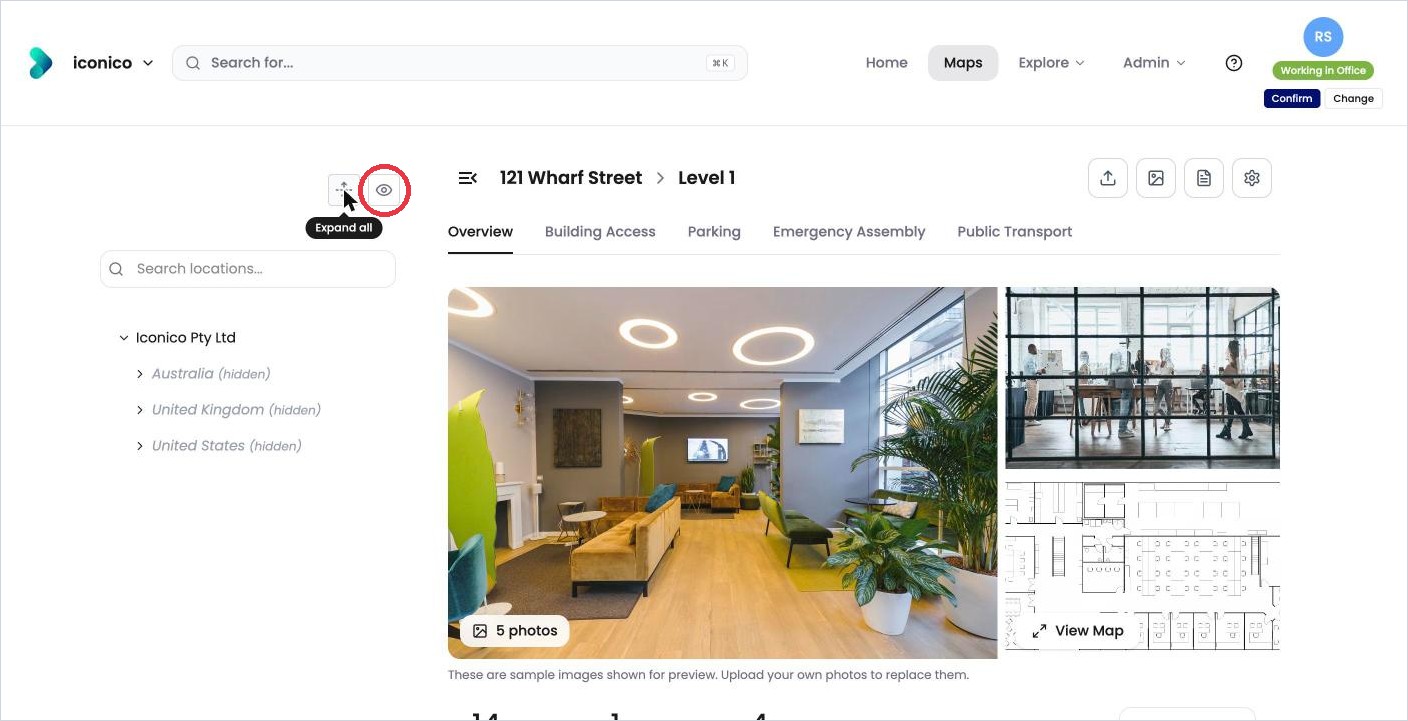
Above the tree, click Show hidden Locations (the eye with a line through it).
Hidden locations appear in grey italics with (hidden) after the name. Click the eye again to hide them from the tree.
Unhide a location
-
Click Show hidden Locations so the hidden location appears.
-
Hover over it and click ….
-
Click Unhide.
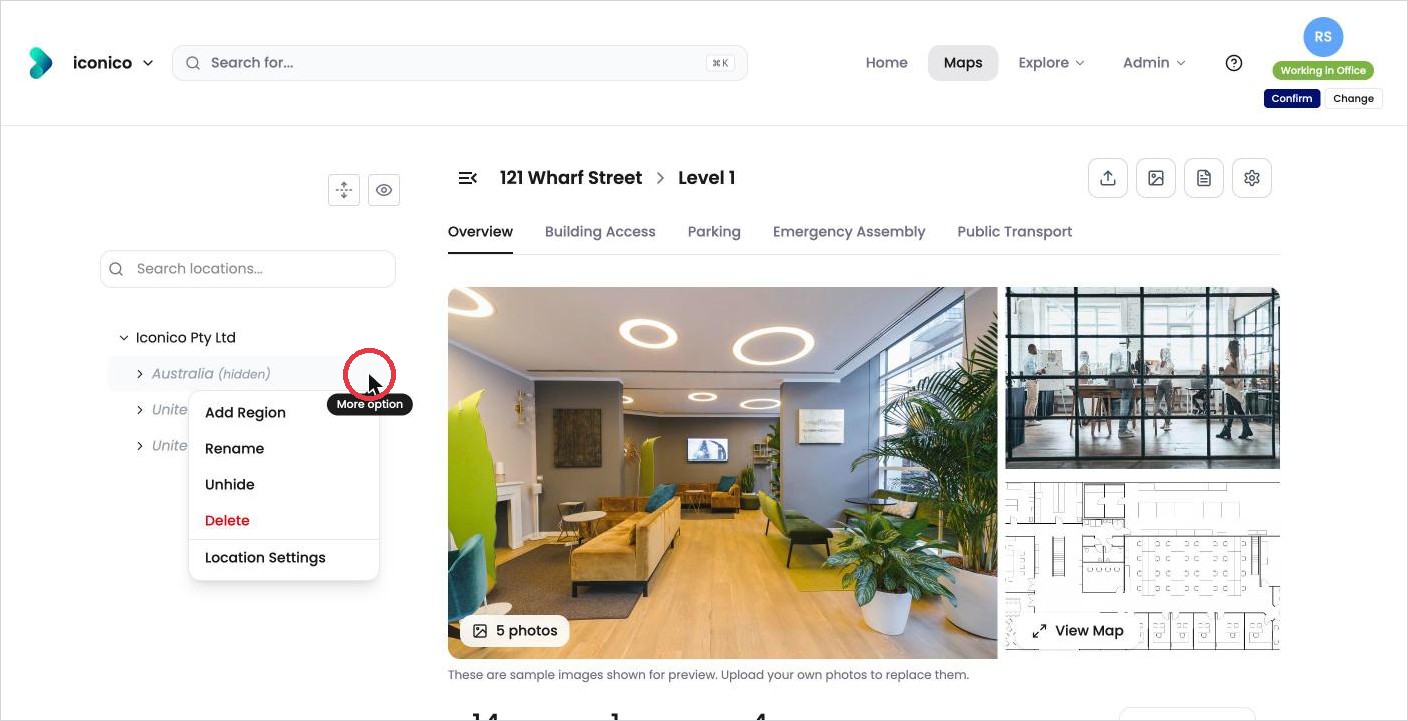
Unhide is in the … menu of a hidden location.
Delete a location or level
Deleting doesn’t remove a location straight away. It marks it as deleted, so you can restore it later.
-
Hover over the location in the tree and click ….
-
Click Delete (in red).
-
Click Delete to confirm.
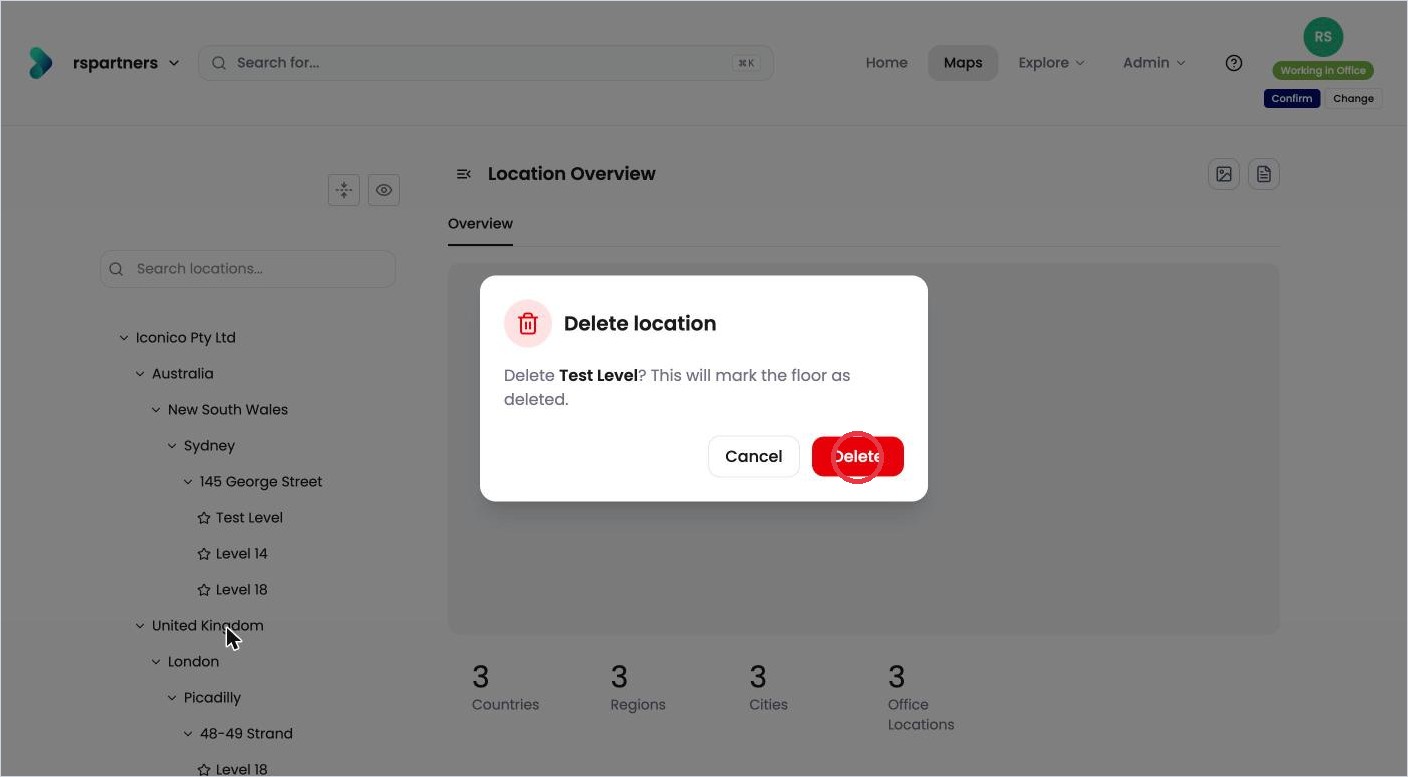
Deleting marks the location as deleted.
With Show hidden Locations on, a deleted location appears crossed out, with (deleted) after its name.
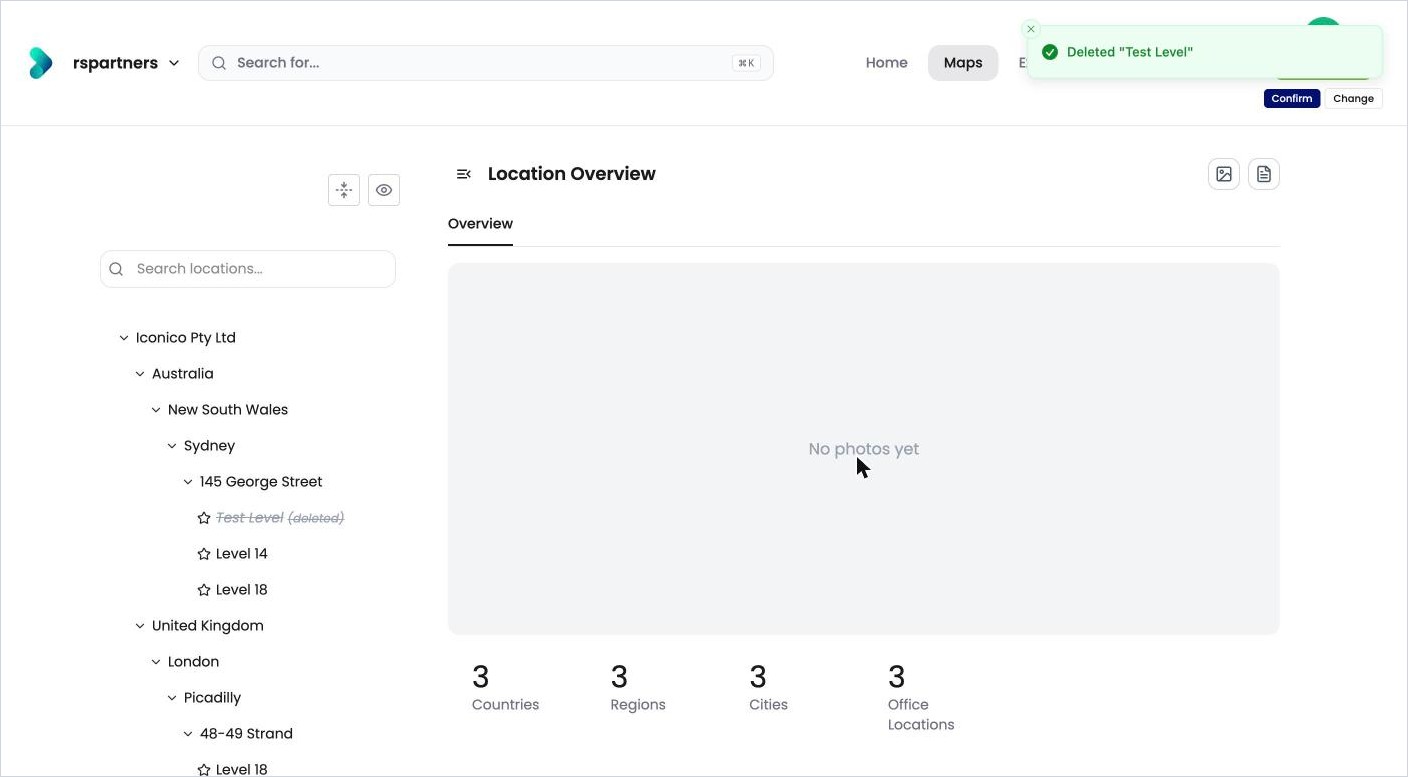
Restore a deleted location
-
Click Show hidden Locations so the deleted location appears.
-
Hover over it and click ….
-
Click Undelete.
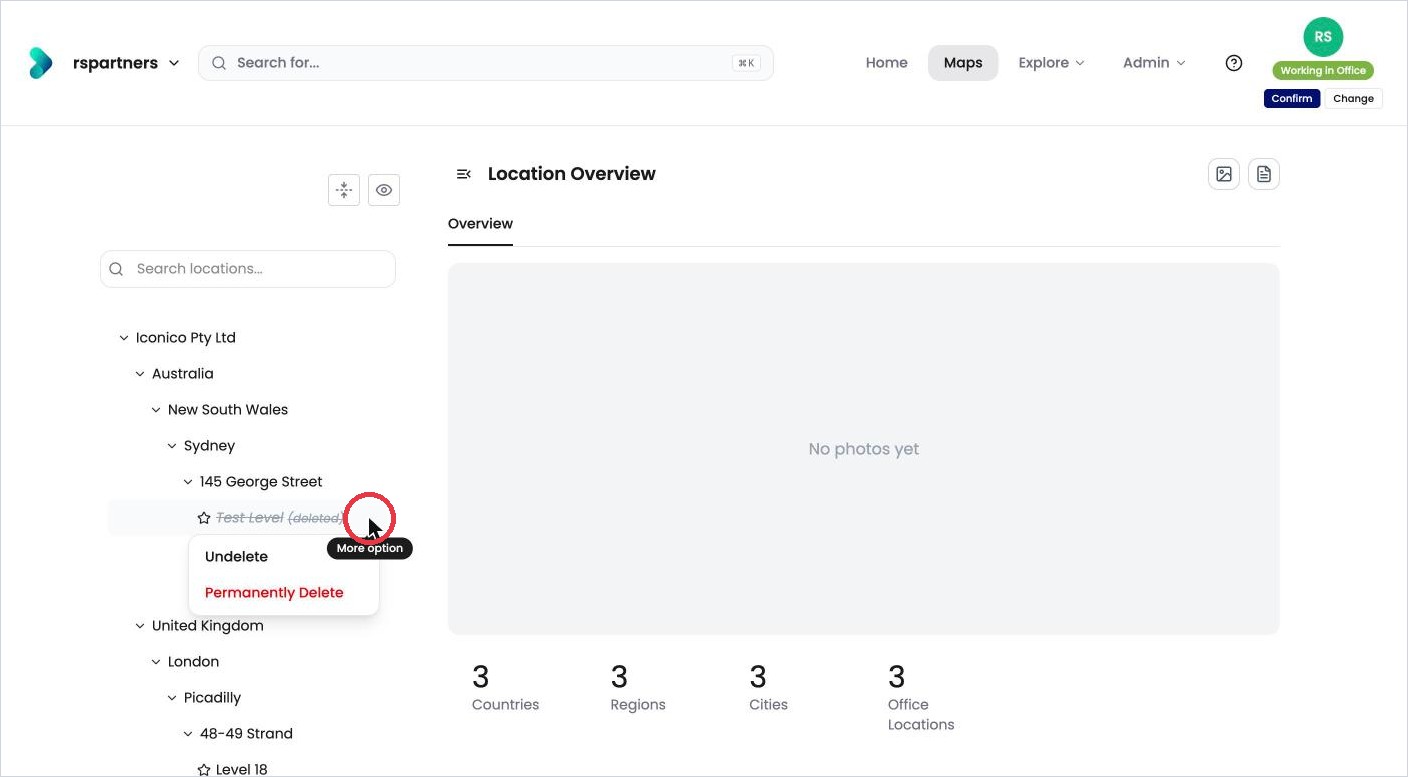
Undelete or Permanently Delete a deleted location.
OfficeMaps shows Restored and the location is back in the tree.
Permanently delete a location
Only a location that’s already deleted can be permanently deleted.
-
Click Show hidden Locations, hover over the deleted location and click ….
-
Click Permanently Delete.
-
Click Permanently Delete again to confirm.
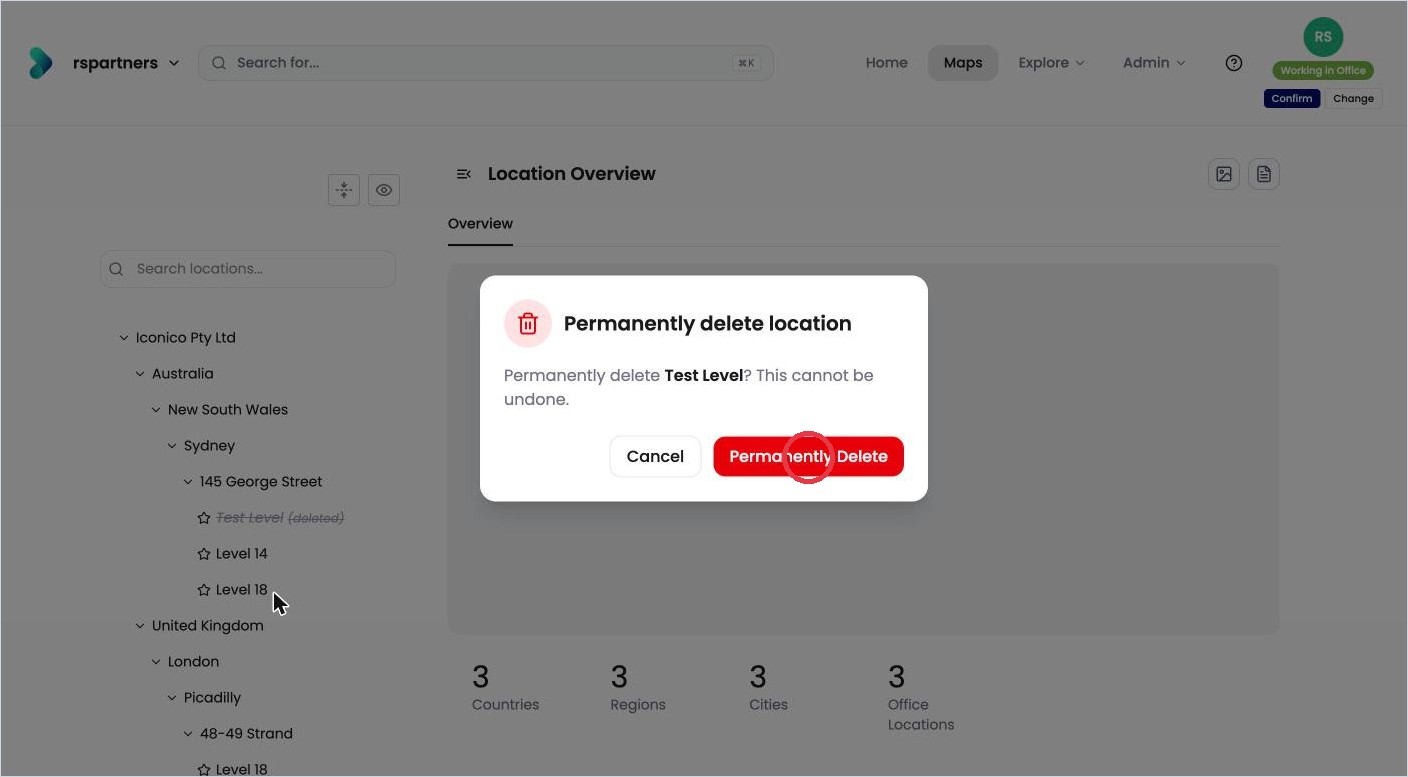
Permanently deleting can’t be undone.
Warning: A permanent delete can’t be undone.
Tips
-
Keep a new level hidden until its floorplan, desks and information are ready, then unhide it.