
On the go? This article shows you how to see your week, book a desk, and check in from the OfficeMaps Mobile app. You can also find people and floorplans.
See your week
The app opens on My Week. It shows your permanent desks and your bookings for this week and beyond.
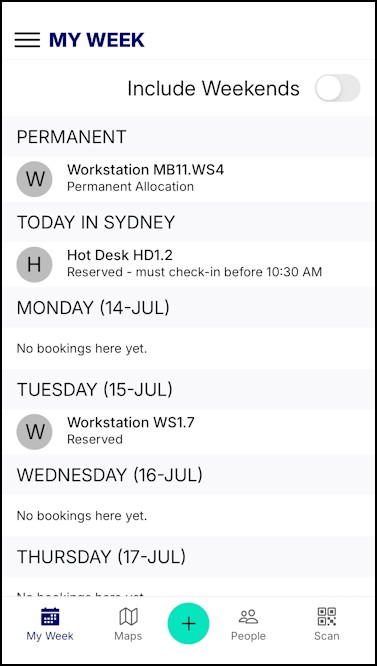
My Week.
Tap a booking to see the desk and where it is on the map.
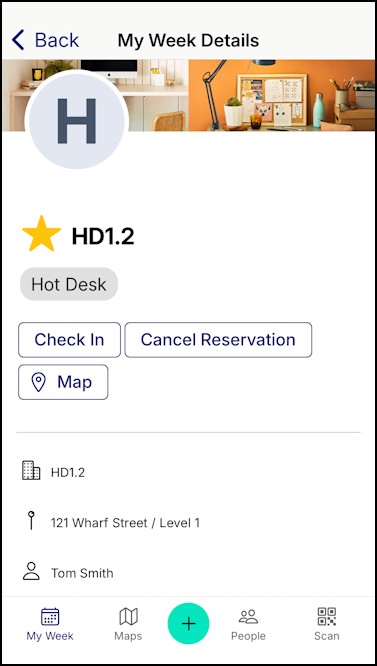
Booking details.
From there you can:
-
Cancel a booking you haven’t checked in to.
-
Check in to today’s booking, and choose how long you need it.
-
Check out when you’re done.
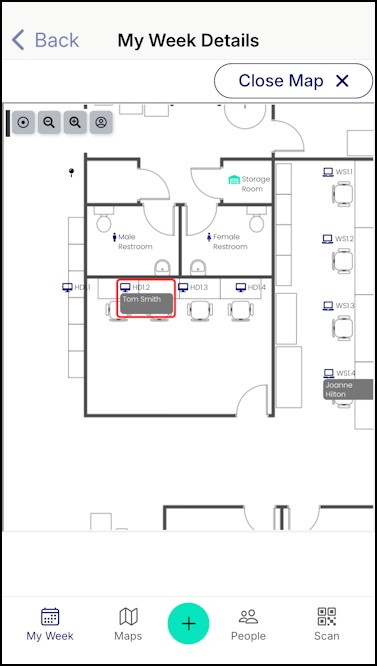
Cancel or view on the map.
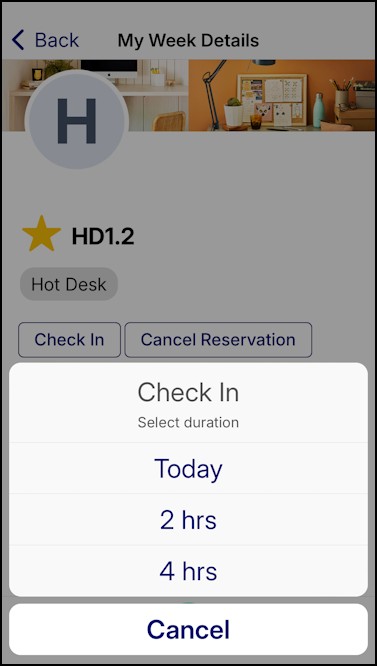
Check in and choose how long.
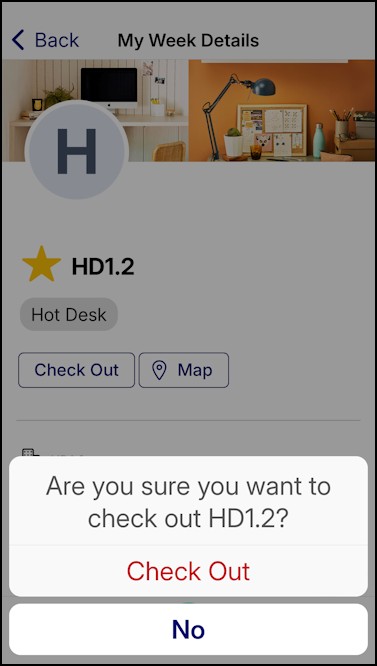
Check out.
Book a desk
-
Tap +.
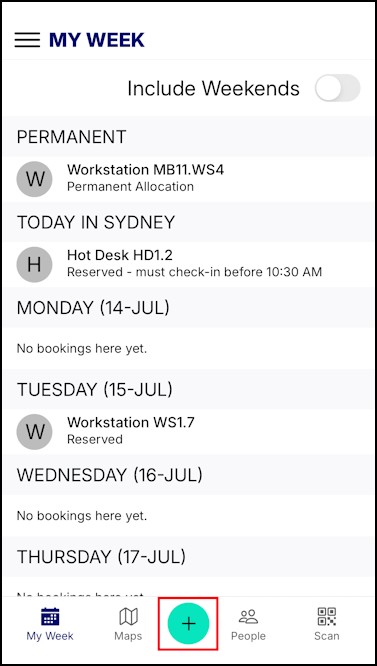
Tap + to start a booking. -
Under For, choose what you want to book. All Desks shows every kind of desk; All Assets shows everything, such as car parks too.
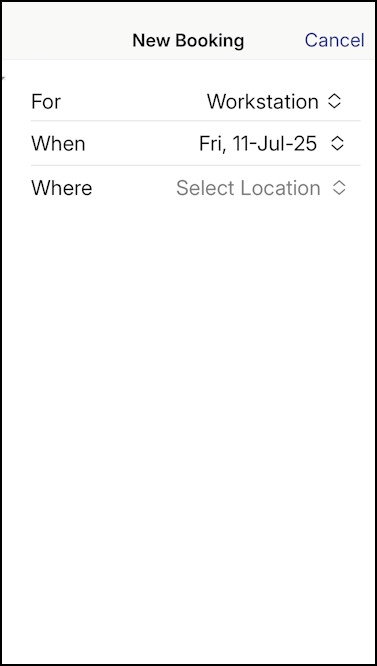
Choose what to book. -
Choose the day, or a range of days, then choose a location. Your starred locations show first. Switch to All to see the rest.
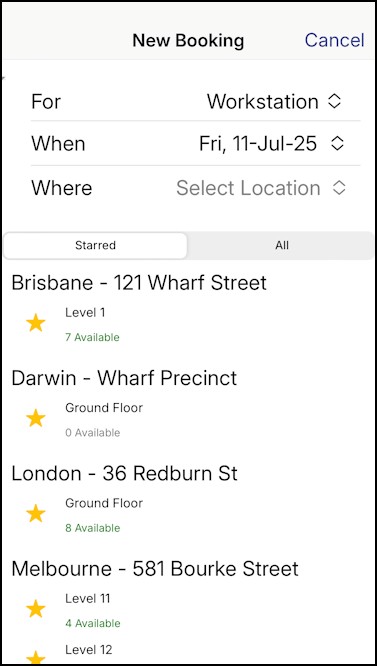
Choose the day and location. -
Choose the desk.
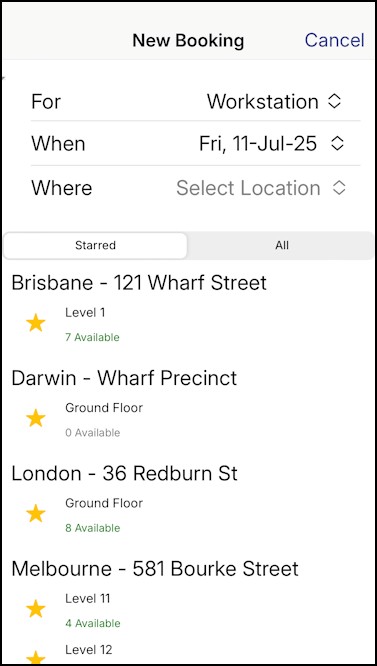
Choose a desk. -
If the booking is for today, choose how long you need it. Then check in now, or check in later from My Week.
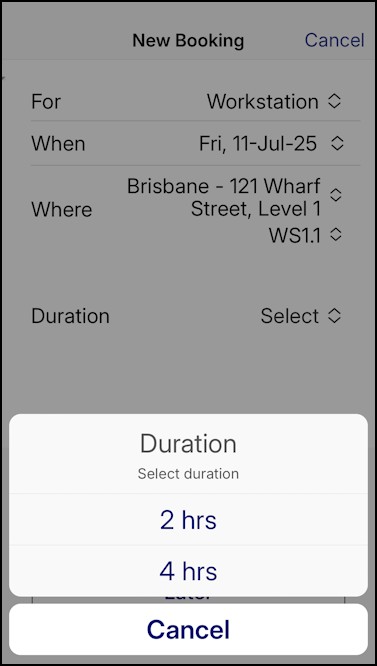
Choose how long. 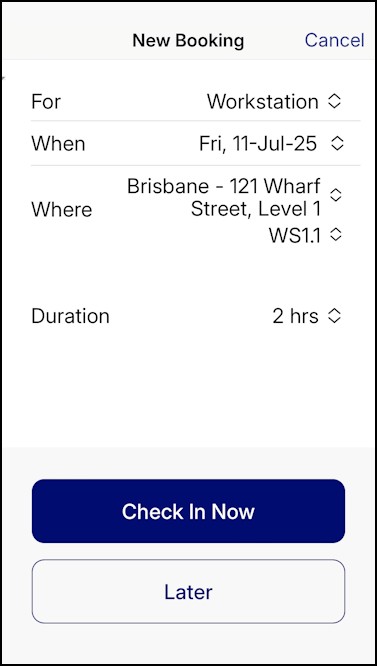
Check in now or later.
Check in with a QR code
Tap Scan and scan the QR code on the desk to check in to your booking.
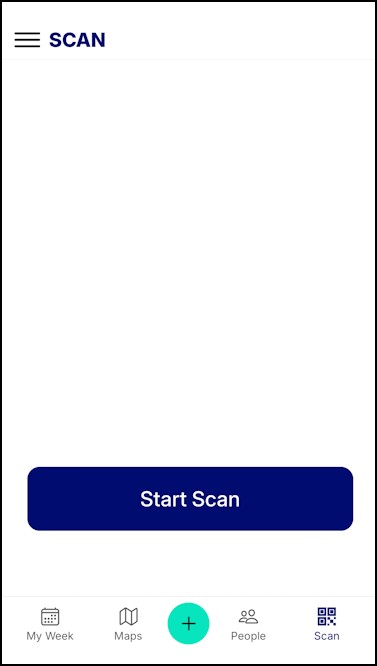
Scan a desk’s QR code.
Find floorplans and people
-
Maps shows your locations, starred ones first. Tap a level to see its floorplan and who’s sitting where.
-
People lists everyone in your organisation. Search by name, or tap a letter. Tap someone to see their status, desk and contact details.
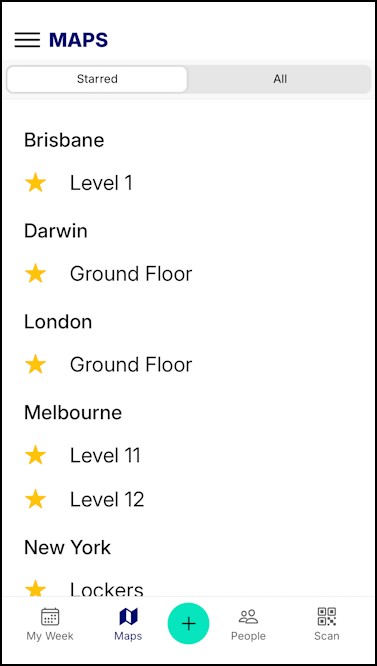
Maps.
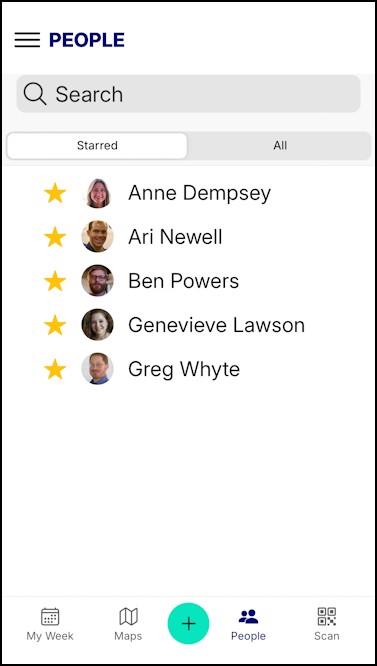
People.
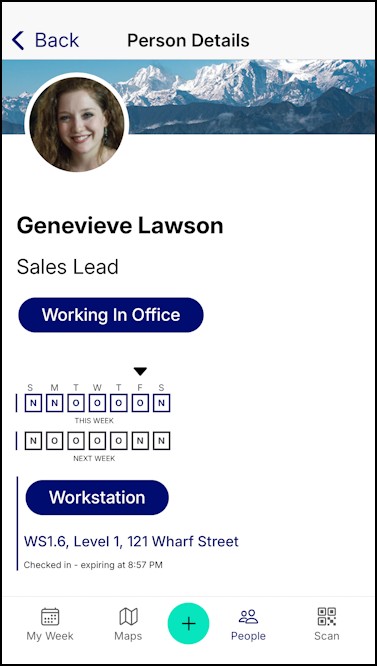
A person’s details.
Set your status
Tap the menu button next to My Week, then tap your status under your photo to change it.
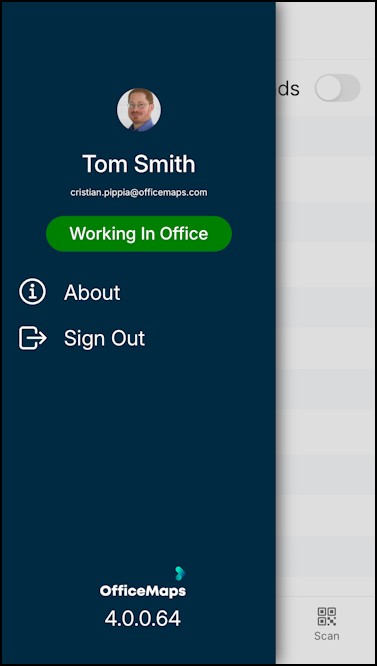
The menu.
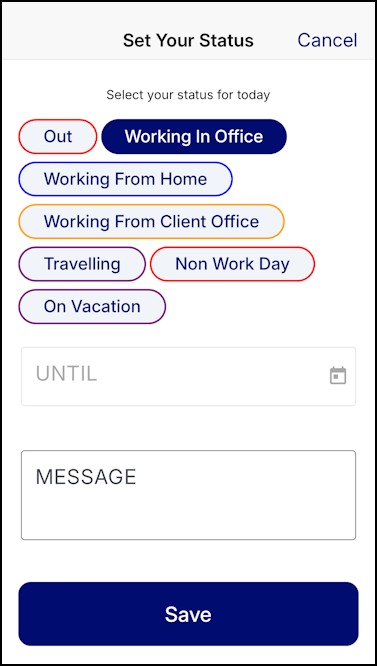
Set your status.
Tips
-
Star the locations and desks you use most, so they show first.
-
Your bookings stay in sync with the web app.