
Want OfficeMaps on your phone? This article shows you how to find and install the OfficeMaps Mobile app, and how to log in for the first time.
Install the app
Search for OfficeMaps in the App Store (iPhone) or Google Play (Android). Check you have the right app: it’s called OfficeMaps Mobile and is made by OfficeMaps Pty Ltd.
iPhone
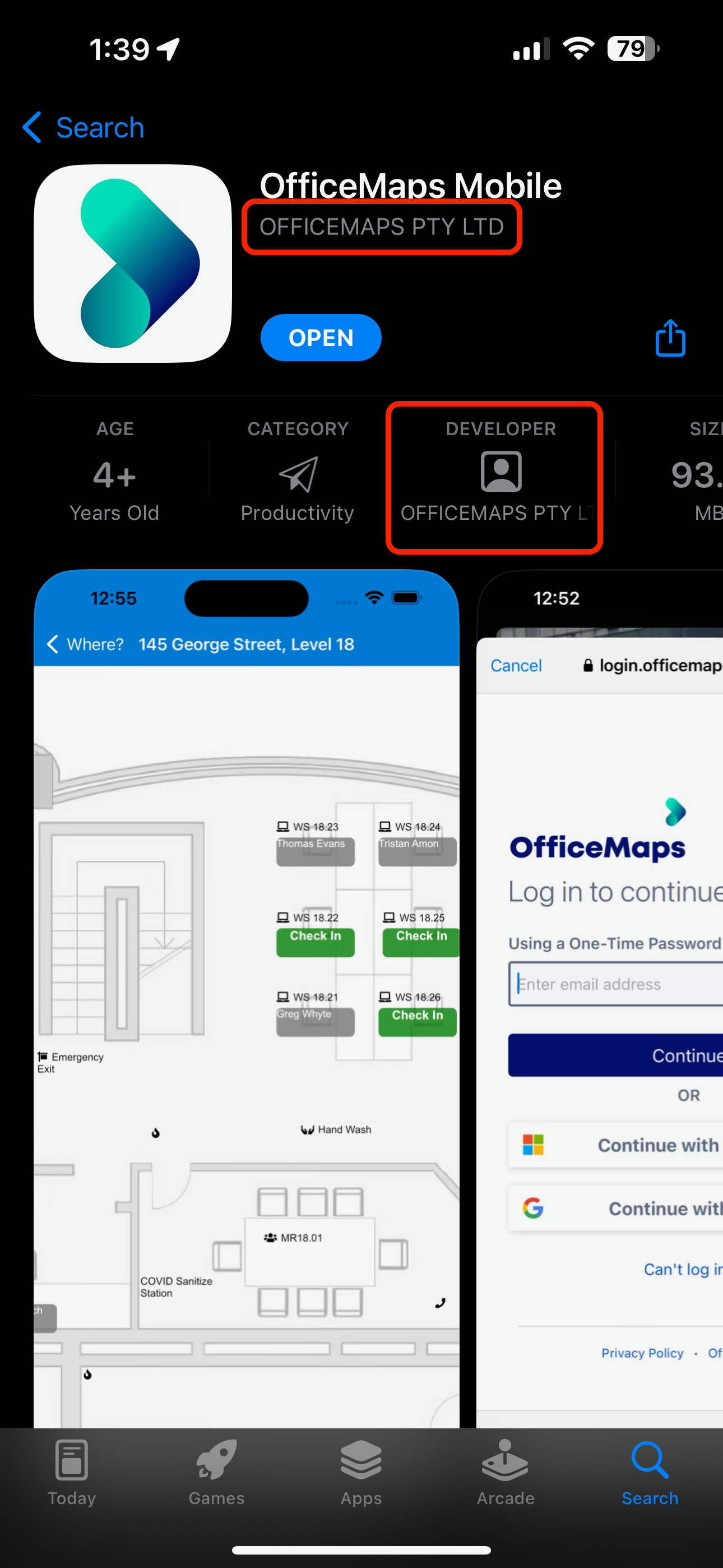
OfficeMaps Mobile in the App Store.
You can also scan the QR code to go straight to the App Store.

QR code for the App Store.
Android
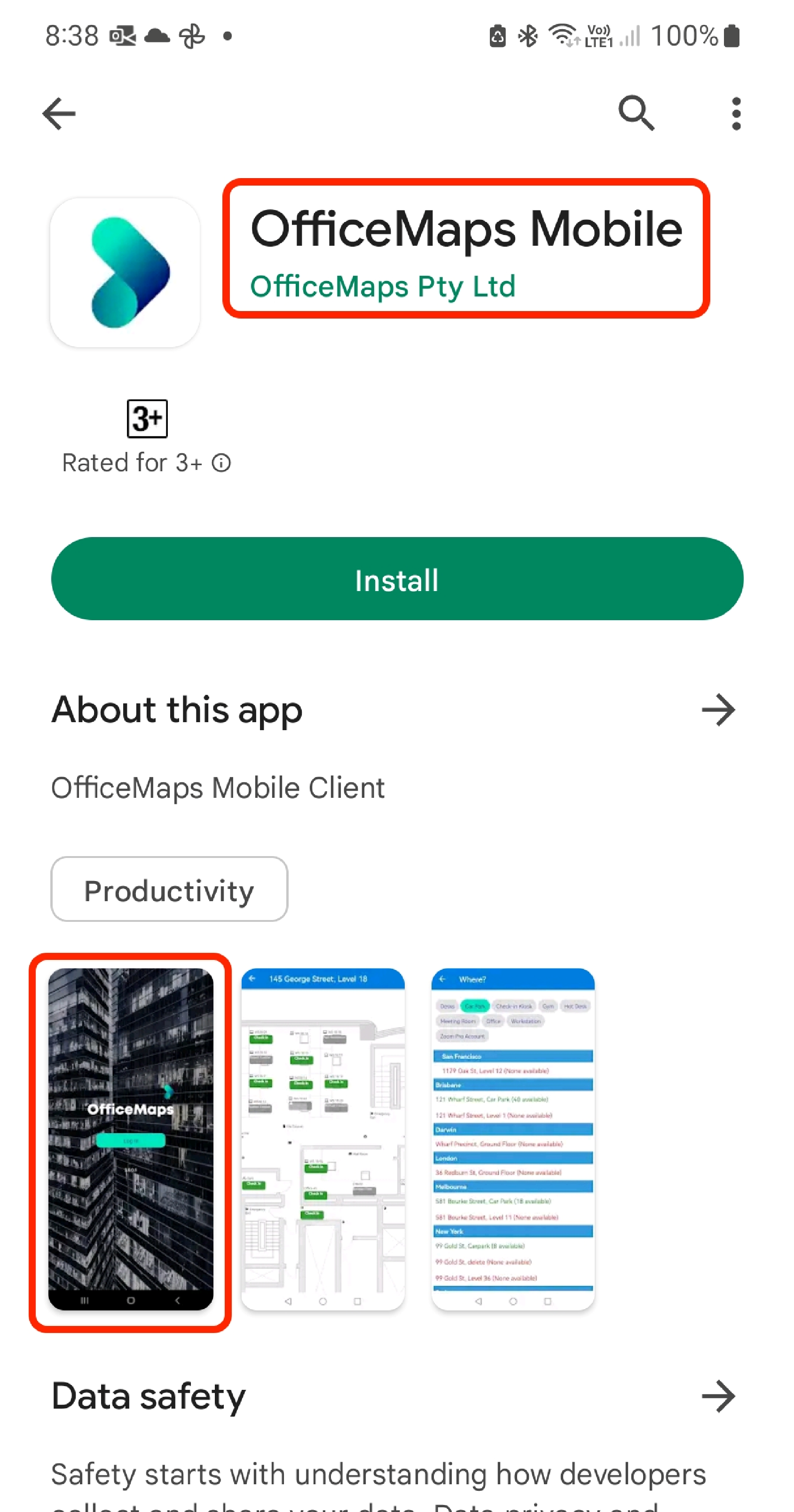
OfficeMaps Mobile in Google Play.
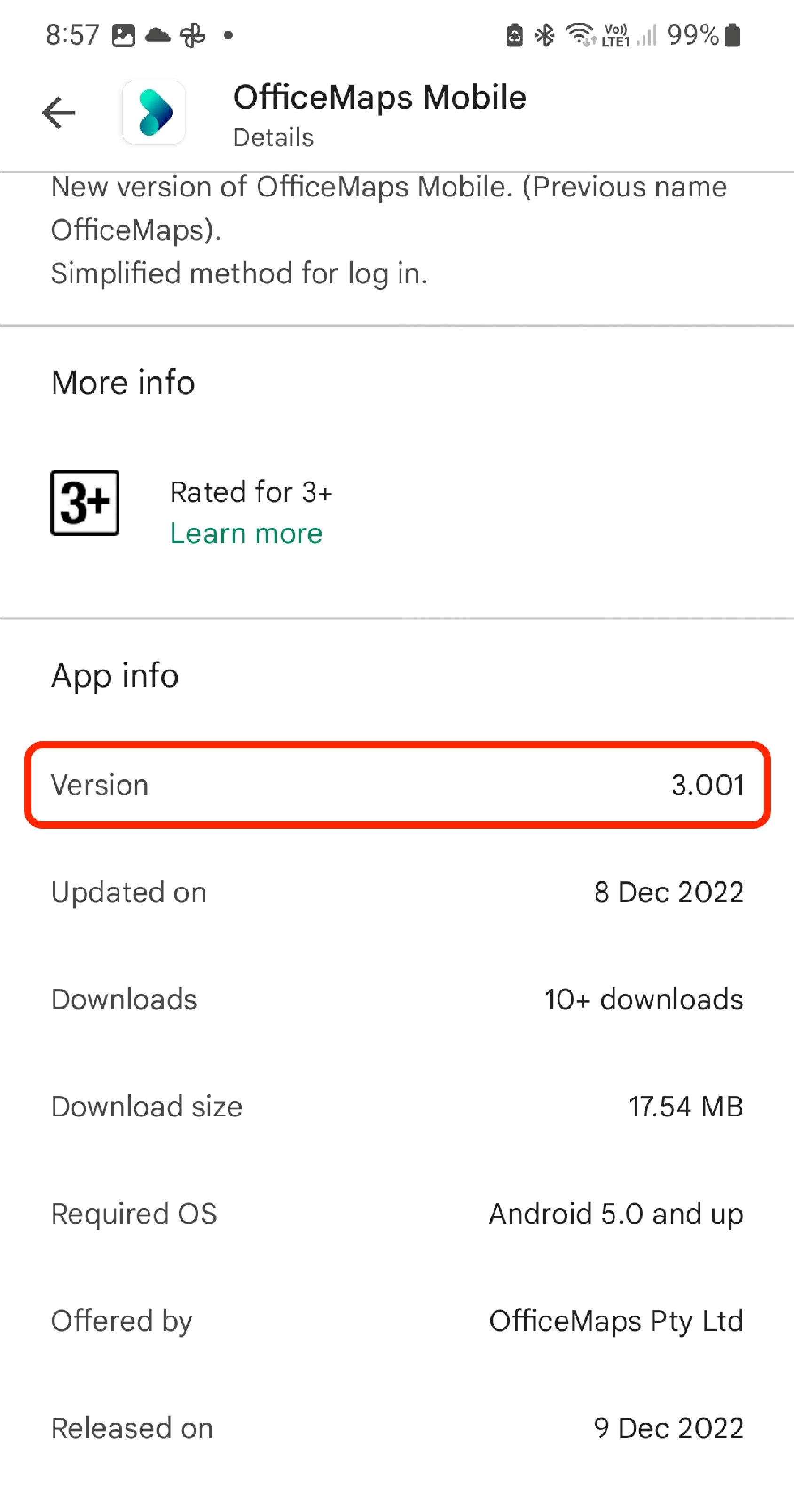
Installing the app.
You can also scan the QR code to go straight to Google Play.

QR code for Google Play.
If automatic app updates are on, the app keeps itself up to date. If not, update it from the App Store or Google Play.
Log in
-
Open the app.
-
The OfficeMaps login page opens in your browser. Choose Log in with Microsoft, Log in with Google or Log in with Email, the same way you do on the web. See Log in: Microsoft, Google or one-time password.
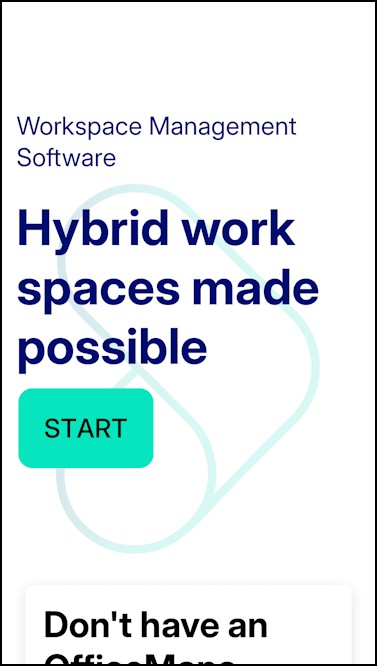
The login page. 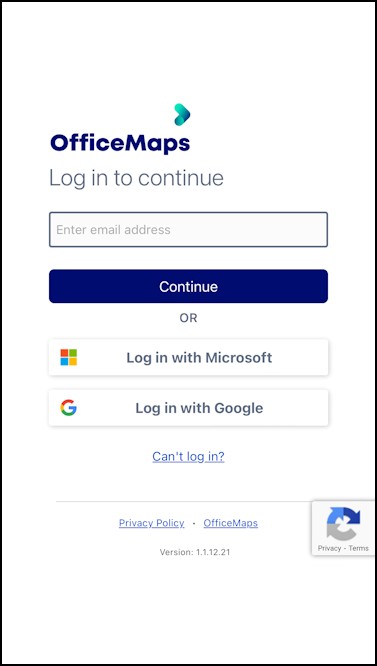
Choose how to log in. -
If your phone asks how to open OfficeMaps, choose Open in OfficeMaps (or Open External App).
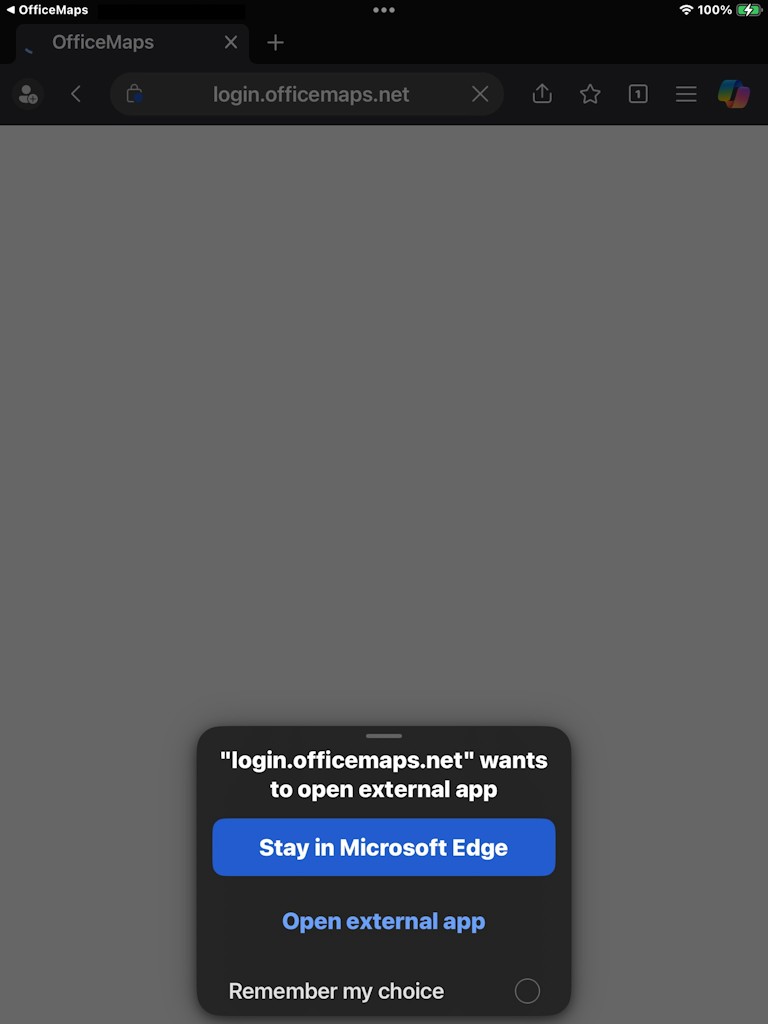
Choose Open in OfficeMaps.
Tips
-
If you chose to stay in the browser and ticked Remember my choice, OfficeMaps may not open properly. Uninstall and reinstall that browser, then log in again and choose Open in OfficeMaps.
-
Next, see Mobile app: book and check in.