
The OfficeMaps 365 app works in Outlook as well as Teams. This article shows you how to open it in Outlook and book a desk.
Note: If you don’t see OfficeMaps in Outlook, ask your IT team. They install it for everyone with the Teams app (see Teams, 365 app and Intune).
Open the app
-
In Outlook, open Apps in the left-hand bar and click OfficeMaps.
-
Log in the same way you do on the web: with Microsoft, Google or a one-time password.
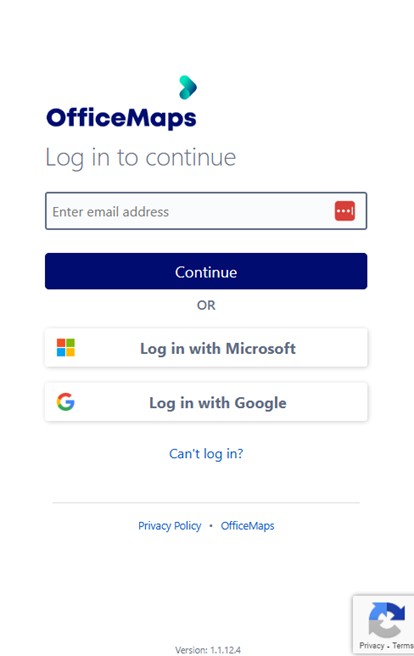
Log in to the app.
The app opens on My Week, just like in Teams.
Book a desk
-
Click New Bookings.
-
Choose what you want to book, then the day.
-
Under Where, choose a location, then choose a free desk.
-
If the booking is for today, check in now or later from My Week.
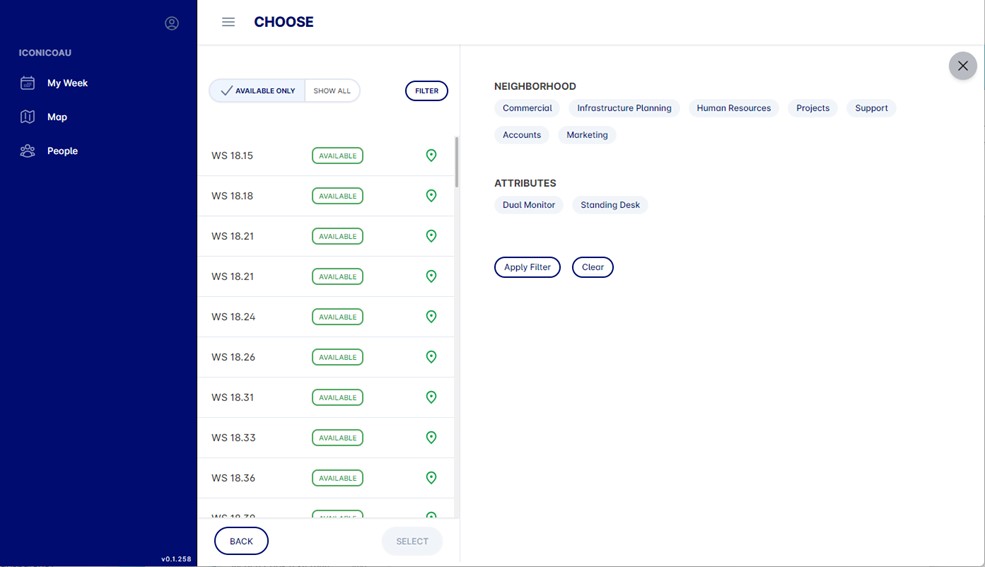
Choose a free desk.
Everything else works the same as in Teams. For more detail, see Teams app: book a desk.