
Use Microsoft Teams every day? The OfficeMaps 365 app lets you book desks, check in and find people without leaving Teams. This article shows you how to open it and log in.
Note: You need an OfficeMaps account in your organisation before you can log in. If the app isn’t in your Teams yet, ask your IT team. They can install it for everyone (see Teams, 365 app and Intune).
Open the app and log in
-
In Teams, click the OfficeMaps icon.
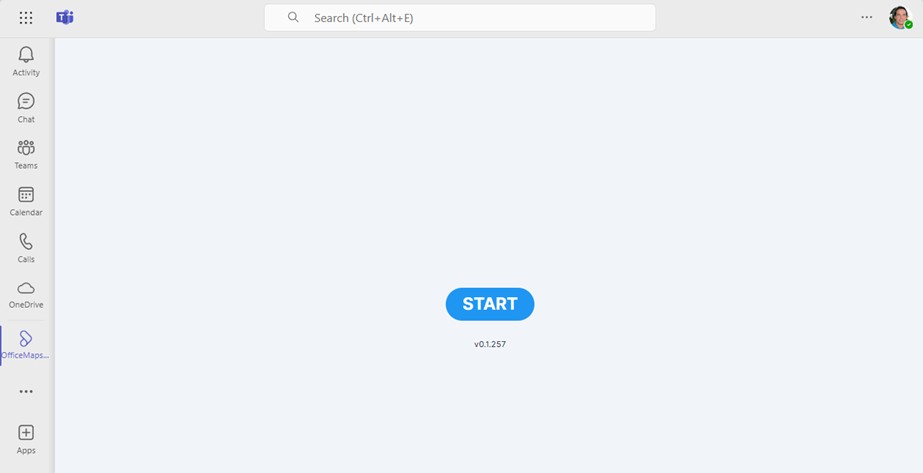
The OfficeMaps app in Teams. -
A browser window opens with the OfficeMaps login page. Choose Log in with Microsoft, Log in with Google or Log in with Email, the same way you do on the web. See Log in: Microsoft, Google or one-time password.
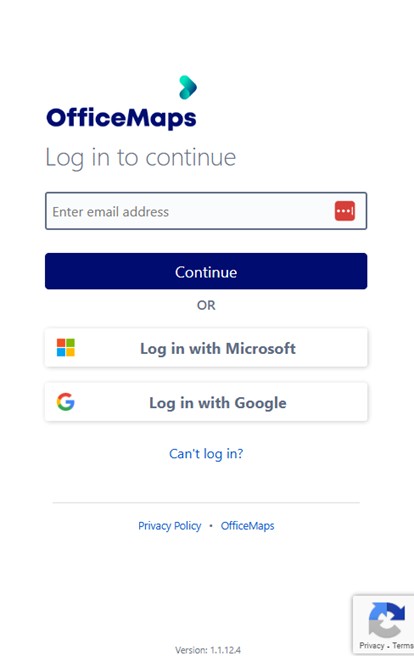
Choose how to log in.
The app opens on My Week, with your permanent desks and this week’s bookings.
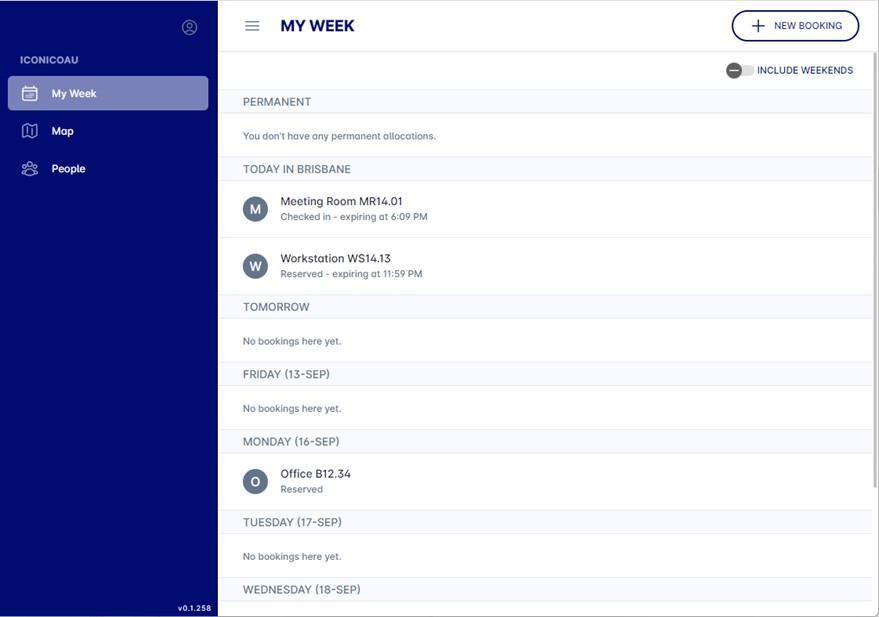
My Week in Teams.
What you can do in the app
-
My Week: see, check in to and cancel your bookings.
-
New Bookings: book a desk for today or another day.
-
Maps: open the floorplans for your locations.
-
People: find someone and see their status, desk and contact details.
Watch the webinar recording for a full tour: https://officemaps.wistia.com/s/wbgamnnq167s0e0
Next, see Teams app: book a desk.