
Want to give people their desks while you set up a floor? This article shows you how to drag people onto desks in map edit mode, and how to take them off again.
Note: You can also allocate a desk from the desk’s panel without edit mode. See How do I give someone a permanent desk? To seat many people at once, use Excel. See How do I import people from Excel?
Seat someone on a desk
-
Open the level’s floorplan and click the pencil to switch to edit mode.
-
Click People in the tool column.
-
Find the person. Use Search, or tick Not Allocated to list only people without a desk.
-
Drag the person onto the desk.
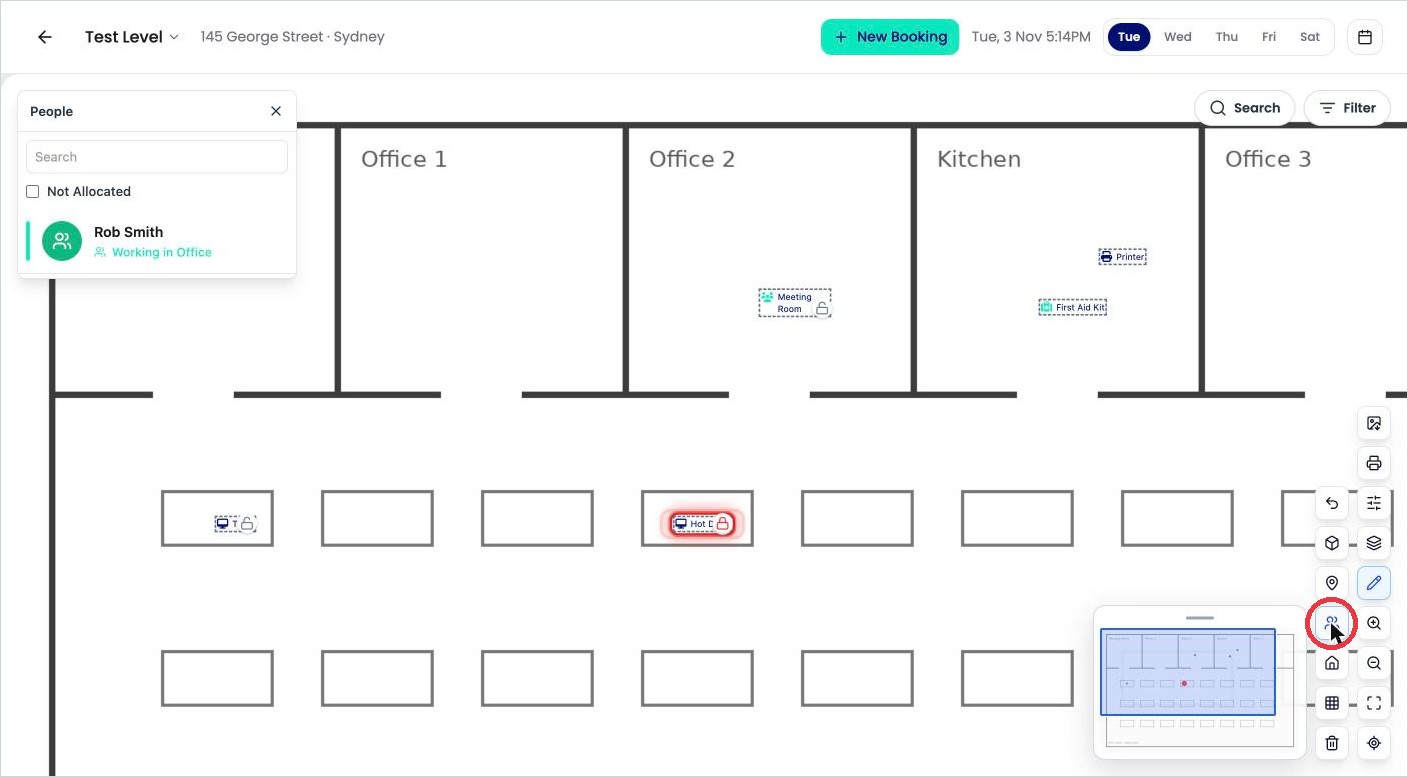
The People panel in edit mode.
OfficeMaps shows Person allocated. and the person’s name appears on the desk.
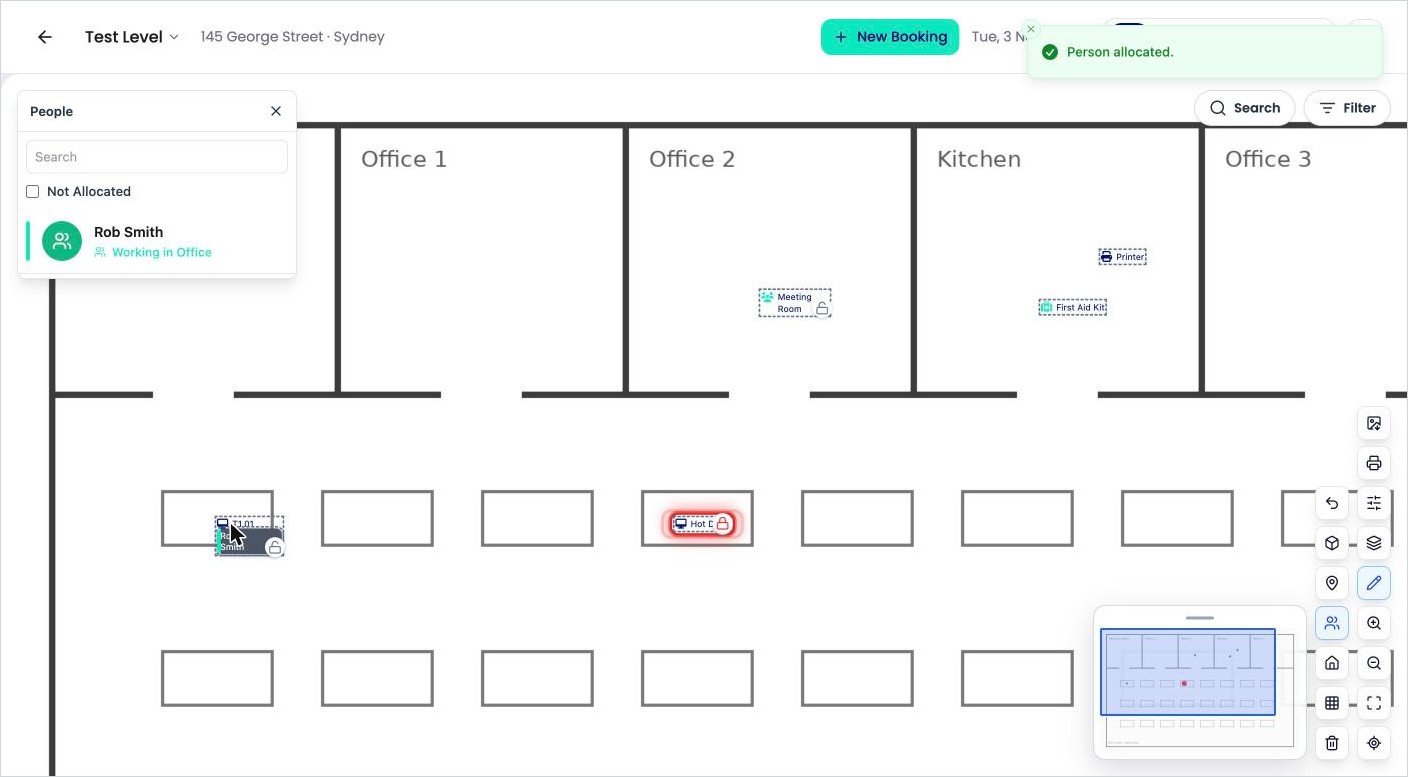
This is a permanent allocation: the desk is theirs every day until you remove them.
Remove someone from a desk
-
Leave edit mode and click the desk.
-
Under Allocations, click X next to the person.
-
Click Remove to confirm.
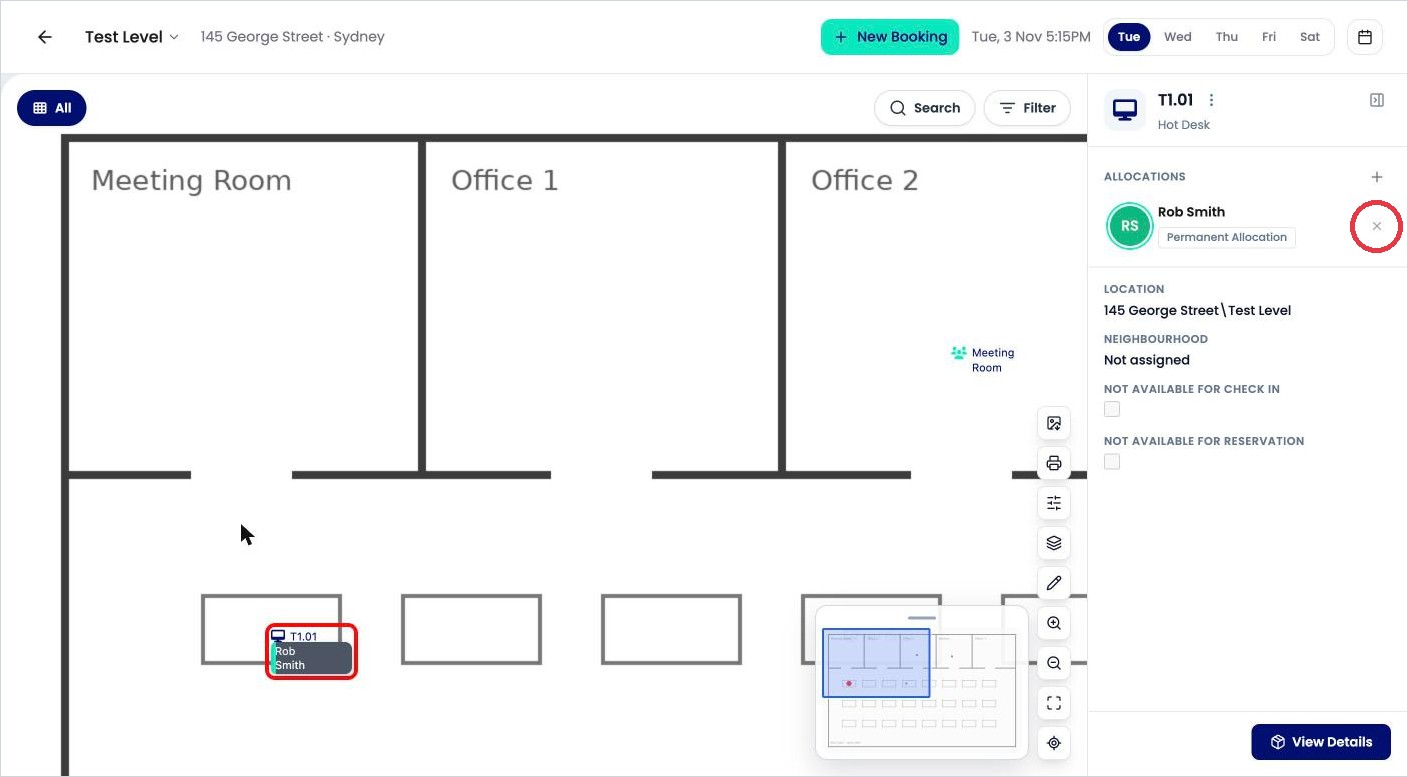
Click X next to the person to remove them.
Tips
-
A blocked desk (red padlock) can’t take anyone. See How do I add desks and pins to the map?