
Wondering what has changed in the new OfficeMaps? This article covers the main improvements in V2, from the new Home screen and search to quicker booking, with links to the step-by-step guides.
A personal Home screen
Home is now built around you. From one screen you can:
-
Create a new booking: pick when, what and where at the top of Home.
-
See today’s booking, your next 14 days and your past bookings.
-
Jump to the floors you use most with Starred Levels.
-
Keep up with your team through Following and the Activity Feed.
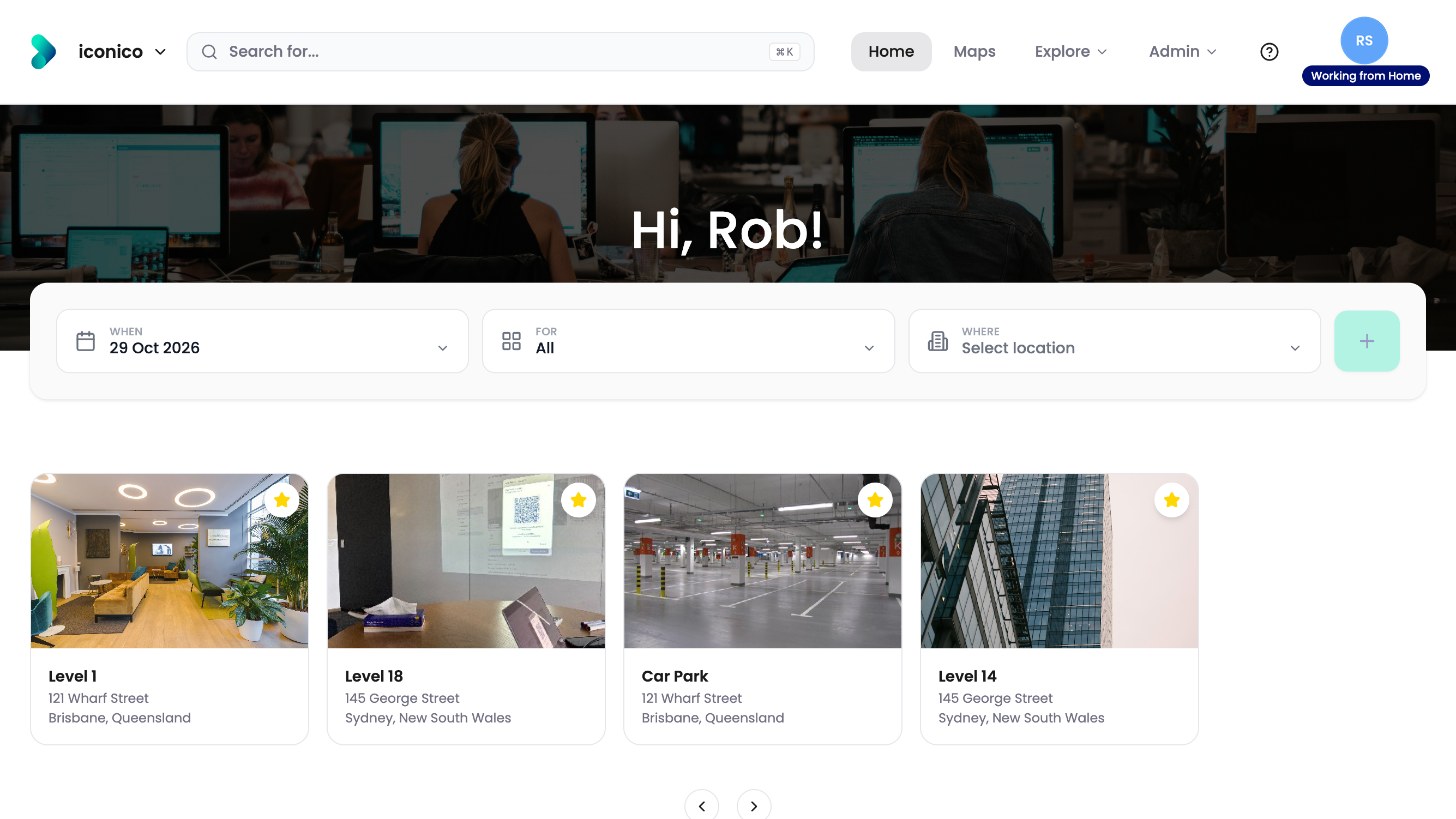
See What's on the Home screen? and How do I see where my colleagues are working?
One search for everything
Click Search for… at the top to search people, departments, desks, pins and locations. Results show each person’s status for today.
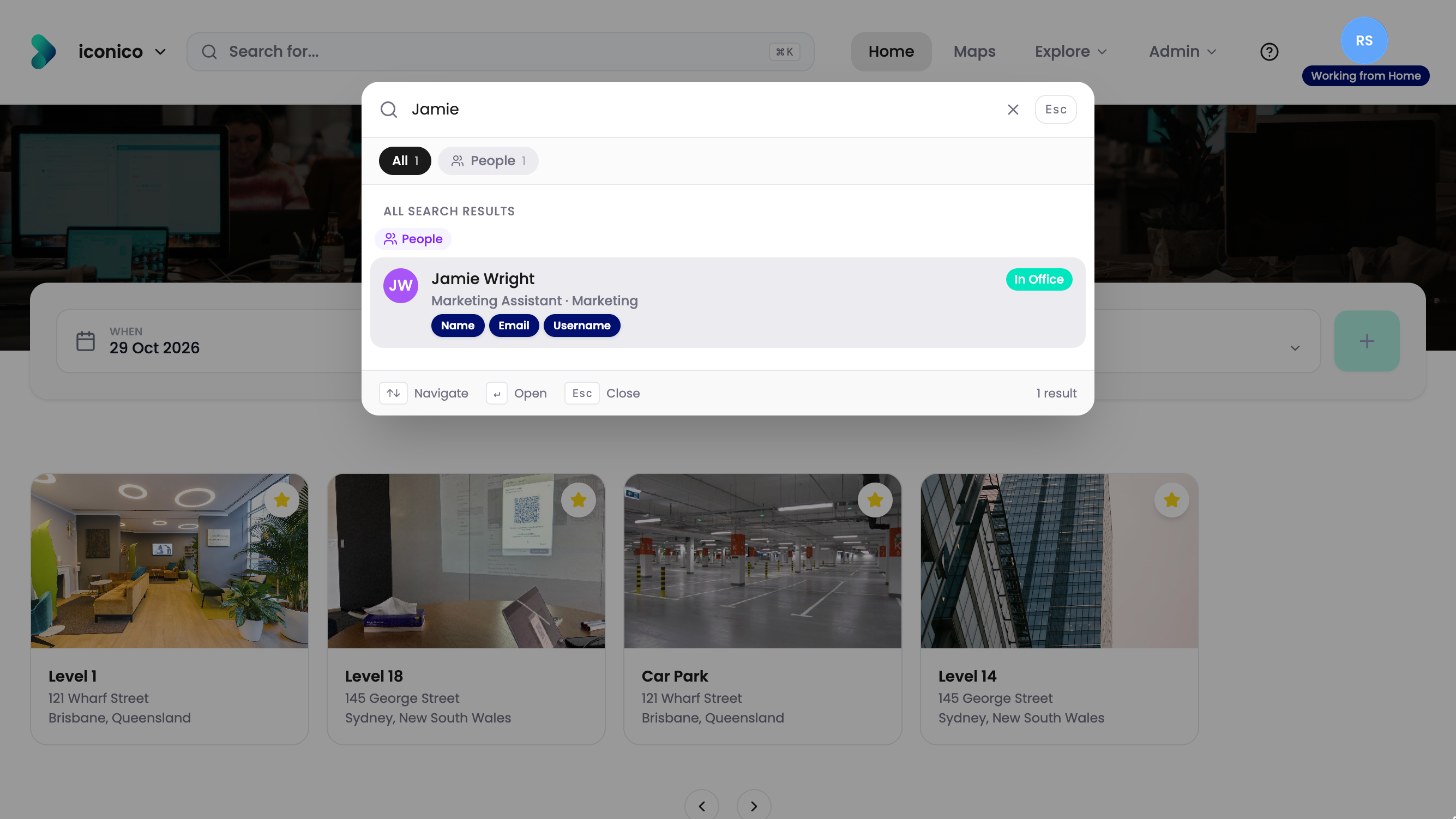
See How do I find a person, desk or location?
Booking in a few clicks
Choose who, when and what. Click Select on any free desk, then Confirm booking. If the booking is for today, you can check in straight away. A booking for another day shows on Home under Upcoming.
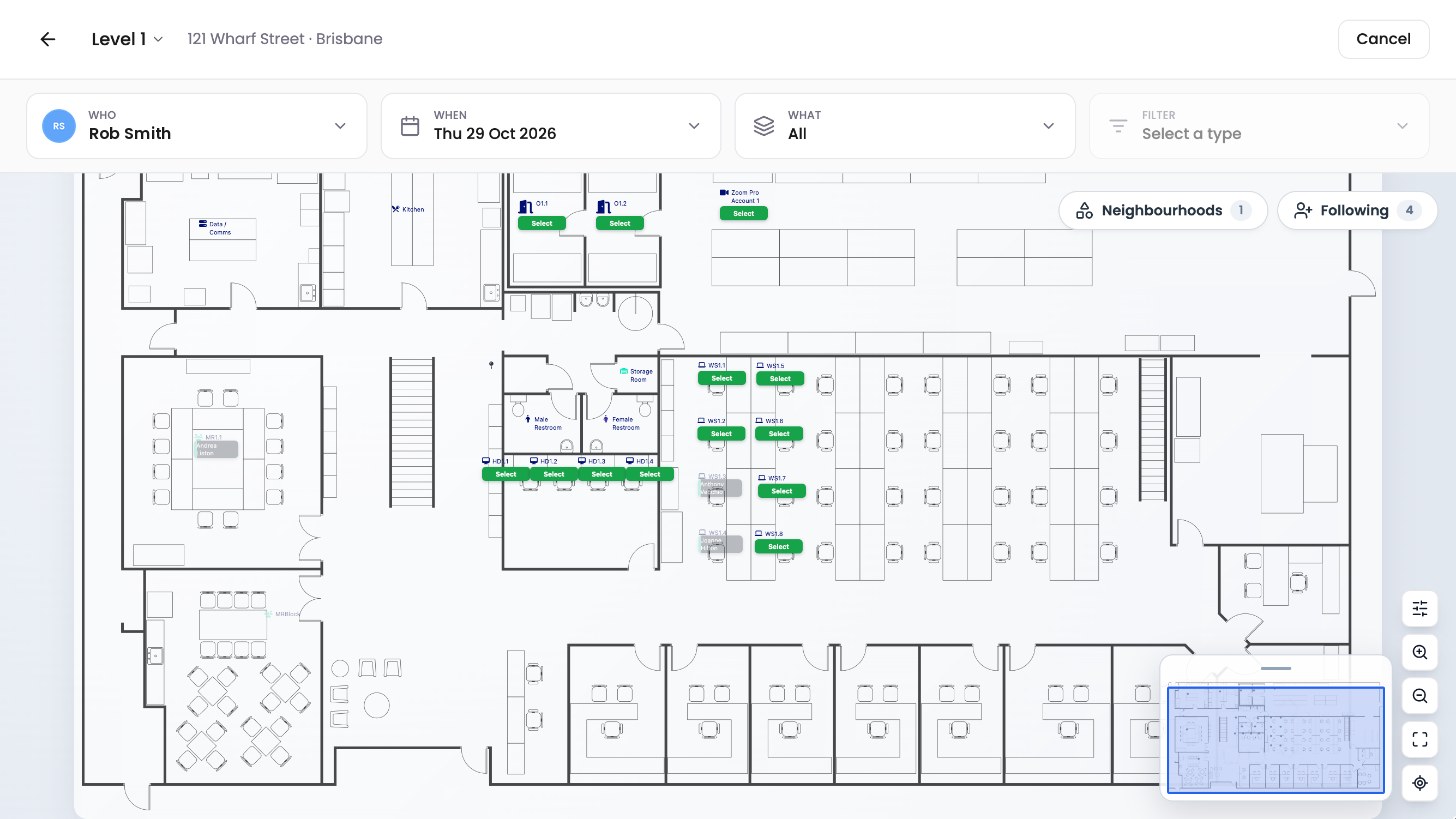
See How do I book a desk? and How do I check in or cancel a booking?
A smarter floorplan
-
Day buttons show the floor for any of the next five workdays, and the calendar shows any other date.
-
Search zooms straight to a person, desk or room.
-
Filters list pins, assets, neighbourhoods, desks, people or the people you follow.
-
Map views such as Emergency or Hot Desks show just what you need.
-
Privacy Mode hides people’s names on screen, and you can export or print the floor.
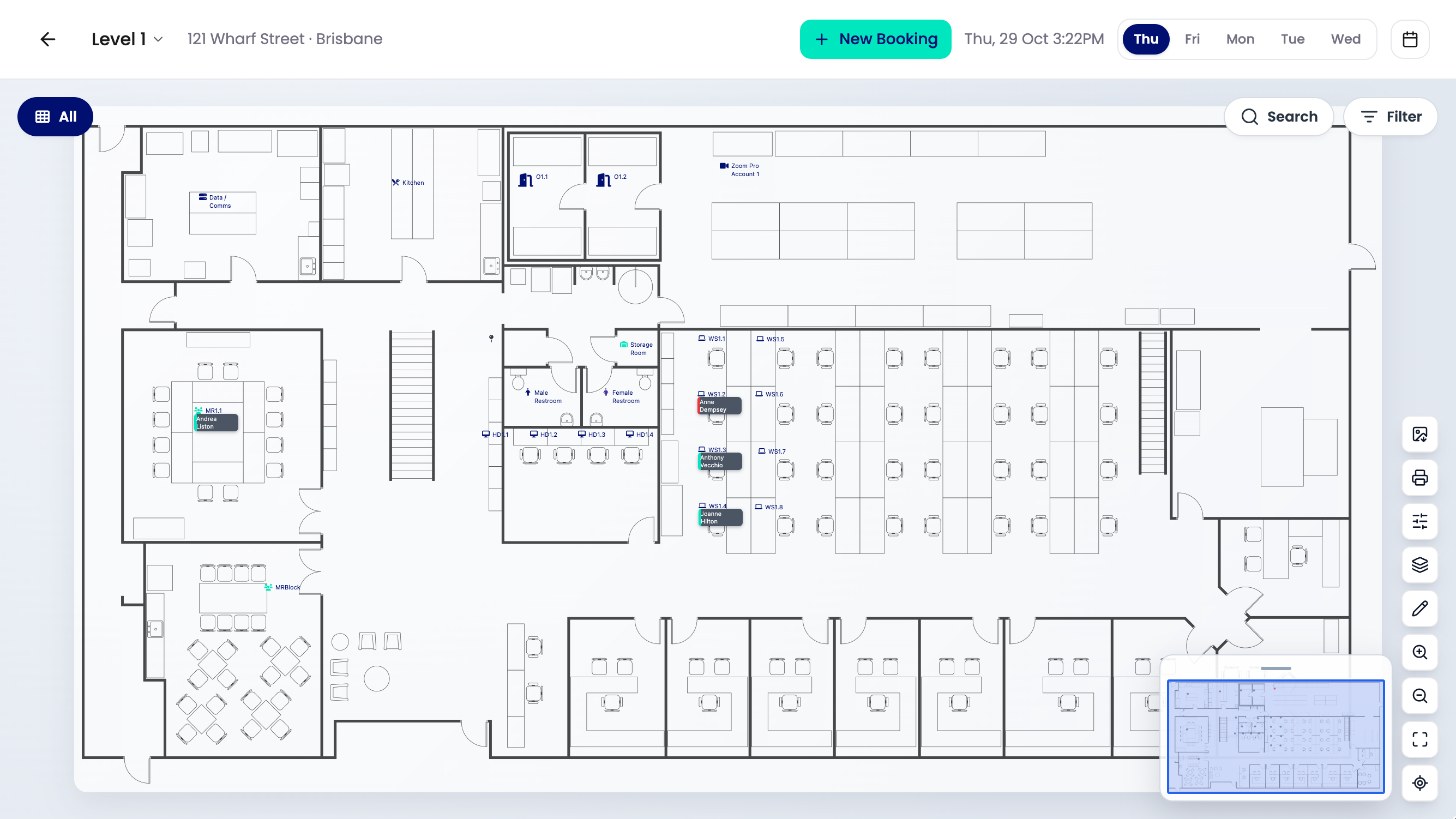
See How do I use the floorplan?
Your status and workday plan
Set your status, for example Working from Home, from your profile picture. Set a two-week Office, Remote and Non-workday plan so colleagues know where to find you.
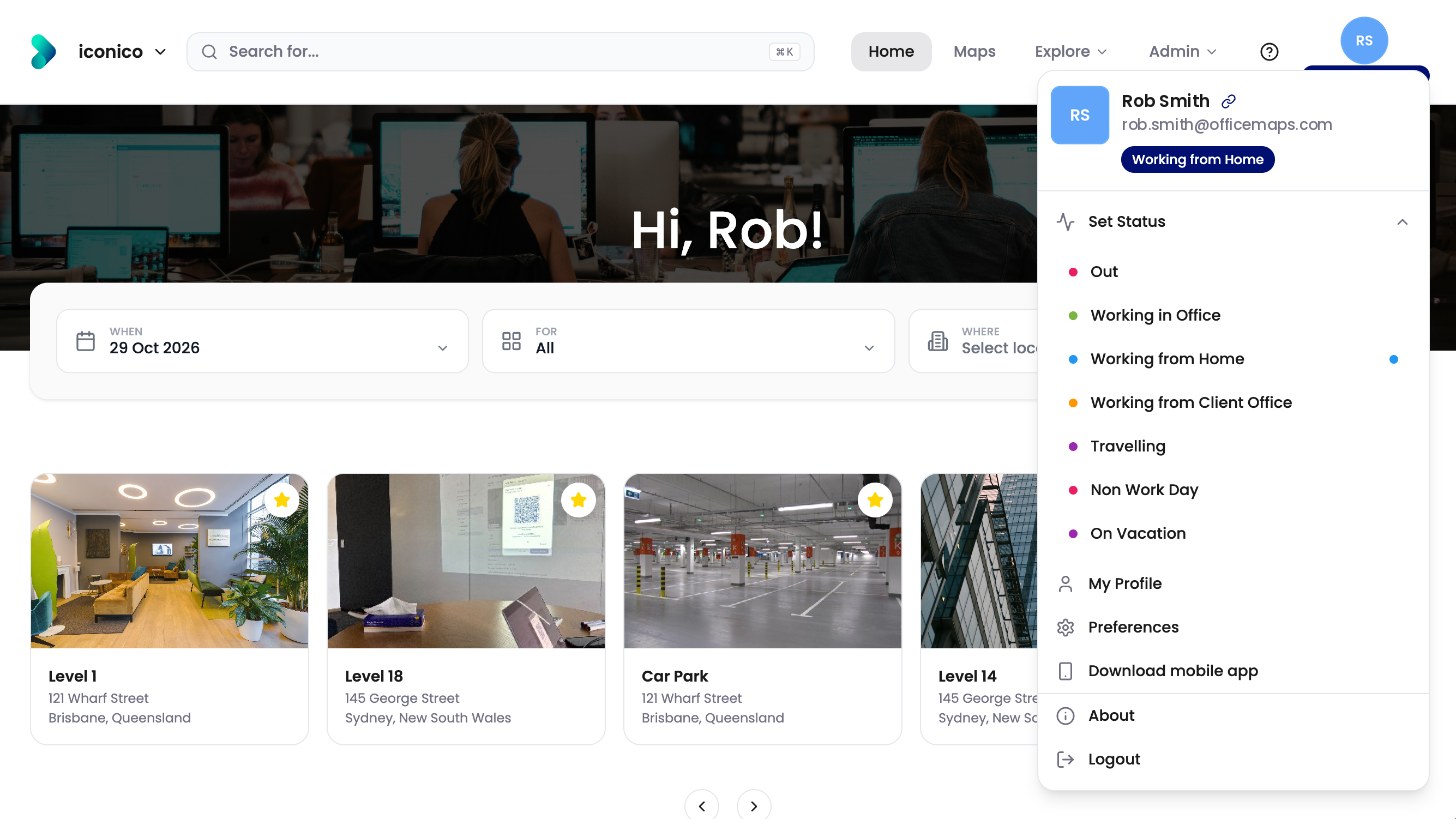
See How do I set my status and workday plan?
Location information in one place
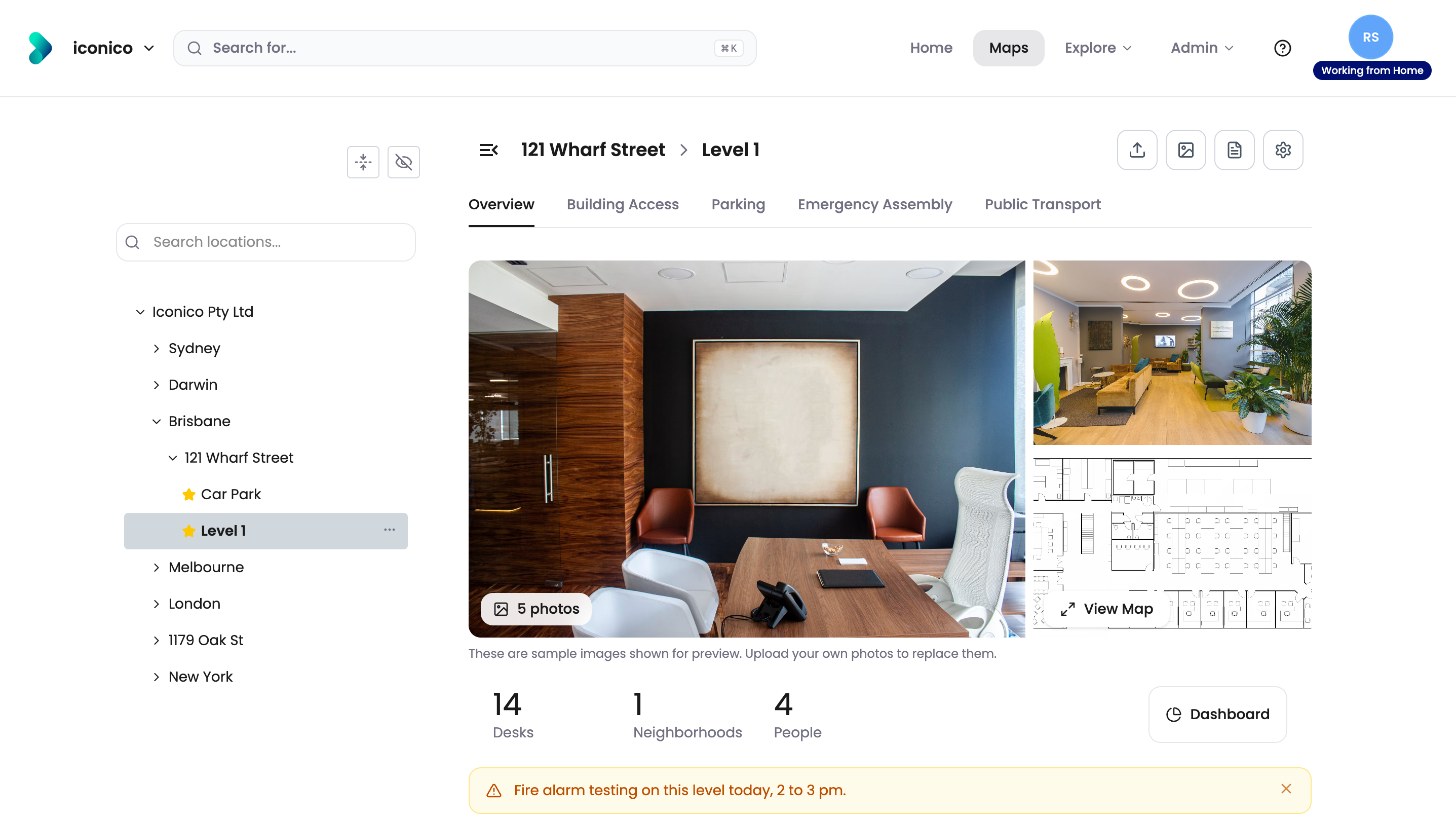
Every office and floor has its own page with photos and details such as building access, parking and emergency assembly points. Current alerts, such as a planned fire alarm test, show at the top.
For administrators
-
Edit a level’s information, add photos and create location alerts straight from the level page.
-
Book, check in and cancel for other people, and allocate permanent desks.
-
Choose the widgets everyone sees on Home with Home Dashboard.
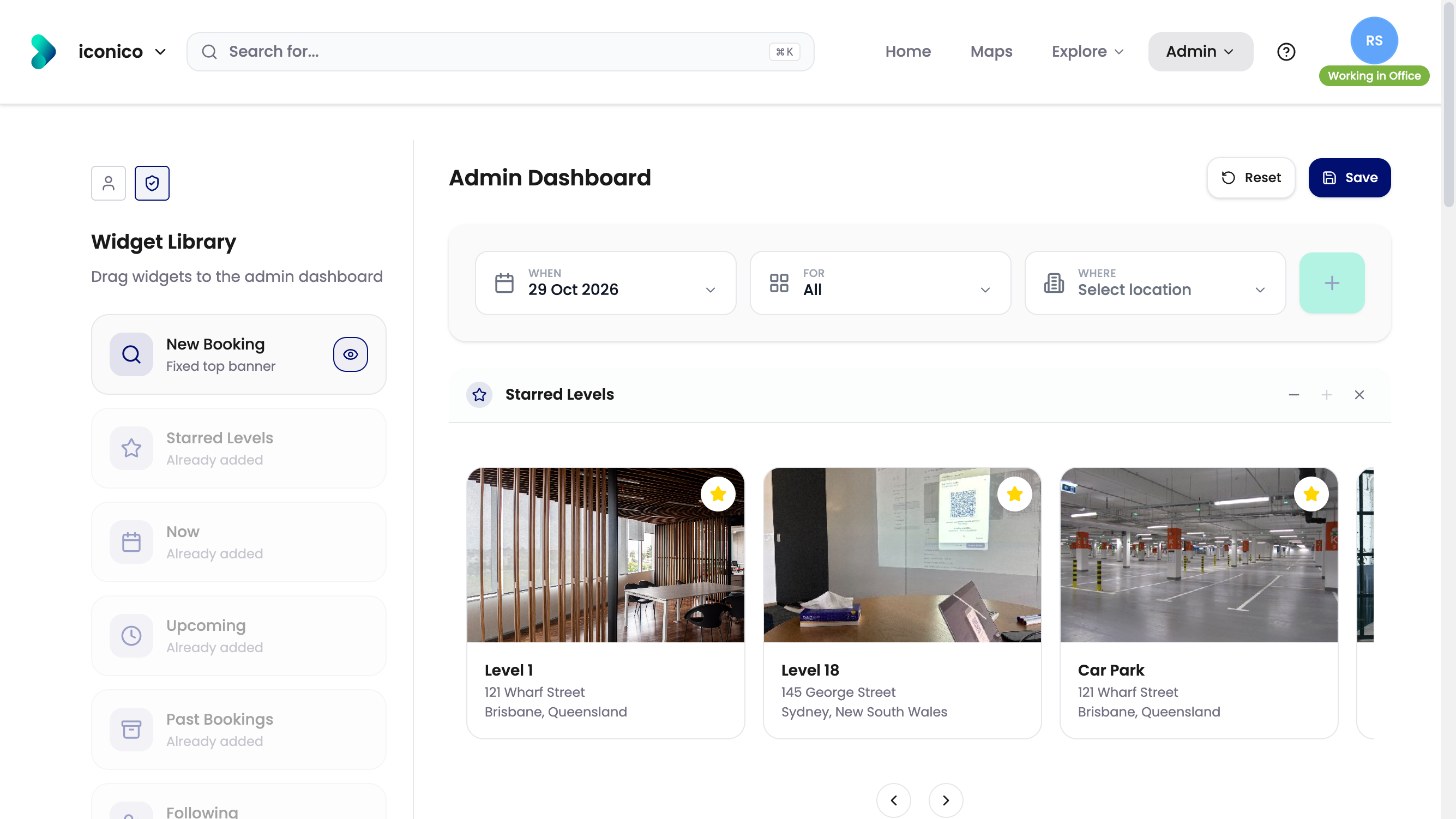
Reports and the Administration settings still open in the classic screens for now. See How do I run a report?
Need help?
Click ? in the top menu bar to open the OfficeMaps Help Centre.