
Ready to use OfficeMaps with your own offices and people? This article takes you step by step through replacing the trial's sample data with your own.
Note: Before you start, take the tour in How do I get started with my trial? Once the sample data is gone, it’s gone.
1. Set up your offices
-
Rename or replace the sample offices. In Maps, hover over a location, click … and choose Rename. Add your own countries, cities, offices and levels from the same menu. How do I add a new office or level?
-
Remove offices you don’t need. Click … › Delete. Deleted locations can be restored until you permanently delete them. How do I hide or delete a location?
-
Upload your floorplans. On each level, click Upload Map. How do I upload a floorplan?
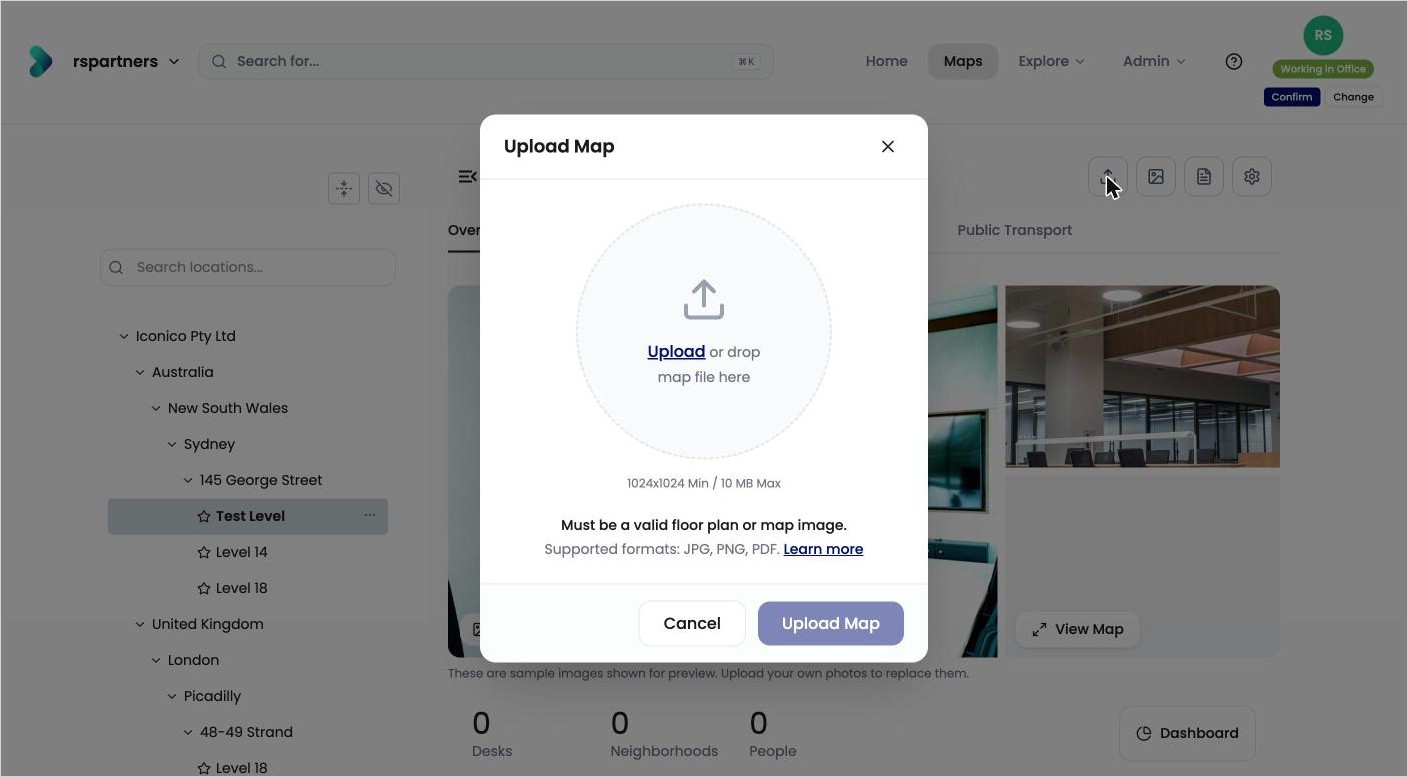
Upload your own floorplan for each level. -
Add your desks, rooms and pins. Switch to edit mode on each floorplan and drag them on. How do I add desks and pins to the map?
2. Add your people
-
Bring in your people. Choose one:
-
From Excel: fill in the Add/Update People template. How do I import people from Excel?
-
From Microsoft Entra: connect Microsoft 365 and sync. How do I sync people from Microsoft Entra (Azure AD)?
-
One at a time: How do I add or remove a person?
-
-
Remove the sample people. In Admin › Administration › People, click Bulk Edit, select the sample people, choose Delete People and click Apply. How do I add or remove a person?
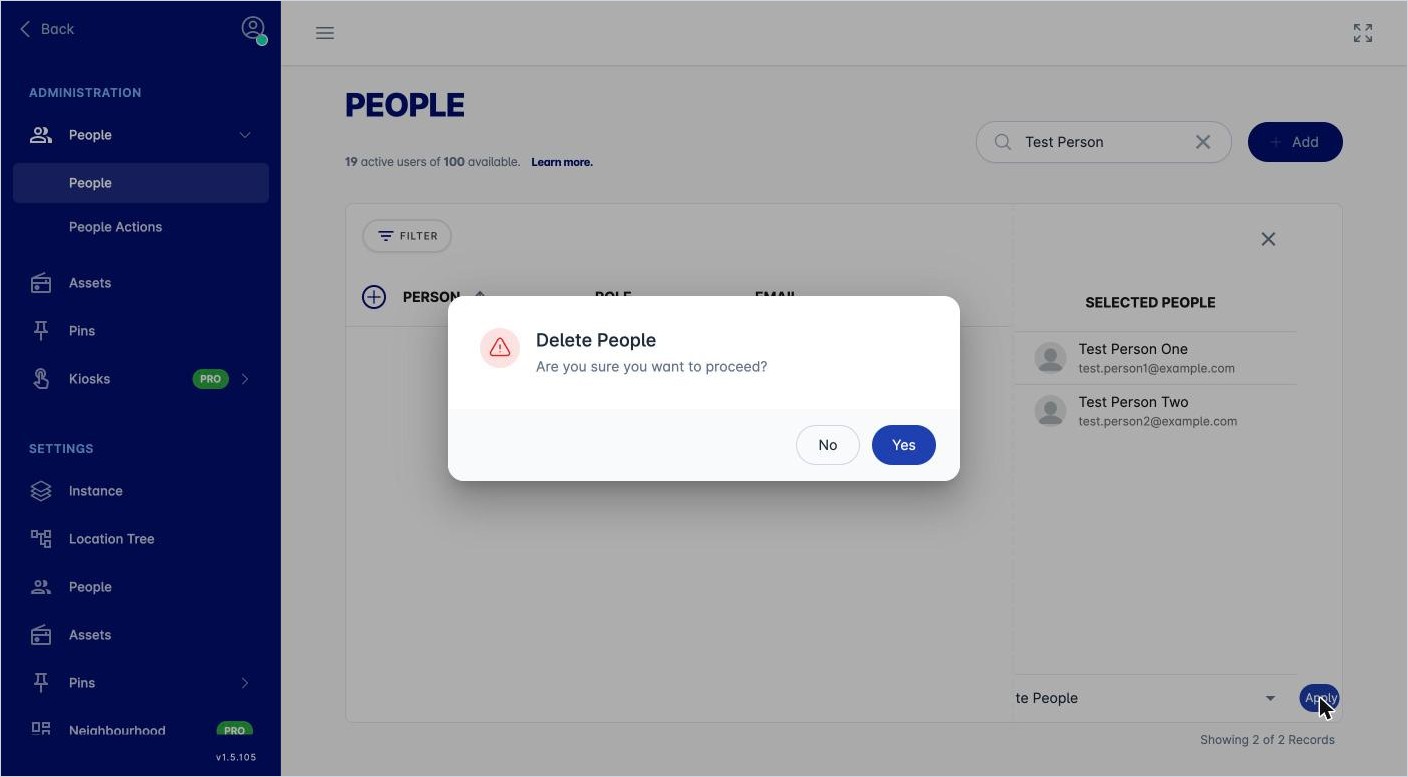
Confirm before the sample people are deleted. -
Set up your departments. Rename or delete the sample departments under Explore › Department, and add your own. How do I set up departments?
-
Seat people on desks. Drag them on in edit mode, or upload the Assign People to Assets template. How do I seat someone at a desk on the map?
3. Make it work your way
-
Company details. Upload your logo and set your default time zone. How do I change my company name, logo or time zone?
-
Logging in. Choose whether people log in with Microsoft, Google or a one-time password. How do I change how people log in?
-
Booking rules and statuses. How do I change the booking rules? · How do I add or change a status?
-
Level information. Replace the sample photos and building information on each level. How do I edit a level's information? · How do I add photos to a level?
-
Home Dashboard. Choose what everyone sees on Home. How do I change what everyone sees on Home?
4. Invite everyone
Share the Using OfficeMaps articles with your people, so they know how to search, book and set their status.
Tip: The full order, with every step, is in How do I set up OfficeMaps?